
Are you a company admin in PLAYipp and want to keep track of your licenses? Look no further!
Each screen requires a license to be used. You can either purchase licenses directly from us or through one of our resellers. You'll find the license page under Administration in the main menu.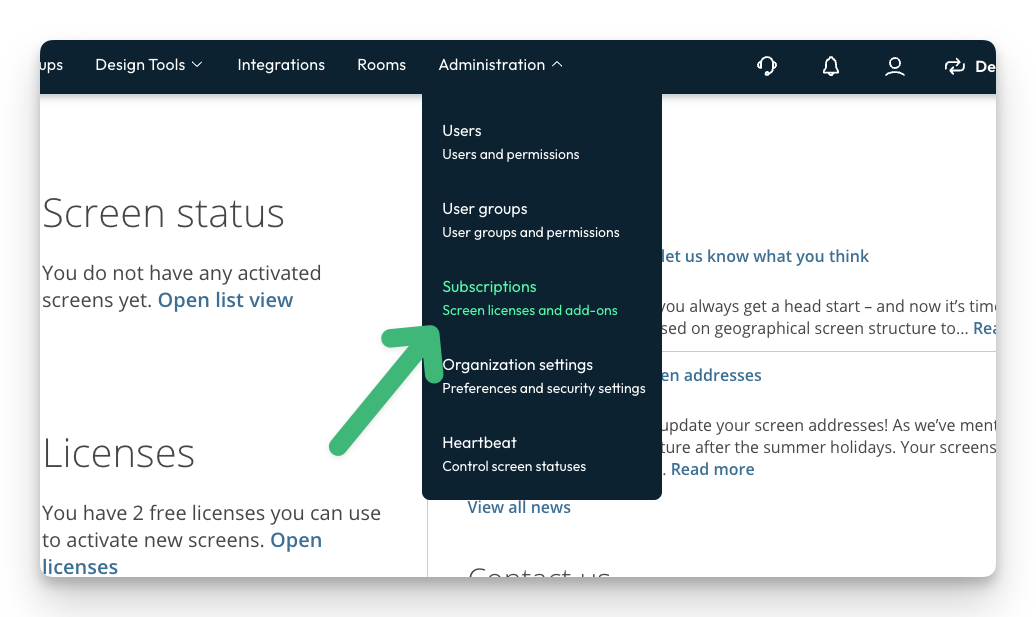
Table of Contents
License overview
The licenses are sorted by renewal date, so the licenses closest to renewal will appear at the top.

To renew your license, contact your reseller. At the top under "How to purchase," you'll find contact information for your reseller. If you purchased your license directly from us, you're welcome to reach out and we'll help you!
If the license was purchased with automatic renewal, the license will be renewed automatically unless it's canceled 3 months before the end of the period.
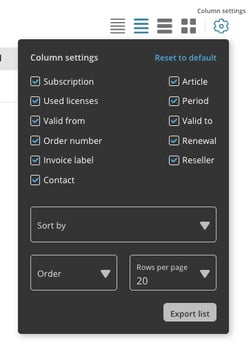
You can choose to remove certain columns if you wish. This is done via the gear icon on the right.
To get an overview of all licenses, you can click the statistics button at the top, where you'll see how many available and used licenses there are for Signage and Rooms respectively.
Export your license list
You can export your account's license list to different file formats for analysis, reporting, or archiving.
How to export a license list:
- Go to Administration > Licenses in the main menu
- Click on the gear icon in the top right
- Select Export list from the menu
- Choose your export settings in the dialog:
Export as
- CSV - Comma-separated values for spreadsheet programs
- HTML - Web page format
- JSON - Structured data format for technical use
- XLSX (Excel) - Microsoft Excel format
Columns
- Only visible columns - Exports only columns currently displayed in your list view
- All columns - Exports all available license information
Filter
- Use active filters - Exports only licenses matching your active filters
- Ignore filters - Exports all licenses regardless of active filters
- Click Copy to clipboard to paste the data directly, or Download file to save as a file
The exported list contains information about all licenses on your account, including license types, assignment status, and validity periods.