
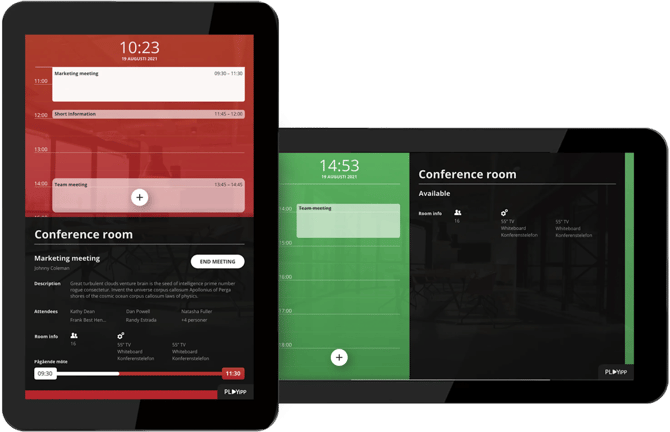
Overview
To start using PLAYipp Rooms, you need to:
-
Connect your calendar system
-
Assign rooms
-
Activate the screens
1. Connect Your Calendar
Meeting room screens show information from your organization’s calendar system.
Before continuing, you must connect one of the supported calendars:
During setup, PLAYipp will ask you to authorize access to your calendar so it can retrieve your meeting room resources.
Once connected, the available rooms will appear in the platform.
Check out our completed guide for more information.
2. Assign a Room to Each Screen
Note: The images in this guide show an older version of PLAYipp with the previous main menu. Read more about the new main menu in this article.
A PLAYipp Rooms license or subscription is required to proceed. The integration from step 1 has to be completed in order to access PLAYipp Rooms.
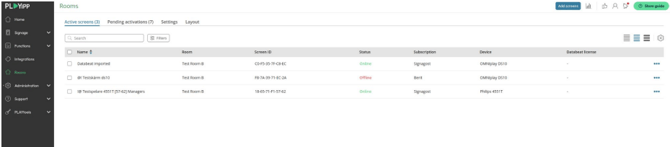
After connecting your calendar:
-
Go to Rooms → Screens
-
Select a screen from the list
-
Open Device Settings
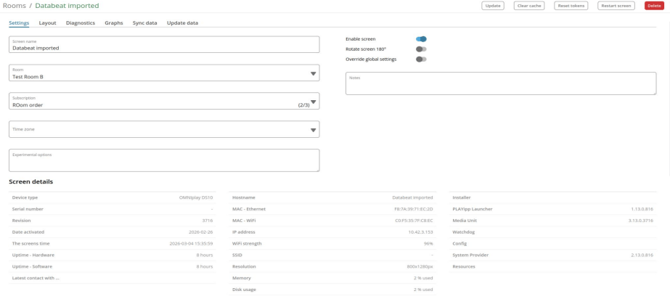
Then configure the screen:
-
Enter a screen name (optional)
-
Select the room the screen belongs to
-
Choose a Rooms subscription
-
Ensure Enable screen is turned on
-
Click Save
Repeat these steps for each meeting room screen.
3. Activate the Screen
DS10 devices will be automatically migrated from Databeat to PLAYipp, making the device ready to use with the PLAYipp app installed.
Philips devices does not support migration, and will therefore need to be factory reset and manually install PLAYipp. See installation guides here.
Follow this guide to activate your Rooms screen if it has been manually installed.