If you want only one or a few items to be displayed during a specific period instead of the already existing items in the playlist, you can use priorities and scheduling together. An example could be to show a lunch menu between 10-13 or information about whether there will be a fire drill on Friday.
Priority works by showing only the active items with the highest priority level. If the object is deleted or if the scheduling has ended, the priority level will drop to the next level with active objects.
You can also set a higher priority level for objects. This can be good if you always schedule items. If the scheduling extends to all standard objects, then you can have an object as a reserve (Fallback) which is displayed if nothing else is active.
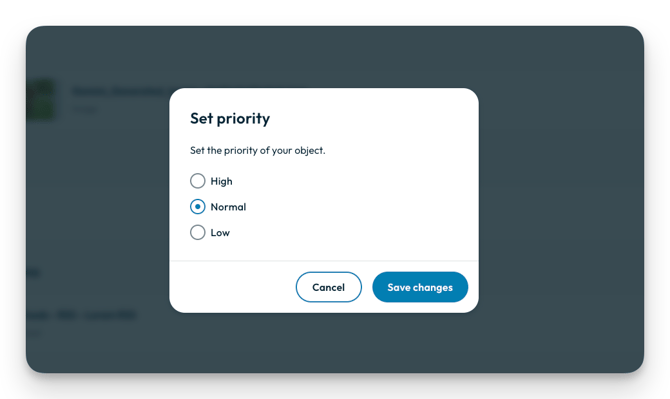
These three priority levels are available to choose from:
-
Normal: The default level that all new items receive.
-
High: A step higher than the normal level, if you set items as "high" then only those items will be displayed.
-
Low: One step lower than the standard level, displayed if no other item is active in the playlist.
To change the priority, follow these steps:
-
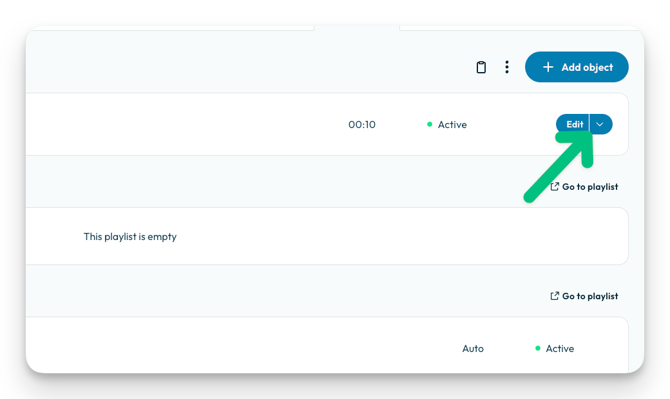
Click on the arrow button next to the edit button
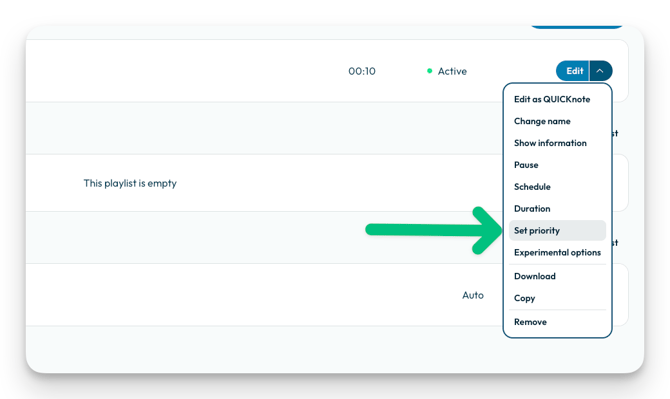
- Click Set priority
- Click the priority level you want to set on on your object.