
A screen layout consist of one or more areas. Every area has its own playlist and in these playlists the user can publish material that will be shown on the screen. There is a library with existing screen layouts to choose from or you can create your own screen layout. If you create your own screen layout you can choose the placement and size of the different areas.
Before you can use your screen layout on your screen you need to create a screen location and connect it to your screen layout. For more information about how you create a screen location and how to connect it to your screen layout go to the following article: Create a new screen in PLAYipp
Concepts
-
Area: Every area has its own playlist.
-
Layout: A layout consist of one or more areas.
-
Base content: Every screen layout can contain base content. By publishing base content, all screens using this screen layout no matter the screen location or screen group will show it. Base content can be used to publish backgrounds, logos and similar to build a good design for your screen.
Add a new screen layout
If you want to get started quick with a layout we recomend that you use a layout from a template that we have created. You can then upload your own logotype, choose typeface that you want to use.
-
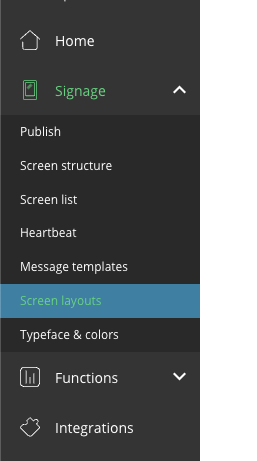
Click on Signage and choose Screen layouts
- Click Create new layout
-
Choose a layout or create a custom layout
You can now pick between our existing screen layouts or create an on your own custom layout
If you choose a custom layout you will choose the size and placement of the layouts.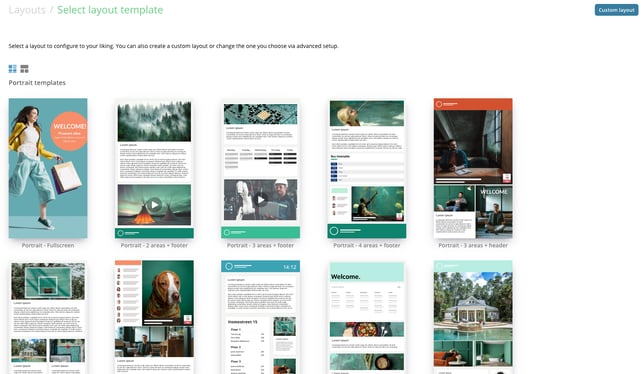
- Give your layout a name
Choose a name that is easy to recognize. For example Reception layout or Entre layout.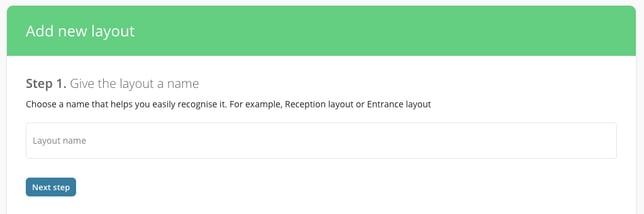
- Upload your logotope
Upload your companys logotype. The logotype should be in .PNG format and idaly have a transparent background. The logotype will update in the preview to the right.
- Select colors
Choose your company’s colors to make the layout feel more like yours. Write in the hex code or klick on the box square to the right to open a color picker.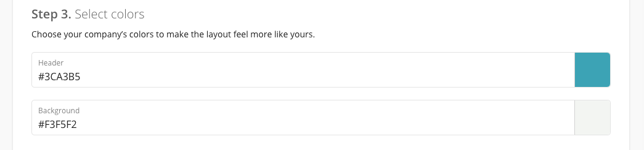
- Select fonts
Select a font that fits your needs.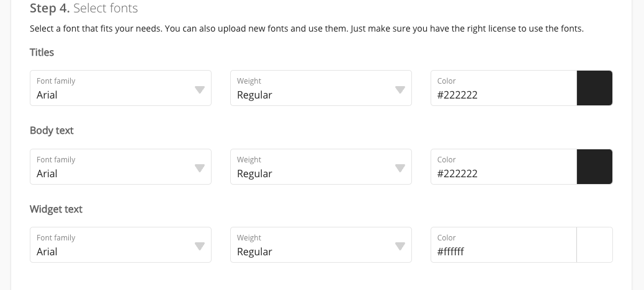
- Save and close
Click on save and close to save your new layout. The layout will no appear under Signage > Screen layouts