If you want to move an item from one playlist to another, there is a dedicated function for this. With this function, you can both copy and move content between the same area on different screens or to different areas on the same screen.
Tip: Copy multiple objects before switching playlist
You don't have to go back and forth between playlists for each individual object. Instead, copy several objects from the same playlist one by one (each one will be queued) and then navigate to the destination playlist and paste them all at once. This way you can move multiple objects in one go without switching back and forth.
Note: Widgets cannot be copied to other playlists
It is not possible to use the copy function for widgets. If you want to show the same widget on multiple screens, you can instead drag it from the media library into the playlist.
Here’s how to do it:
Note: The images in this guide show an older version of PLAYipp with the previous main menu. Read more about the new main menu in this article.
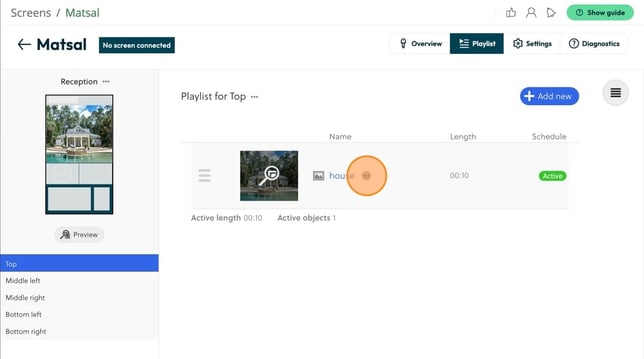
- Click on the ...-button next to the item you want to move
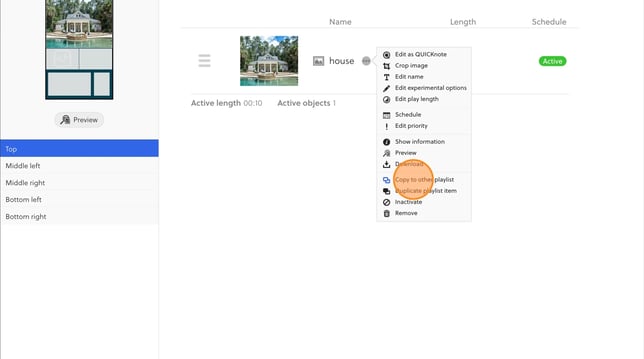
- Select Copy to another playlist
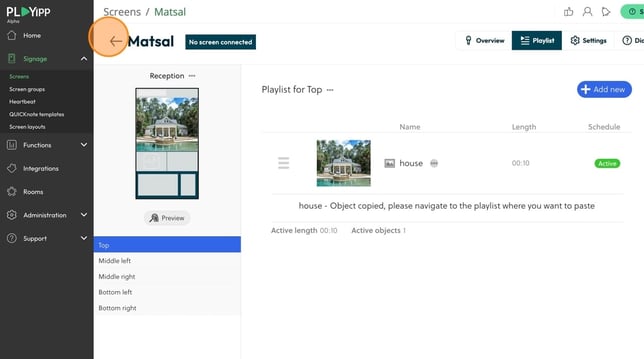
- Navigate to the screen/area where you want to paste the item (in this example, we are copying to the Entrance screen in Sandviken)
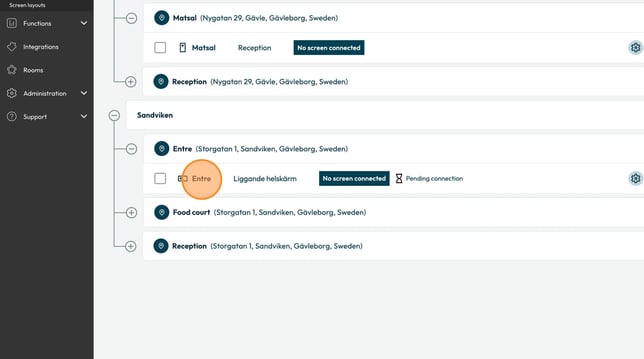
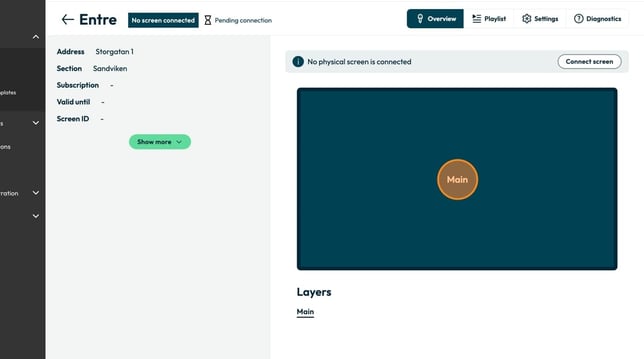
- Click on the area where you want to paste the item
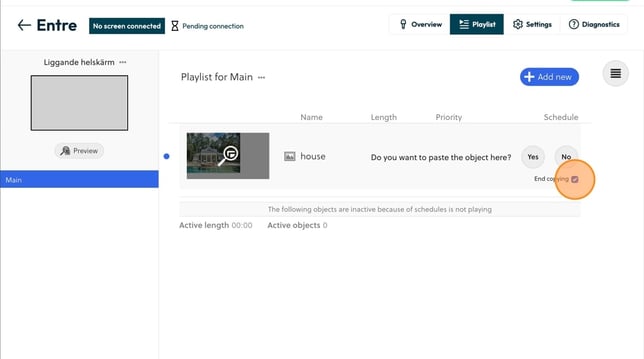
- If you want to paste the item on multiple screens/areas: uncheck Finish copying. This allows you to continue pasting in other locations
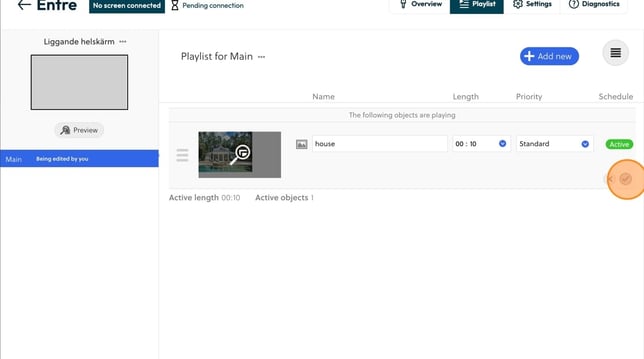
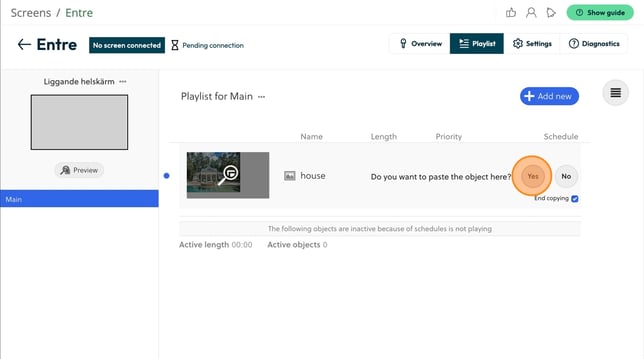
- Click Yes to paste the item
- Before you finish, you can change the length and priority of the item if needed. Then click Finish when you are satisfied