
This guide shows step by step how to install a Samsung SSSP11 screen.
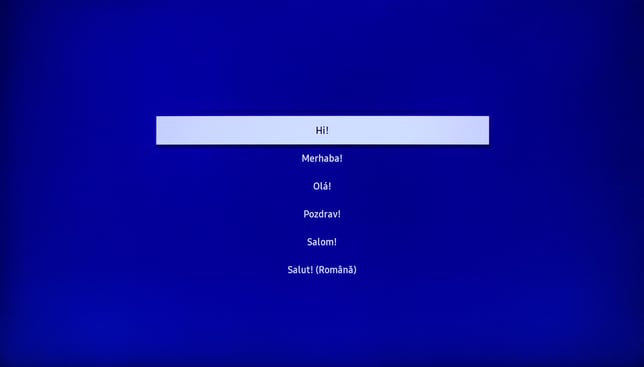
- Choose language
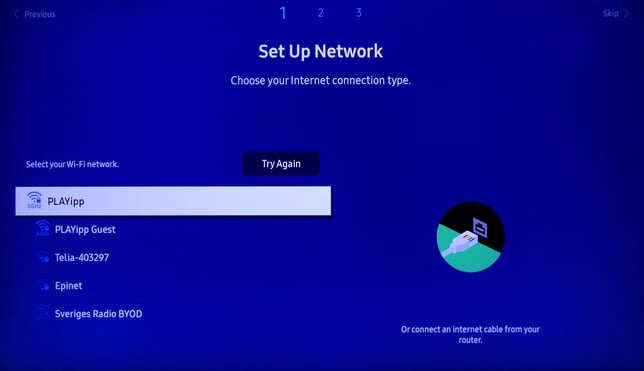
- Set up internet connection
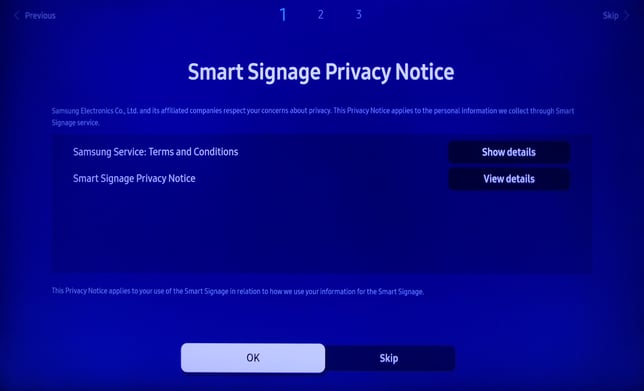
- Accept terms and conditions of the “Smart Signage Privacy Notice”
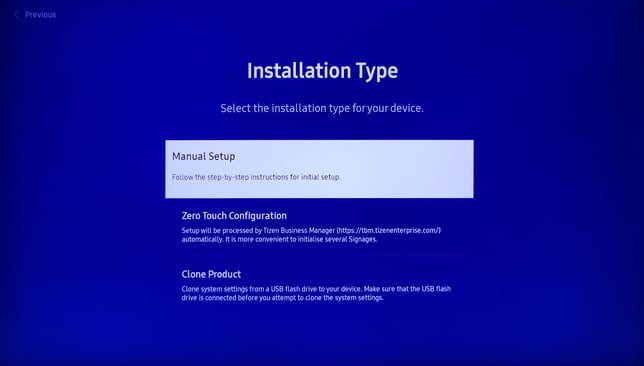
- Choose manual setup
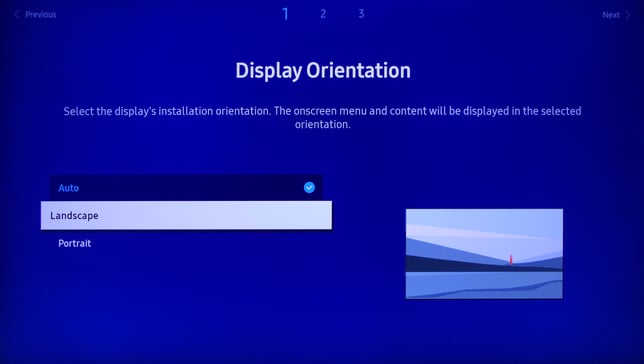
- Choose the orientation of your display (Important, cannot be changed by the app)
- Select custom app
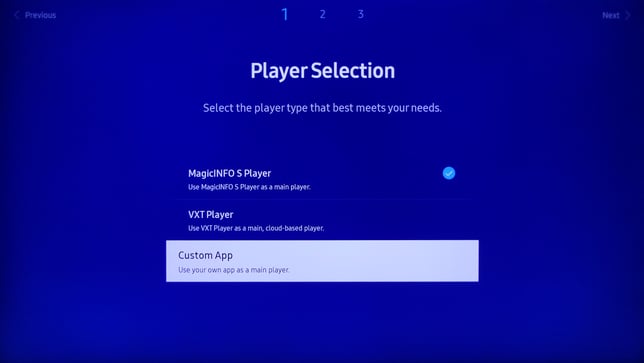
- Click right
- Enter "https://install.playipp.com"
NOTE: Only lowercase letters!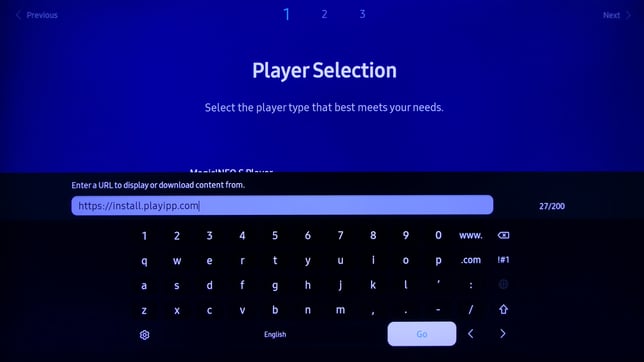
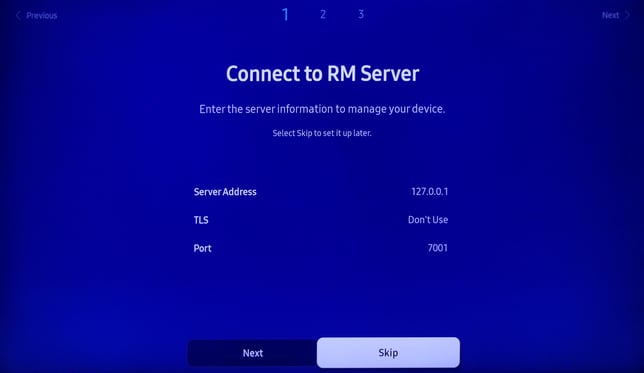
- Skip the RM server setup
- Set auto power setting to off.
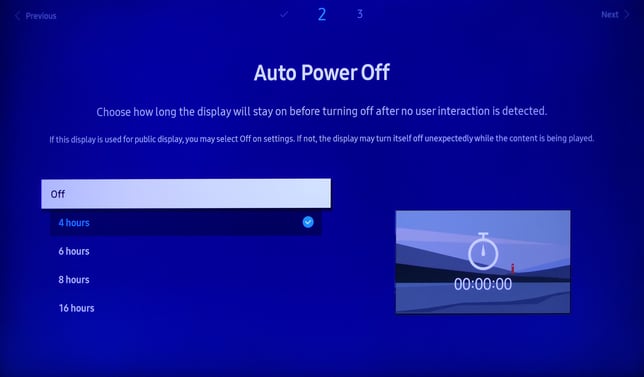
- Set current time and date
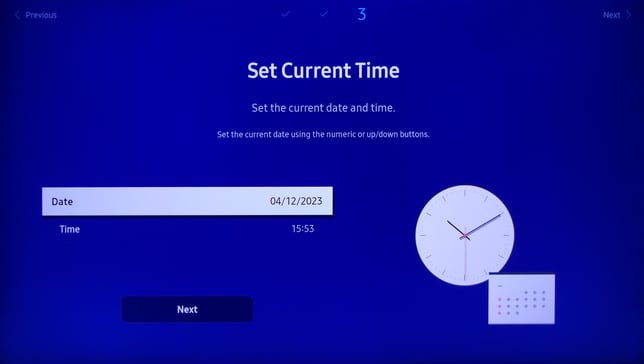
- Set a pin or skip
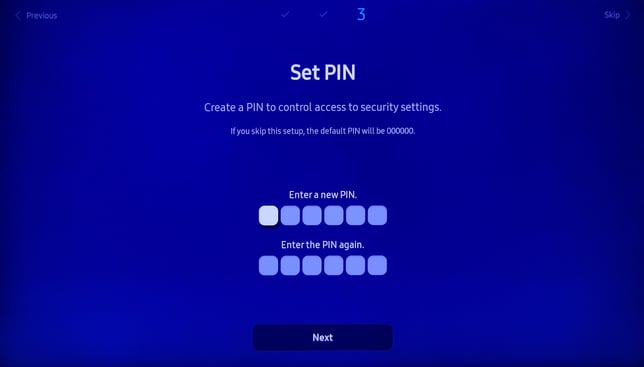
- Click home on the remote and start Custom app
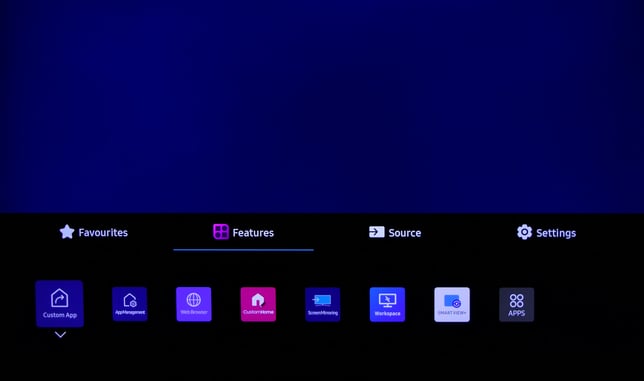
- PLAYipp app will now install and start automatically
When the software has started the activation code will be displayed on the screen.
We recommend that you configure your screen to automatic time and date, read the article here:Automatic update of time and date
Read the article about Activate Signage screen* for instructions on how to activate the media player.