With this smart integration, you can easily display a menu from Matilda FoodTech on your digital information screen from PLAYipp.
To add the integration, follow these steps:
Note: The images in this guide show an older version of PLAYipp with the previous main menu. Read more about the new main menu in this article.
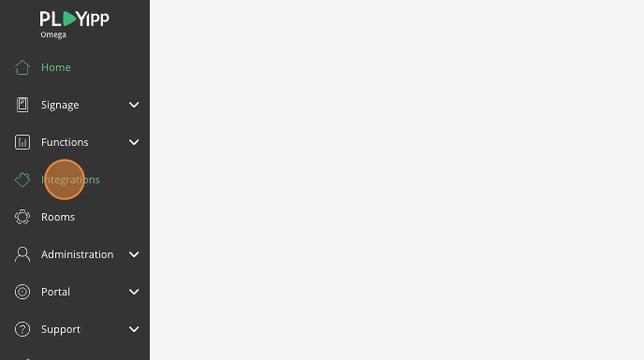
- Click "Integrations"
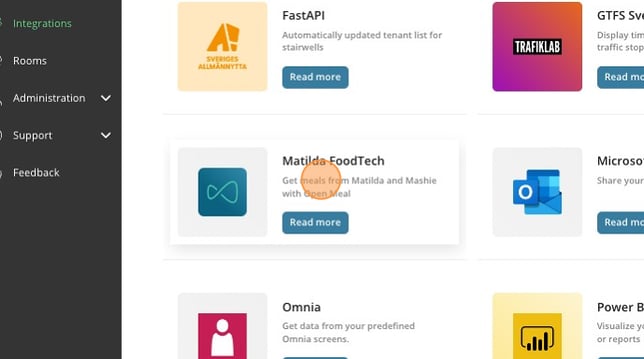
- Click Matilda FoodTech
- Click "Add to PLAYipp"

- Choose between Mashie and Matilda FoodTech here
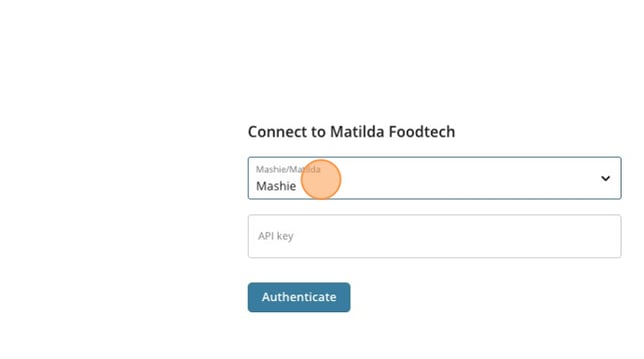
- Enter your API key here. If you do not have an API key, you must contact Matilda FoodTech to obtain one.
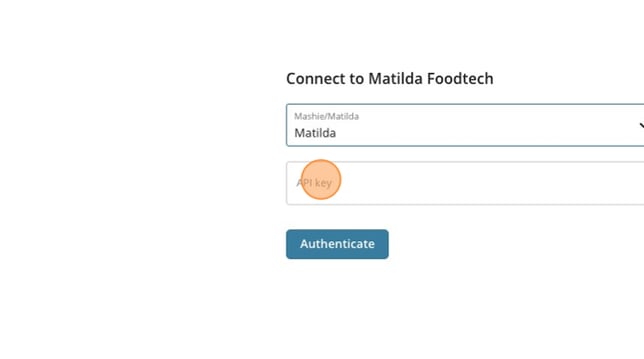
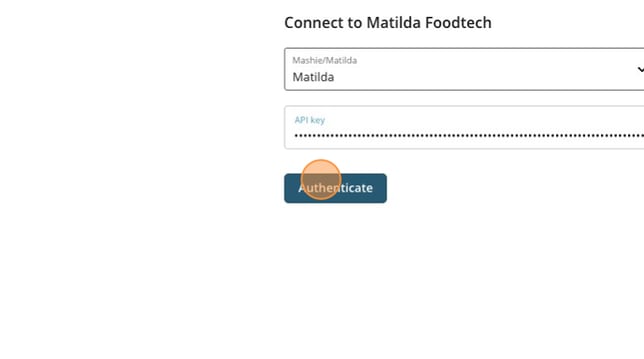
- Click "Authenticate"
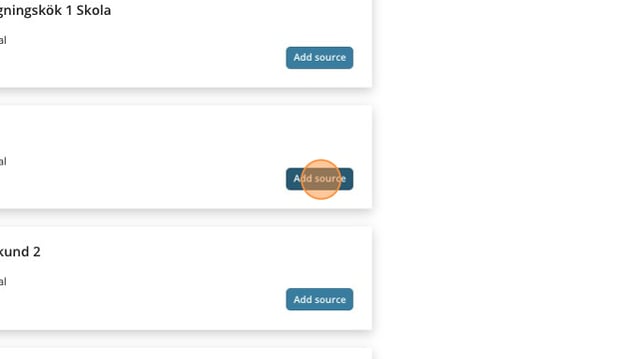
- All distributors will appear as sources. Add the source you want to display on the screen.
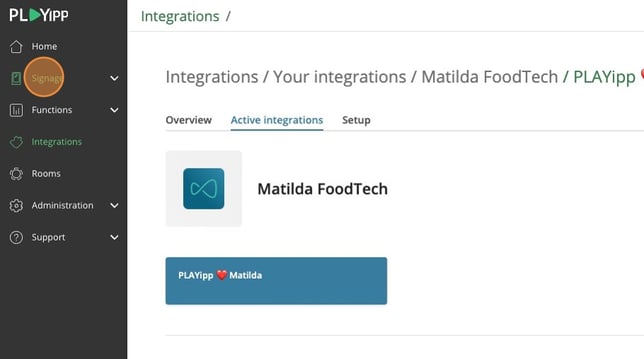
- Click Signage
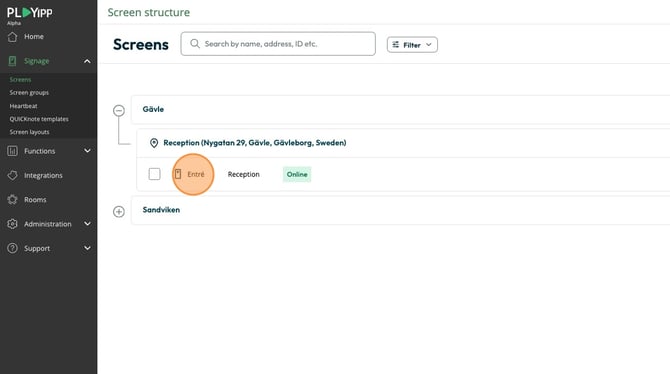
- Click on the group or screen you want to display the menu on
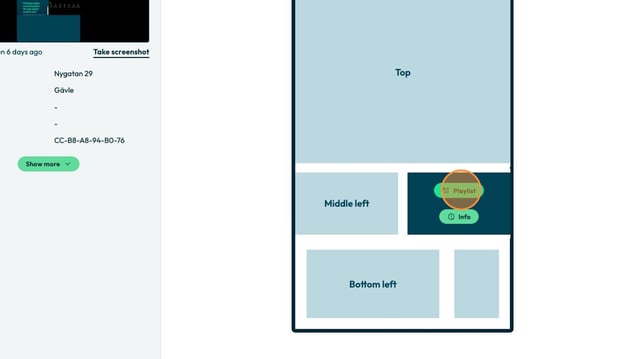
- Click the playlist button in the area you want to publish to
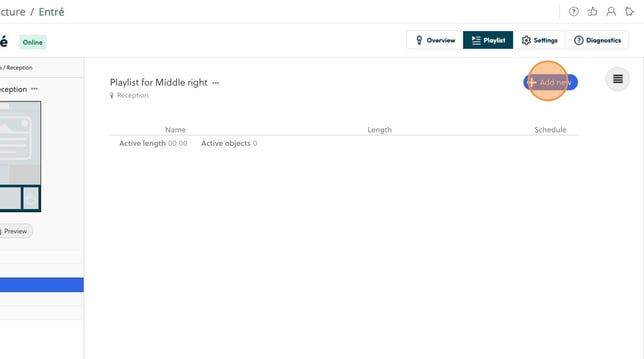
- Click add new
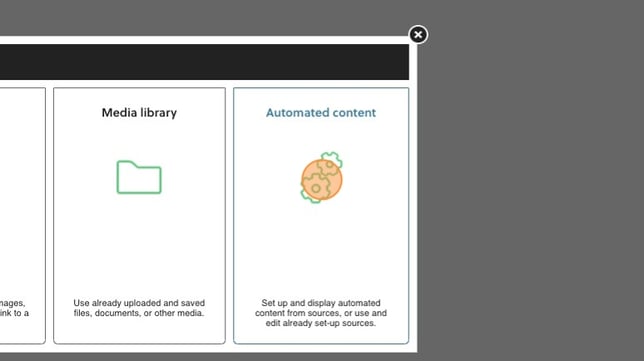
- Click "Automated content"
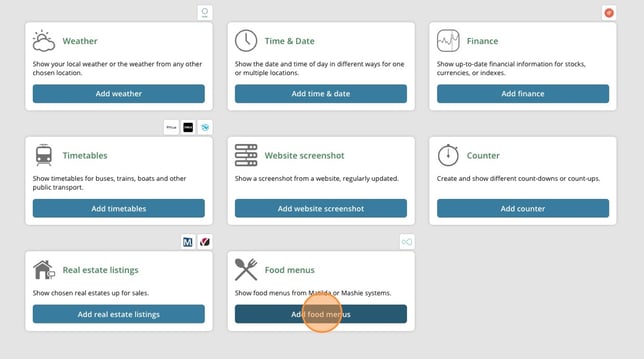
- Click on Add food menus
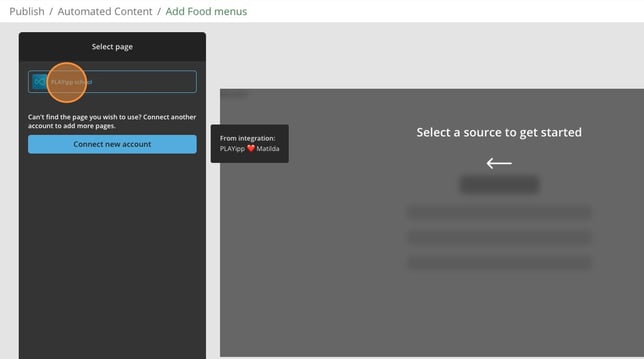
- Click on the source you want to show
- Under display type you can change how the menu shall look like. (This was earlier called templates)
You can customize how the feed shall look like in the next steps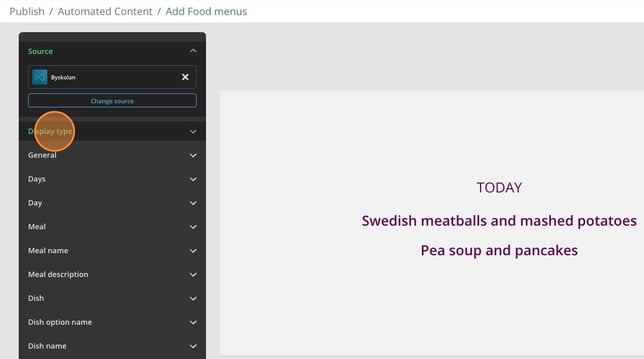
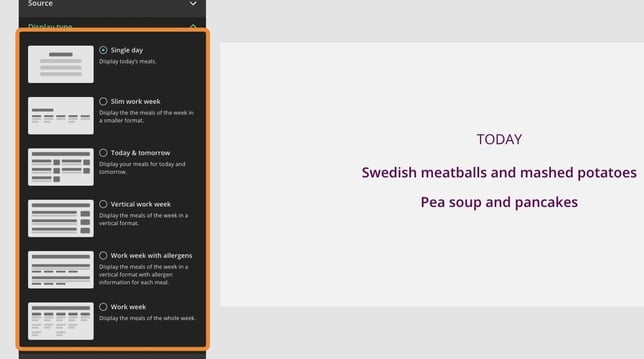
- Here you have all the options to customize your menu widget
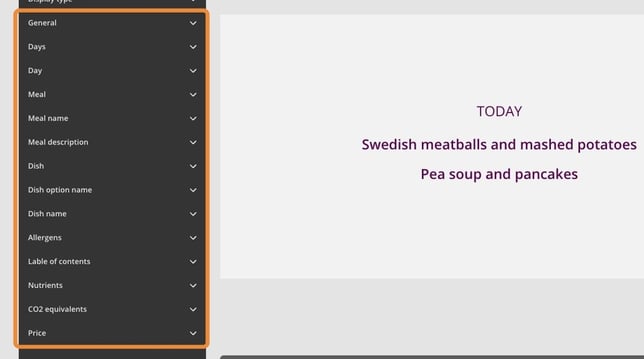
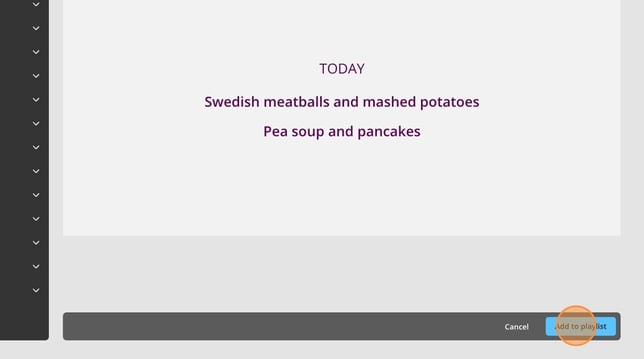
- When you are happy with your widget click on Add to playlist
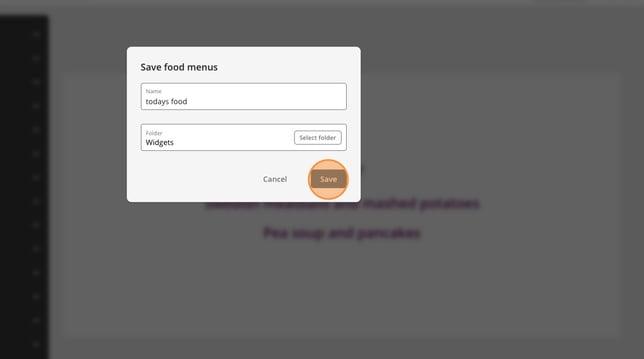
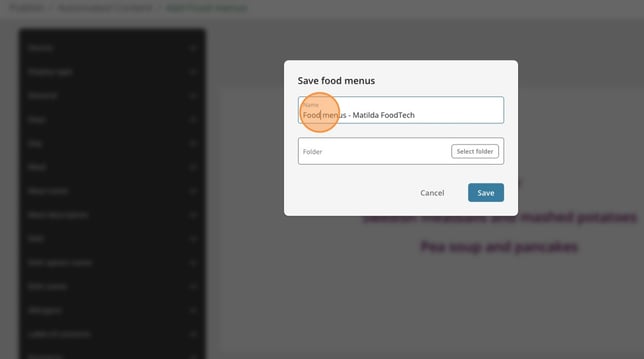
- Click here and give your menu a name
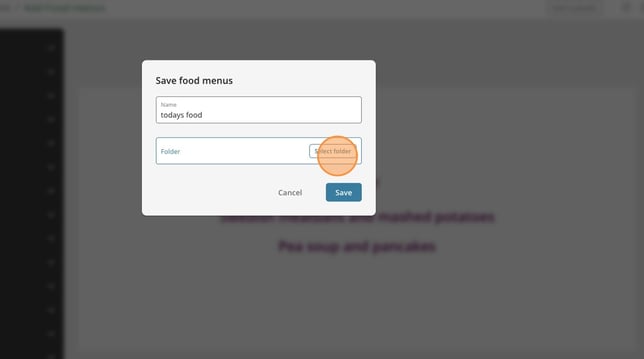
- Click on Select folder
- Click on the folder you want to save the menu to.

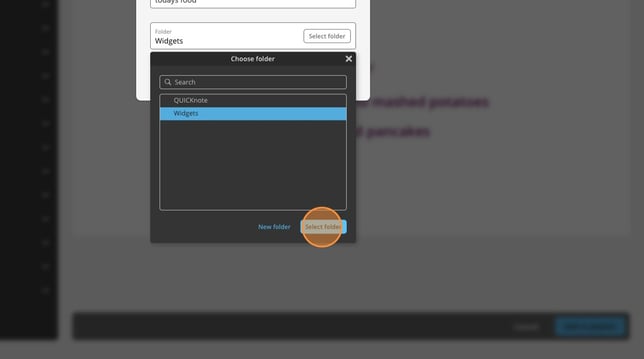
- Click on select folder
- Click on save