Skip to content
English
  • There are no suggestions because the search field is empty.

Publish HTML-files

This article show you how to publish HTML files in PLAYipp.

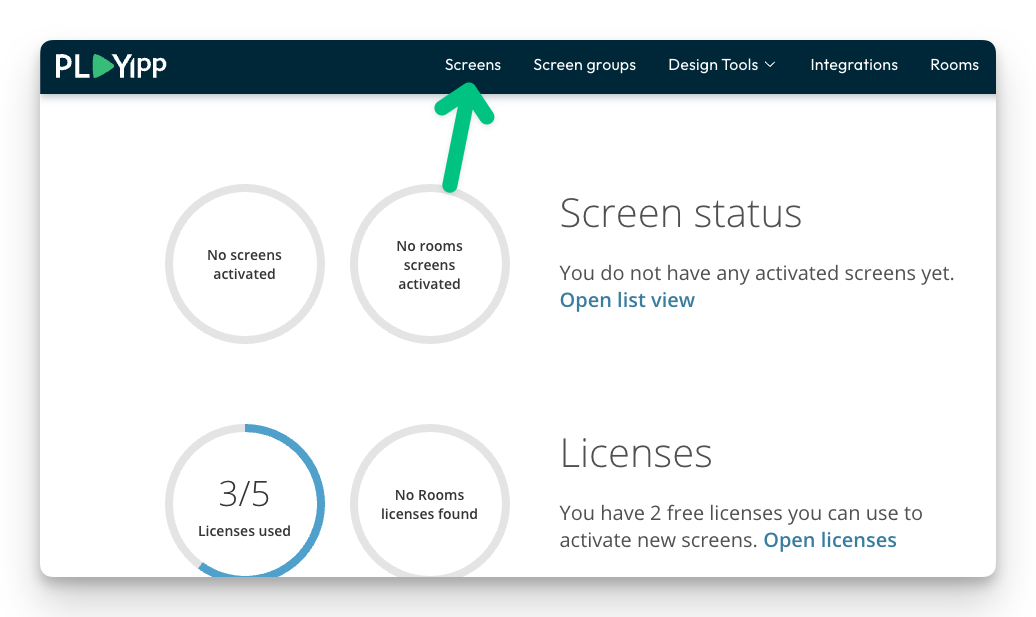
  1. Click Signage In the main menu
    6ILiBuDcXg53Hylij4hzWohLP7WtJqPMhowtoaddanewplaylisttoentresignage-step1

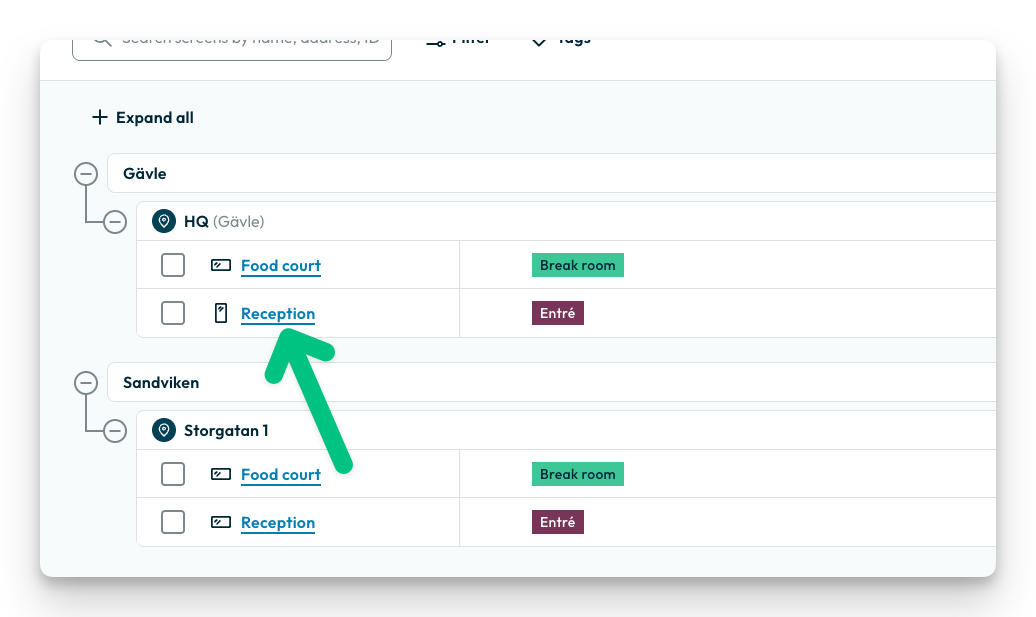
  2. Click on the screen or group where you want to publish to.
    In this example, we select the screen called Entré. If you want to publish to a group, you instead select Screen groups in the main menu.
    ajdZ9rbIxEqyHBXkXUDGo9swaNKHhXzyhowtoaddanewplaylisttoentresignage-step2

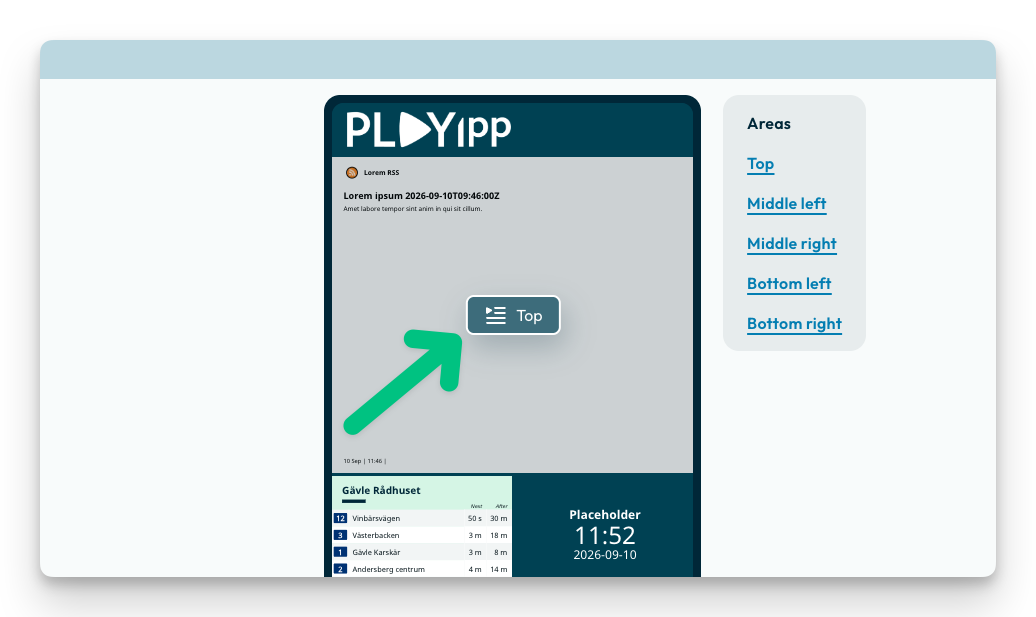
  3. Click the playlist button in the area you want to publish to
    HOovkUxzwUTnfWzEiB4nT69DTx6uR6t1howtoaddanewplaylisttoentresignage-step3

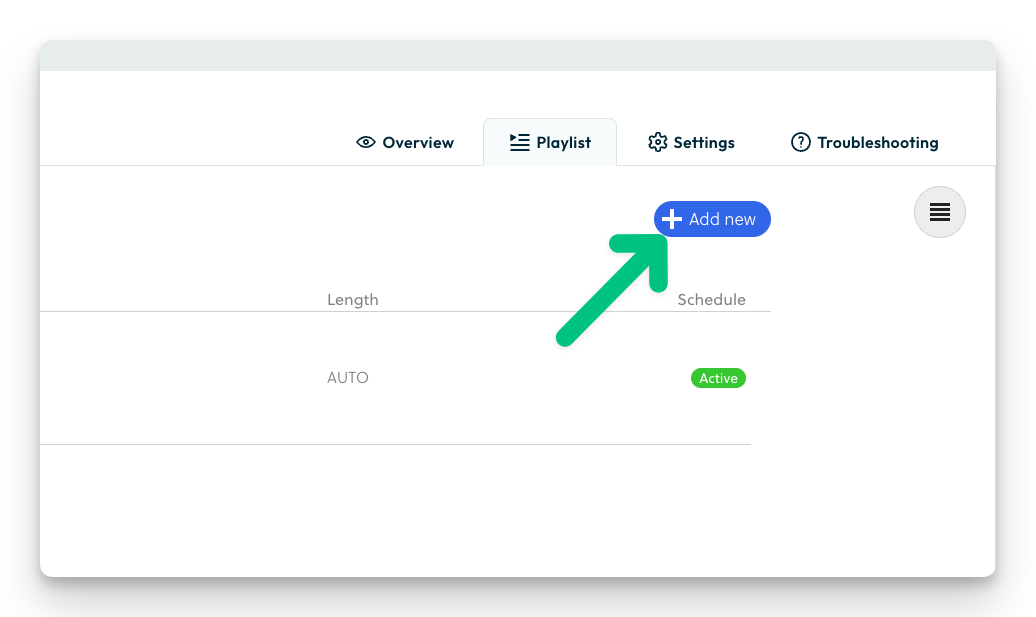
  4. Click "Add new"
    3lgDO7mDparq2L2dqbGhfey26CA7awMYhowtoaddanewplaylisttoentresignage-step4
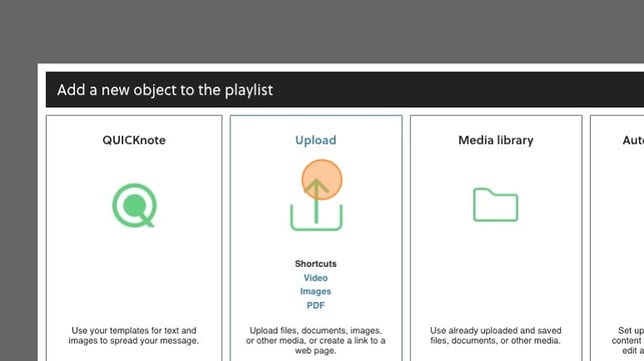
  5. Click Upload
    7bM7imq4SDfeMYajS1gkLtmNmHfQIH2gowToPublishContentonPlayippSignage-upload

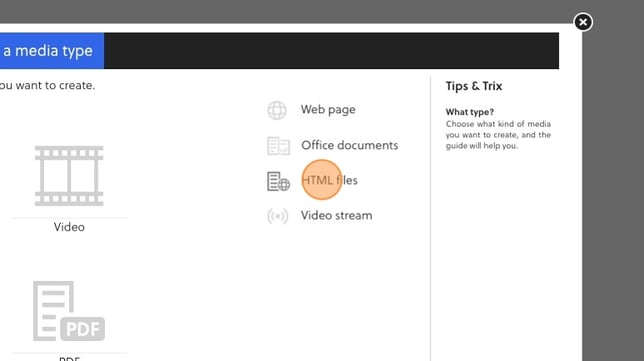
  6. Click "HTML files"
    k7bd8N9gNtHa4nnLZyYrrkc5Q5K82tilowToPublishContentonPlayippSignage-HTML

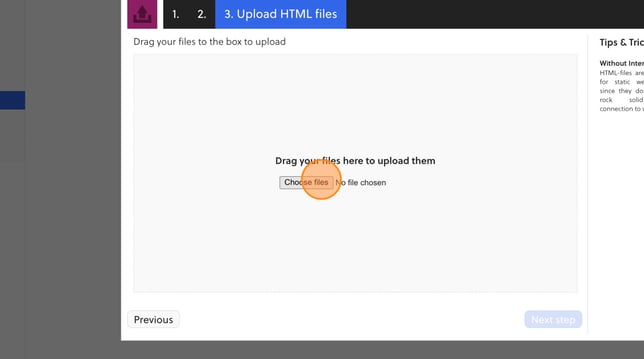
  7. Click "Choose files"
    60K8GvWWATriCjwGgo7A5F7nR1qu6T2Dcreenshot7

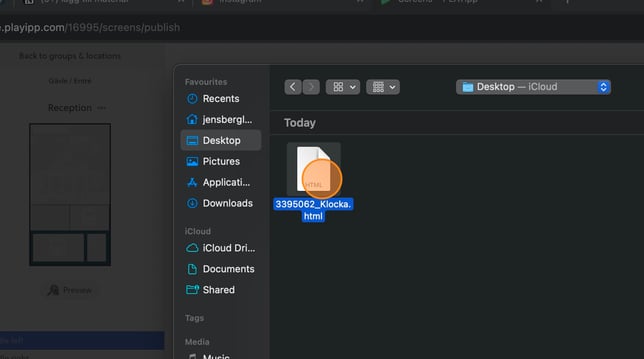
  8. Choose you file you want to upload
    zgrri4wCFP8l9SvcLbIcdpknDq0aL1K3creenshot8

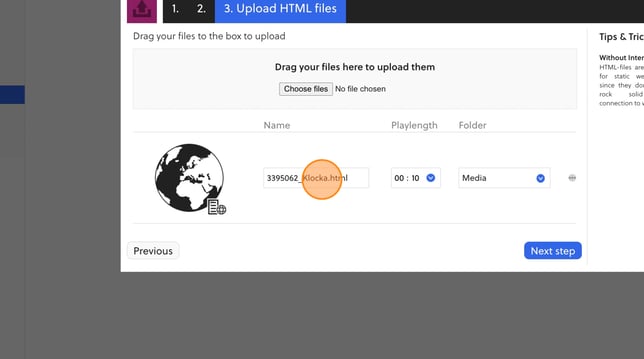
  9. Here you can change name on your file
    FOxl3OQsovijAUSMwFchNMXFS8afFDSlcreenshot9

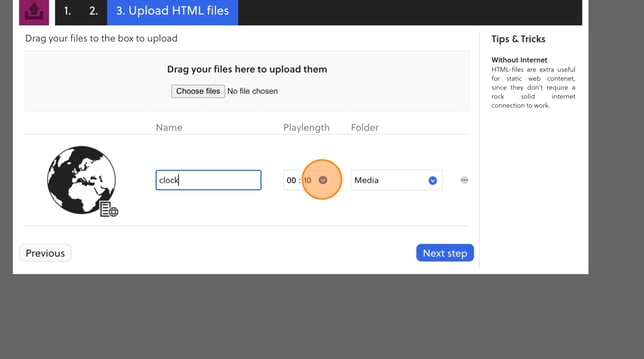
  10. Click here to change the playing length of the image. Play length is how long the image will appear in the playlist before the next item appears.
    ODFNgNbFLUgEABuhFaAJp8fLgE4lAgRXcreenshot10

  11. Here you can change the folder to save the file to.
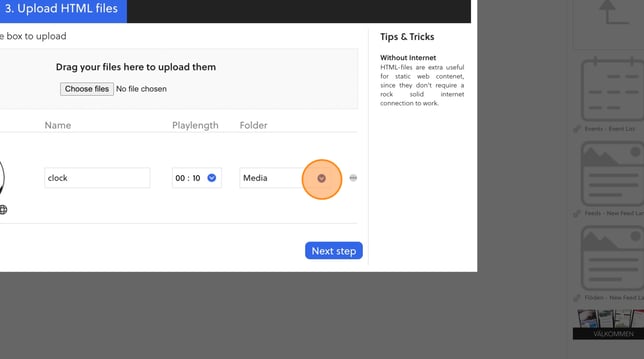
    oEMfRchw0vjmIAmnyOJuq2DhhNTTbU3xcreenshot11

  12. Click "Next step"
    SDAYManWKxROYFjlp1ohriDVdUD0m5Sfcreenshot14

  13. Choose if you want to schedule your widget or if you want it to always show. You can read more how you schedule content here: Scheduling 
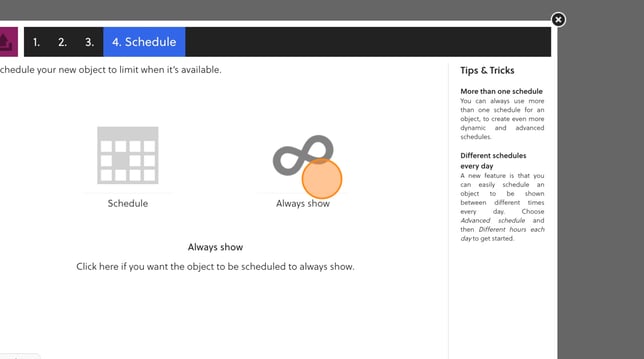
    L3mhe62rZxsxR29kpbrzJ1fv5nbEupIscreenshot13

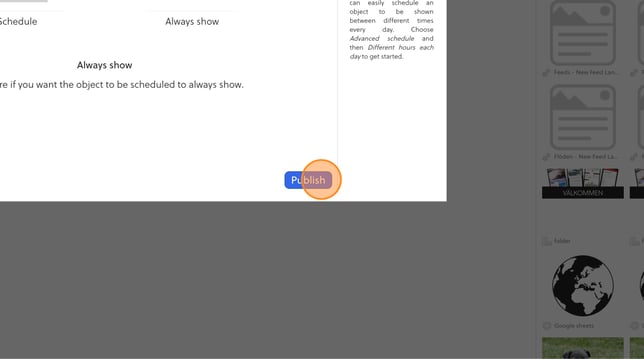
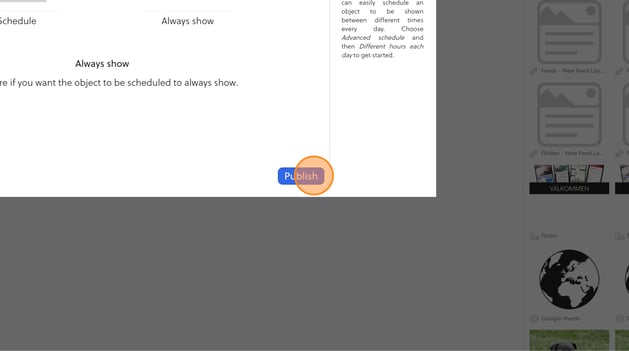
  14. Click "Publish"
    SDAYManWKxROYFjlp1ohriDVdUD0m5Sfcreenshot14