Tip! For best results; use videos that have the same, or higher resolution than what it will be published on. Recommended file format is .MP4
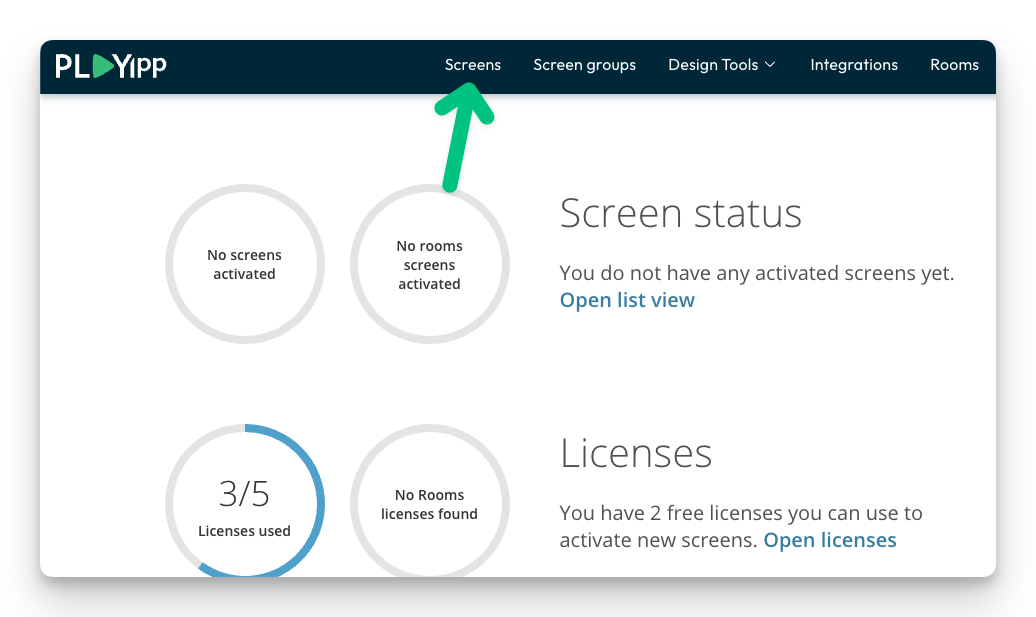
- Click Screens In the main menu
- Click on the screen or group where you want to publish to.
In this example, we select the screen called Reception. If you want to publish to a group, you instead select Screen groups in the main menu.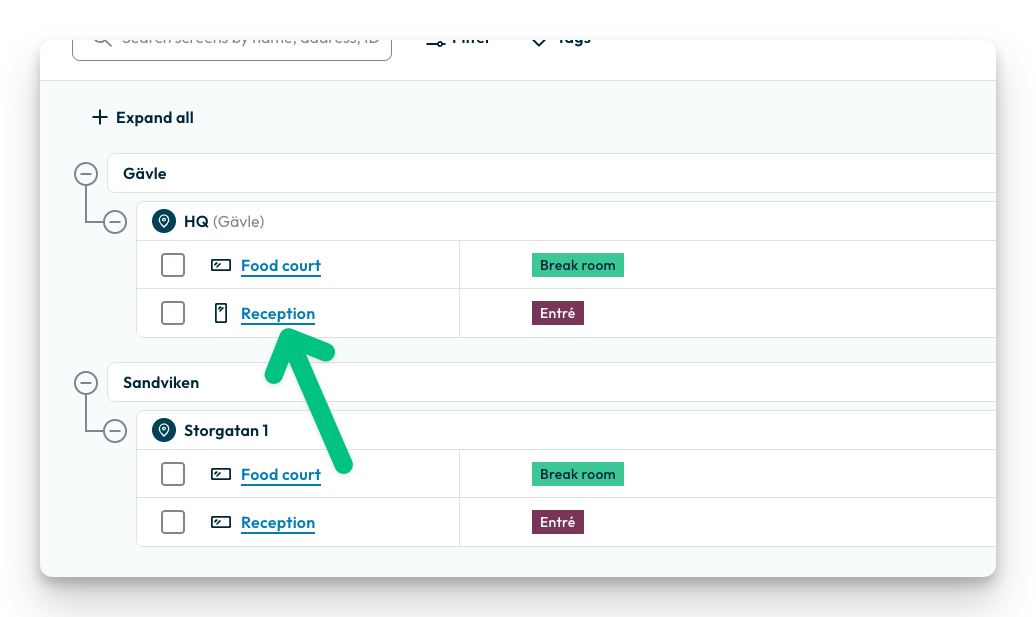
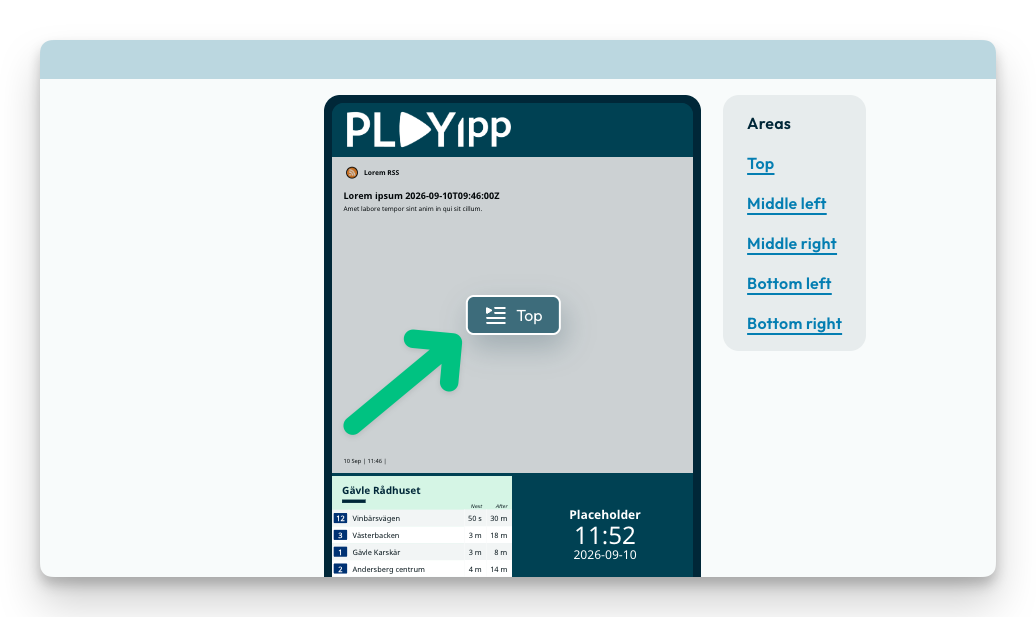
- Click the playlist button in the area you want to publish to
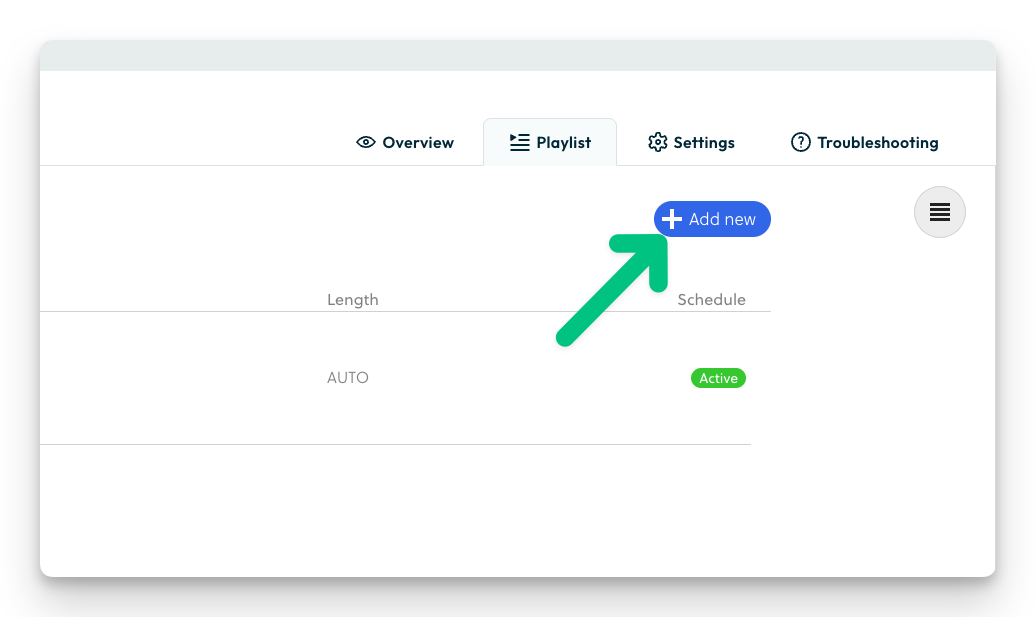
- Click "Add new"
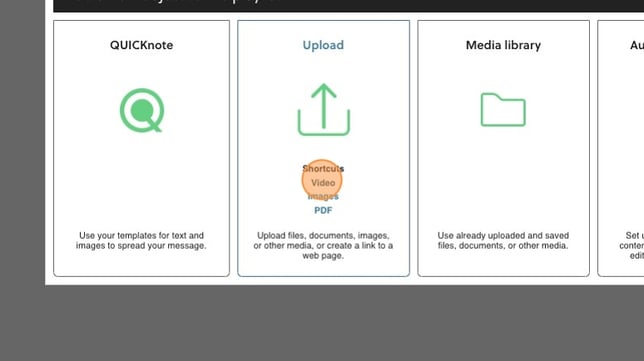
- Click "Video"
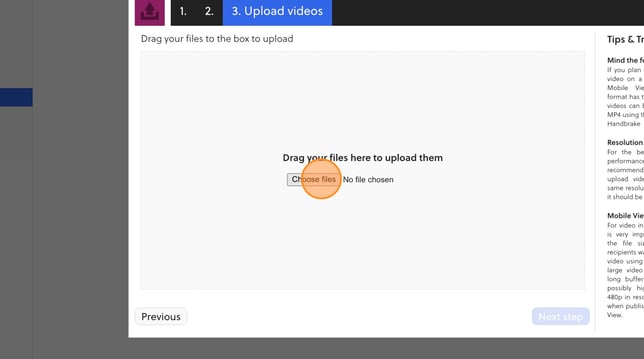
- Click "Choose files"
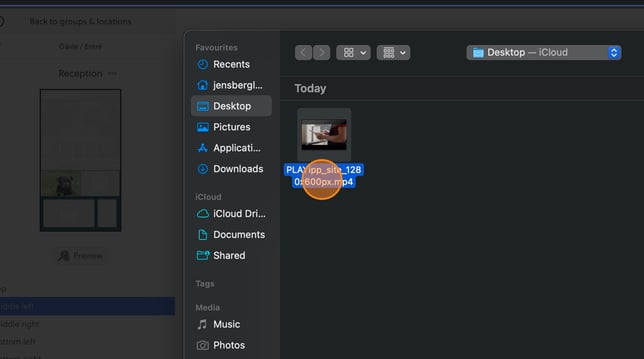
- Choose the video you want to upload
- Here you can change name of the video
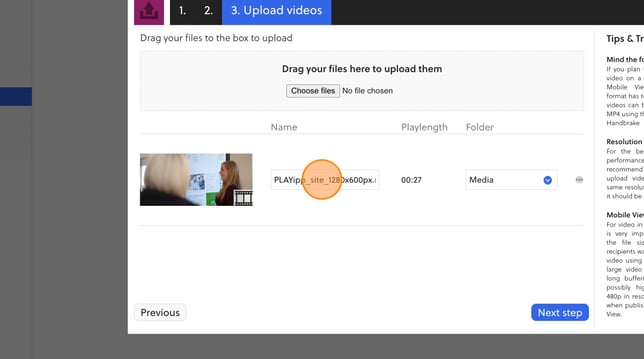
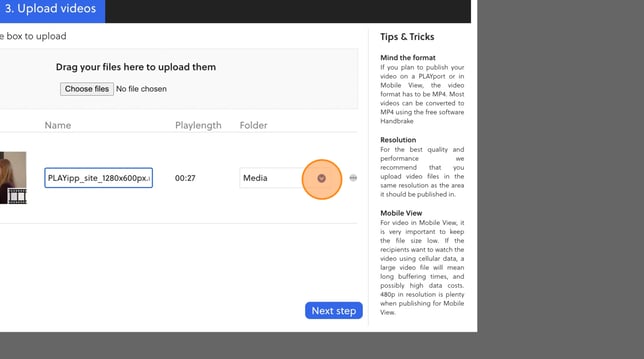
- Here you can choose what folder the video is saved to
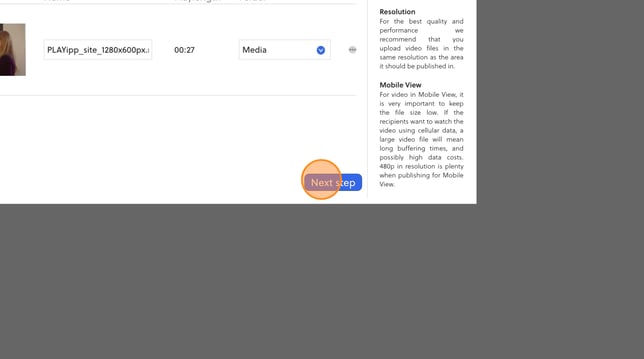
- Click "Next step"
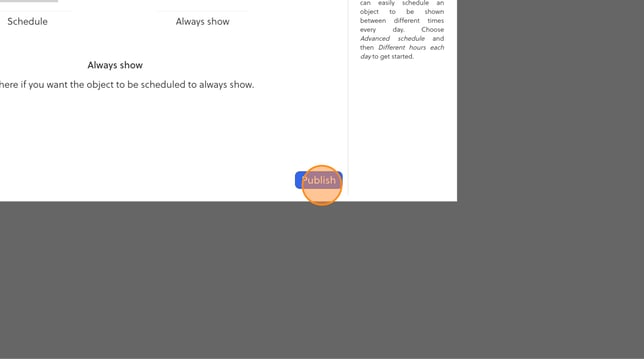
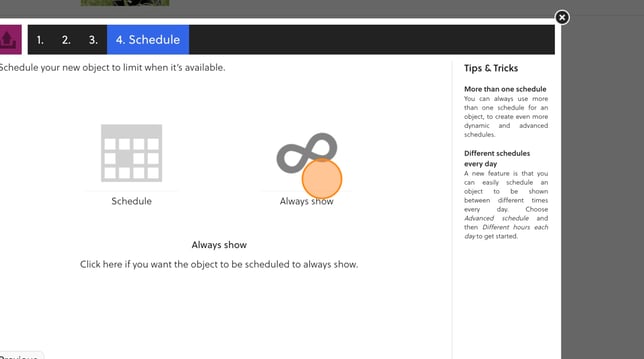
- Choose if you want to schedule your video or if you want it to always show. You can read more how you schedule content here: Scheduling
- Click "Publish"