Enhance your digital signage by integrating real-time public transport departure information. Whether it's for employees, customers, or visitors, displaying the next departures helps everyone stay on schedule and improves the overall experience in your space.

We offer several flexible options for displaying stops and departure times, allowing you to choose the integration that best suits your needs. There are three integration types available, each tailored to different data sources and transit providers.
For locations in Sweden, you can choose between GTFS and Västtrafik
For Norway, we support Entur, which aggregates public transport data from across the country.
Click here for Entur: Timetables (Entur)
Whether you're displaying a single nearby stop or a broader overview of routes, our solution makes public transport updates visible, reliable, and easy to follow on your digital screens.
Follow the Steps Below to Get Started:
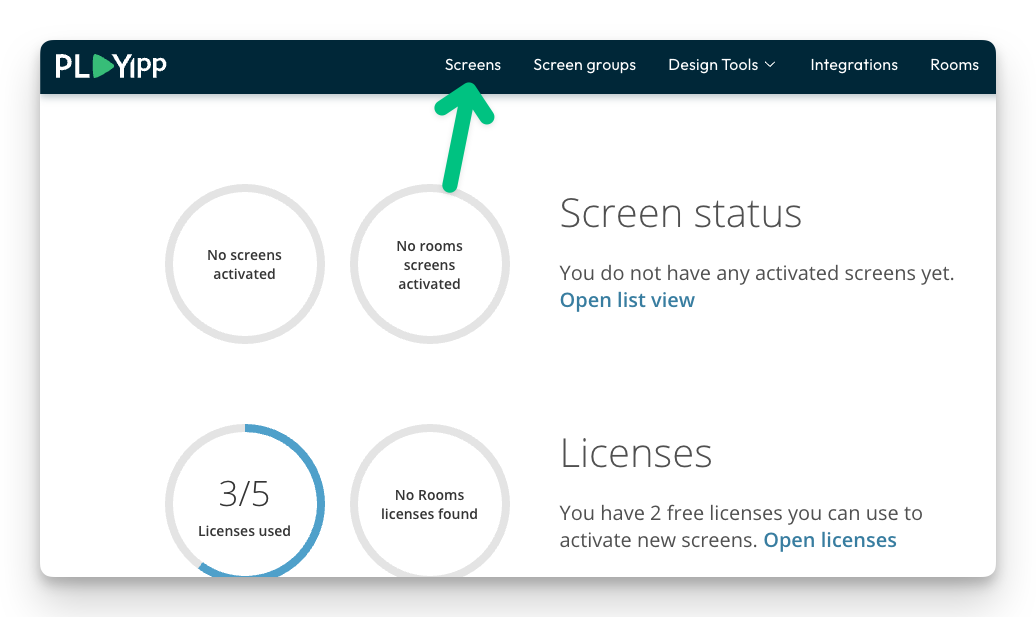
- Click Screens
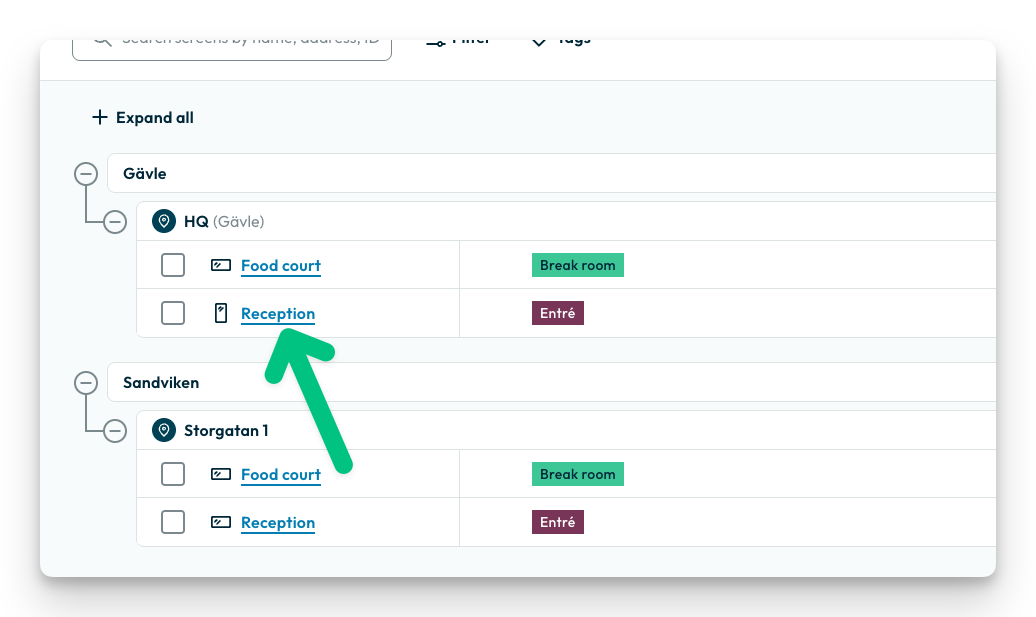
- Click on the screen or group you want to publish the widget to.
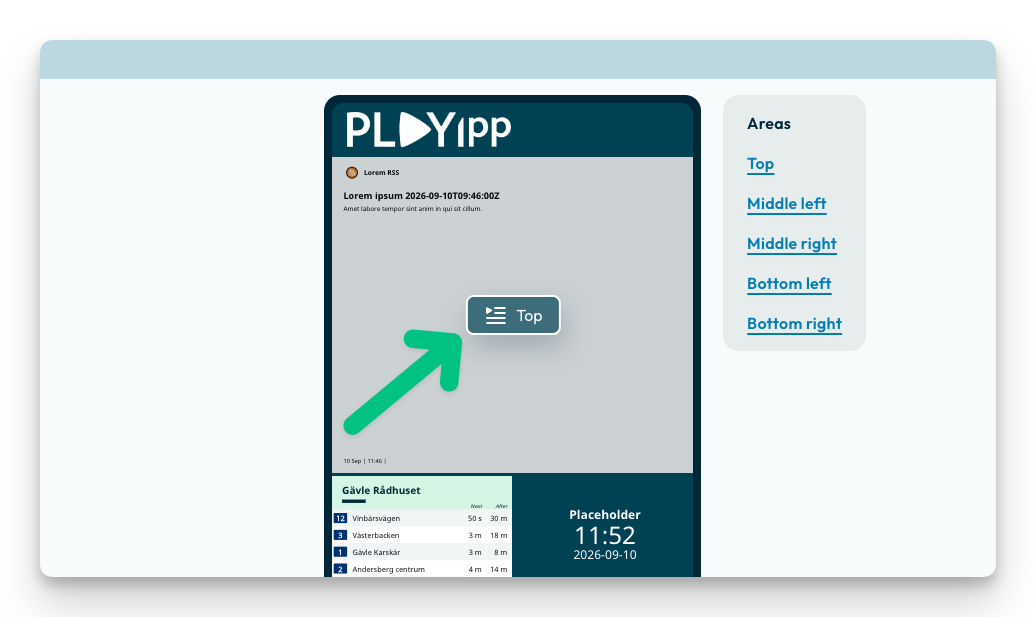
- Click on the playlist button on the area you want to publish to
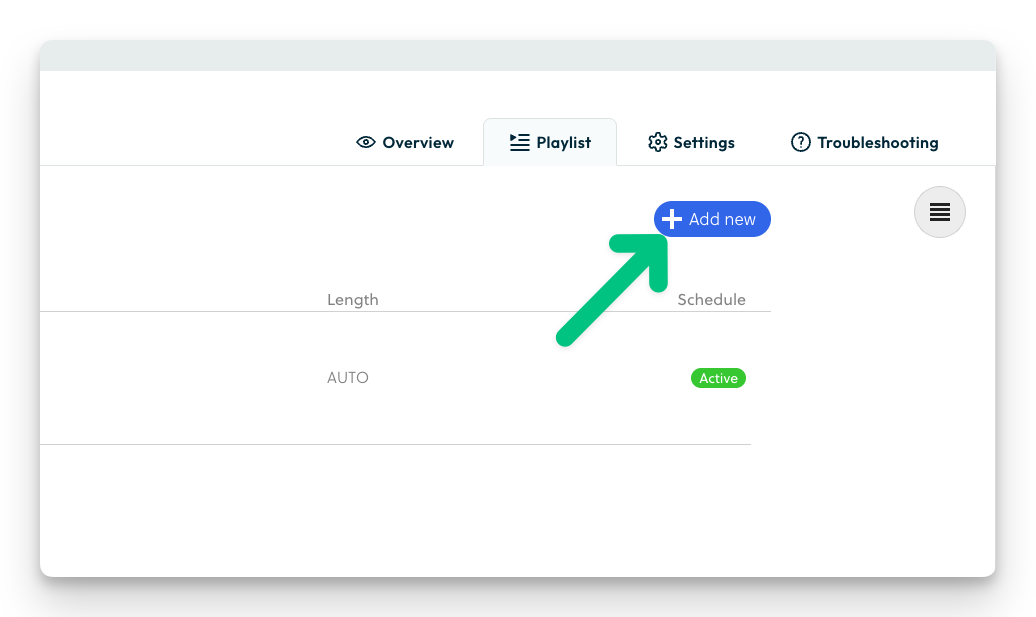
- Click "Add new"
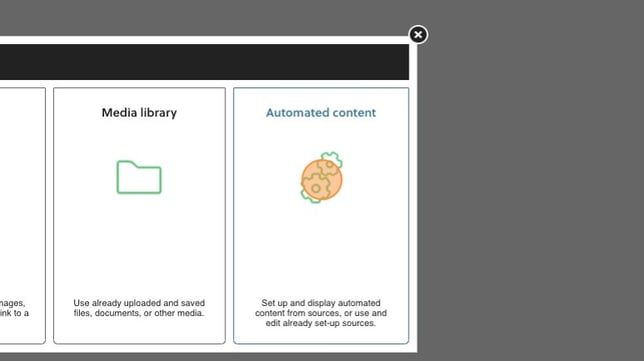
- Click “Automated content”
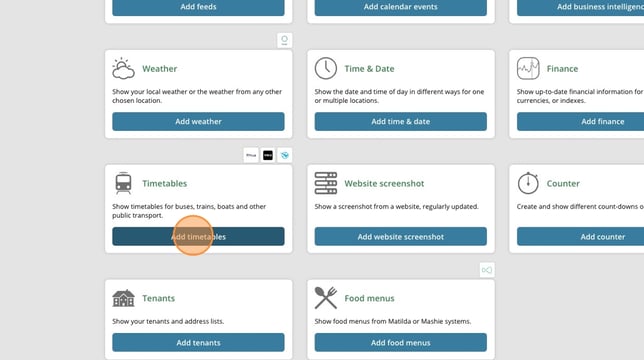
- Click Add Timetables
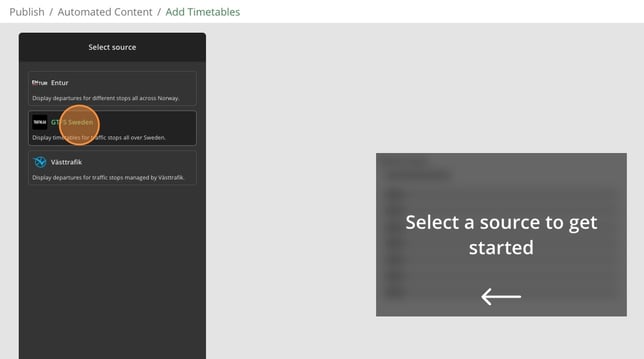
- Choose between GTFS and Västtrafik to show stops in Sweden and Entur to show stops and departures in Norway
- If you have a stop added it will appear here, If you want to continue with that stop you can go to step 13.
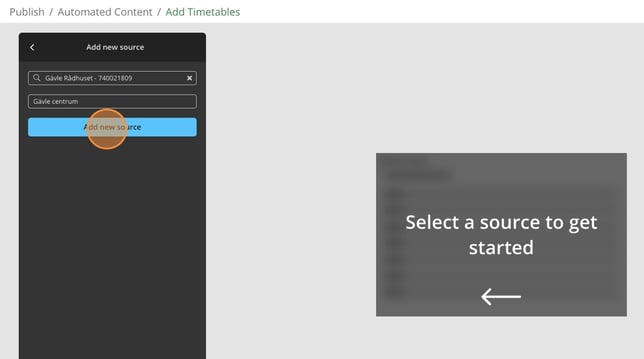
To add a new stop click Add new source.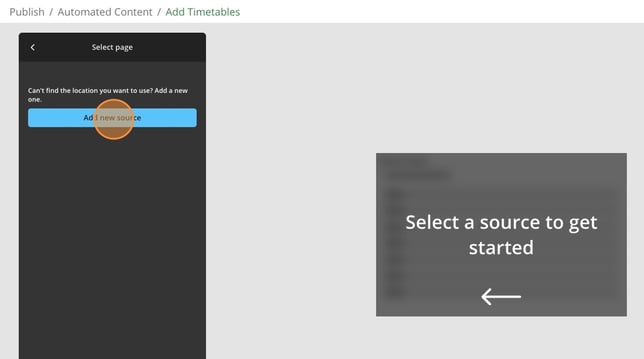
- Search for a stop here
NOTE: For stops in Norway you can use https://stoppested.entur.org/ to help you find the correct stop.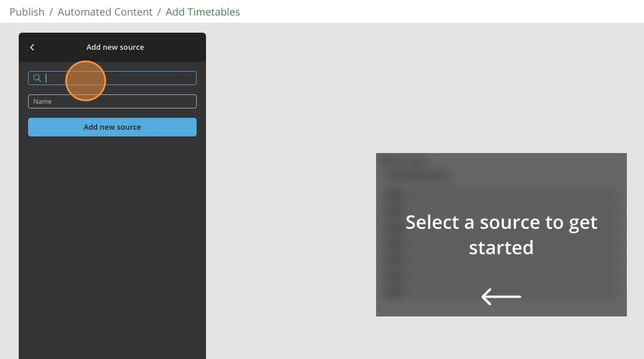
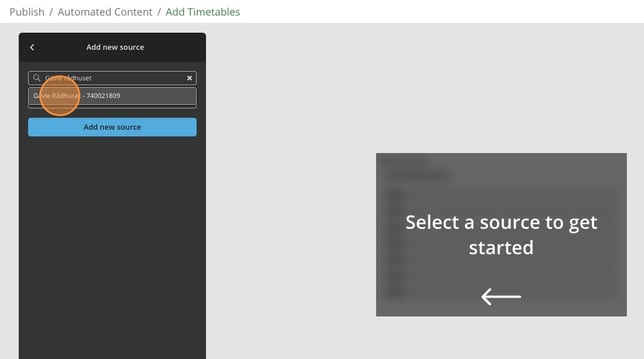
- Click to add it
- You can give the stop a name if you want to show the full name
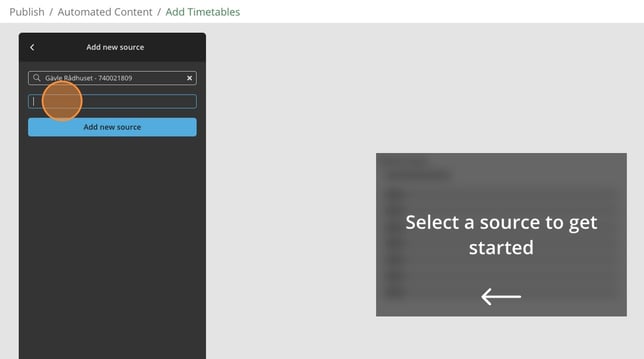
- Click add new source
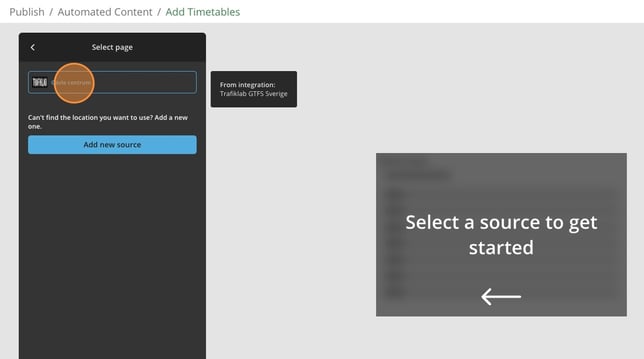
- Click the stop you want to show
- Here can change between different display types.
(Display types were earlier called templates)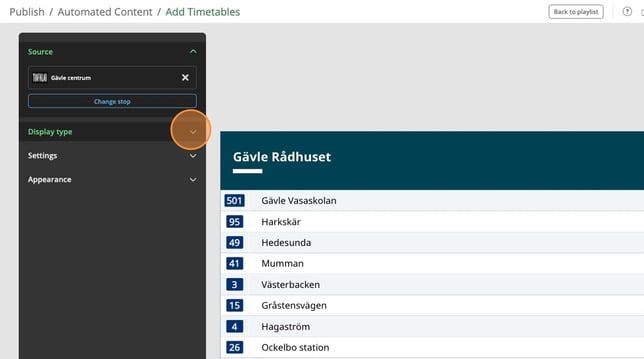
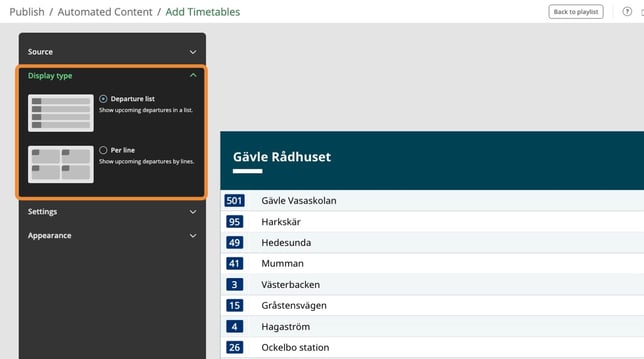
- Click Settings
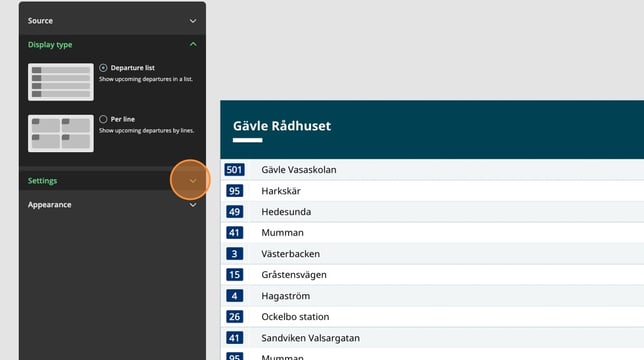
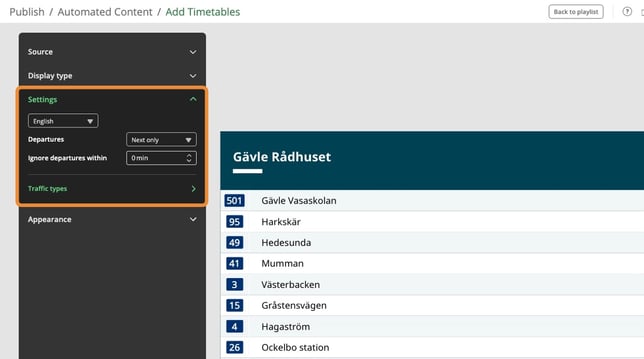
- You can change some general settings here
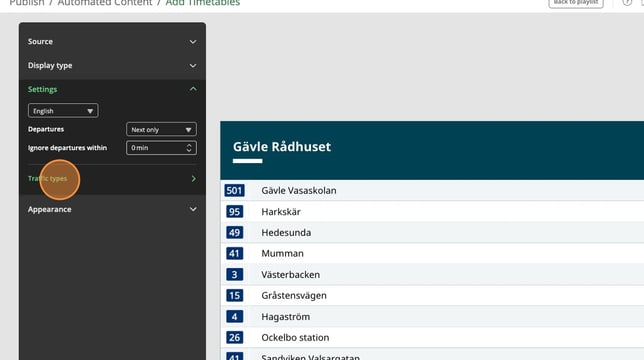
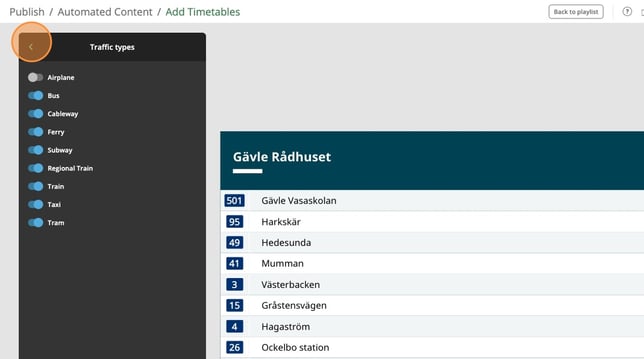
- You can click here to change the types of traffic you want to show
- Click here to remove a traffic type
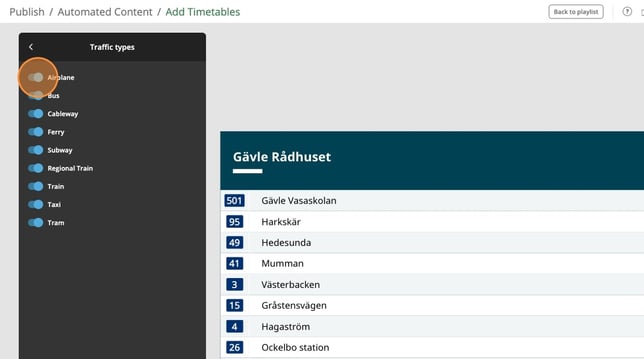
- Click here to go back to the settings
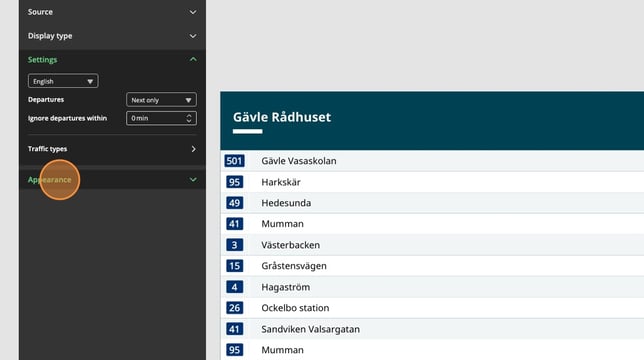
- Click on apperance
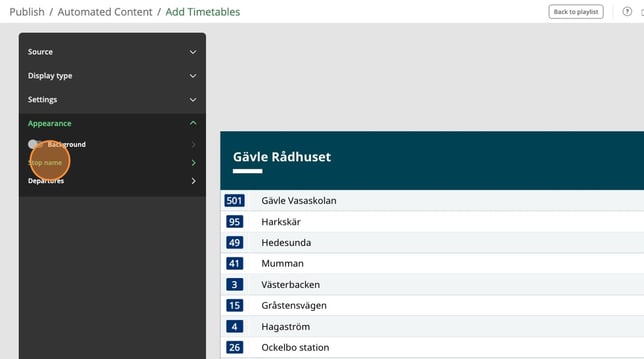
- To change settings regarding stop name, click here
- Here you have all settings regarding stop name
When you are done you can click here to go back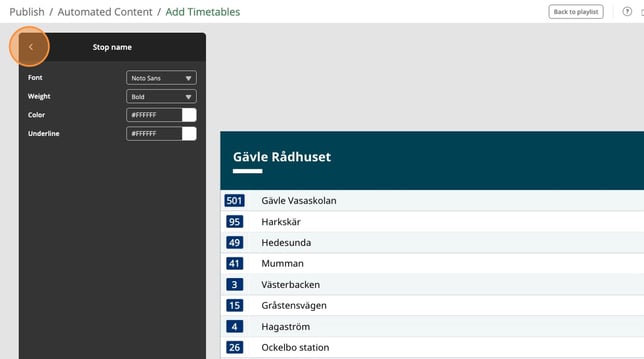
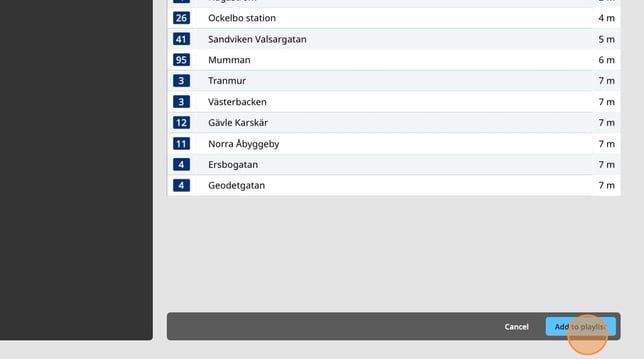
- When you are happy with your timetable, click Add to playlist.
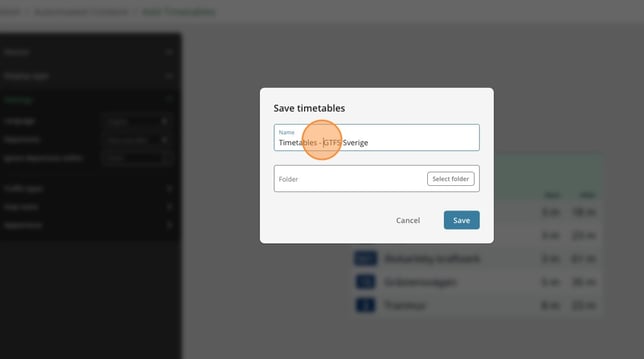
- Click here if you want to change the name of the timetable
- Click here
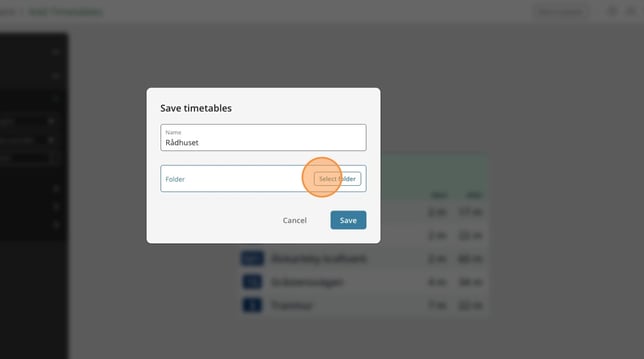
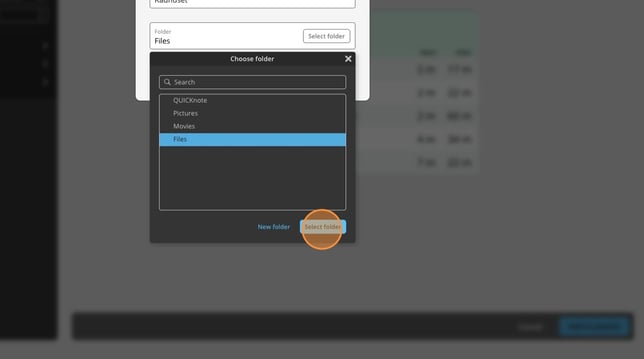
- Select a folder to save the timetable to.
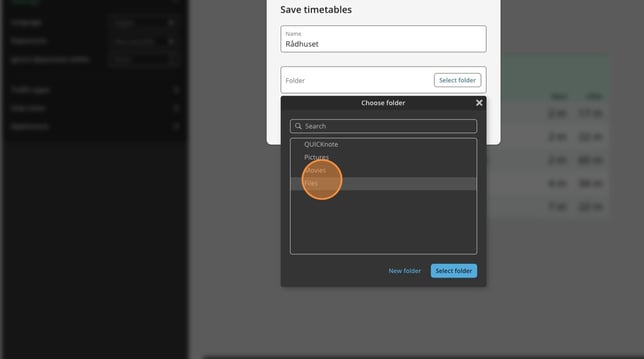
- Click select folder
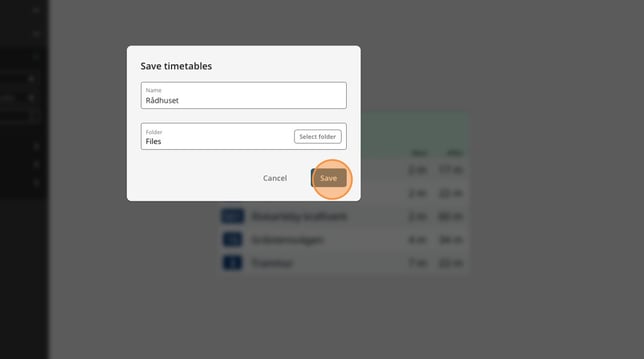
- Click save