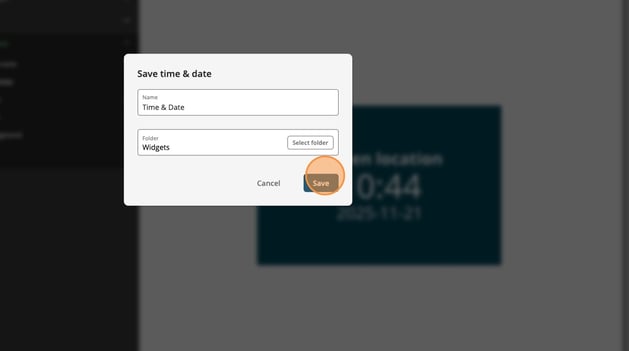
The clock & date widget allows you to display current time and date information on your digital screens. You can choose between a single clock display or a multi-timezone view, making it ideal for offices with international connections or locations that need to show time in different parts of the world.
The widget offers full customization of what information to display, along with options to adjust colors and fonts to match your brand or environment.
Important to note: The time source depends on your screen hardware. LG and Samsung screens use the time and date set directly on the screen itself, while all other screen types automatically sync with PLAYipp's servers. Make sure your screen's time settings are correct before adding the widget.
How to add the Clock & Date widget
Note: The images in this guide show an older version of PLAYipp with the previous main menu. Read more about the new main menu in this article.
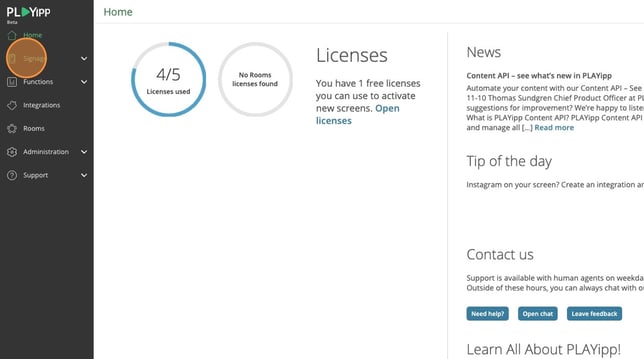
- Click on Signage in the main menu
- Select your screen
NOTE: If you want to add the widget to multiple screens at once, go instead to Screen Groups in the main menu.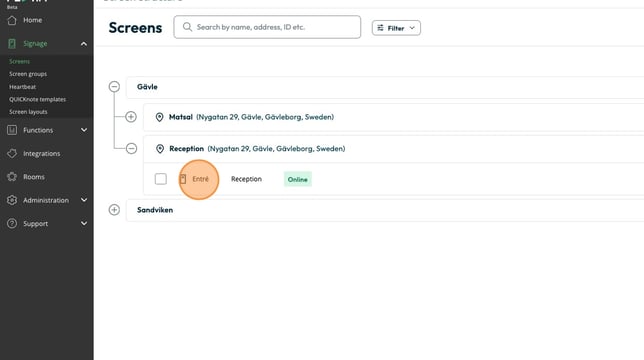
- Click the Playlist button to open the playlist for your selected area.
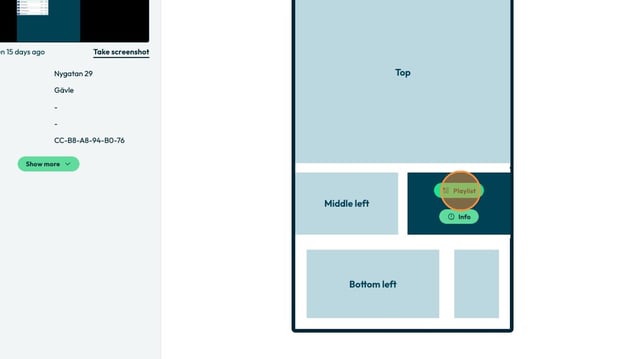
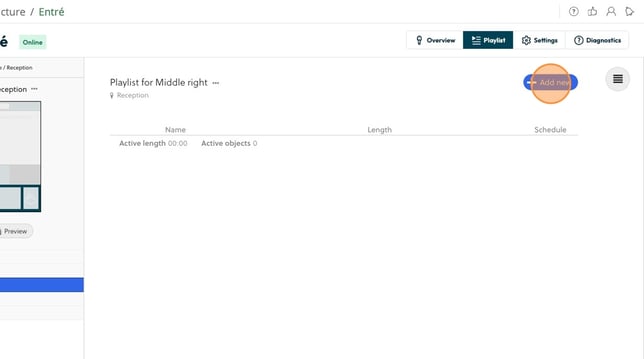
- Click on add new
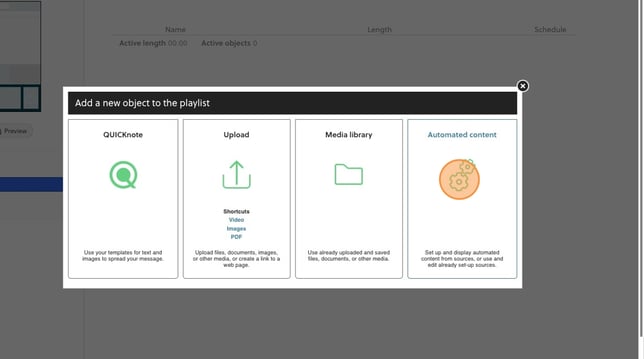
- Click on automated content
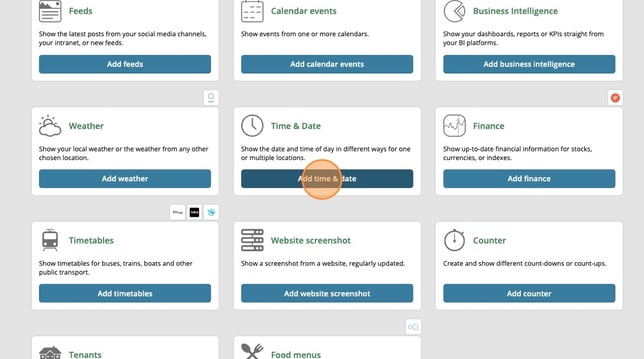
- Click on add time & date
- Under display type, there are several different preset widgets to choose from,
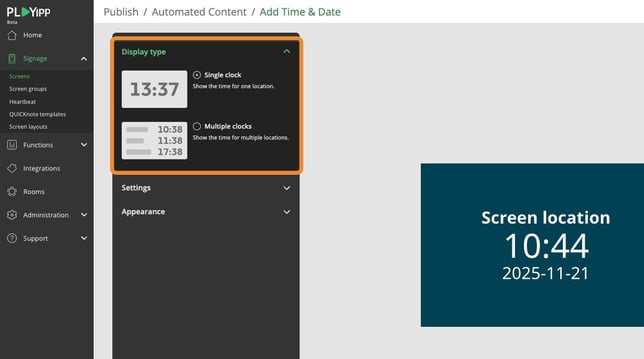
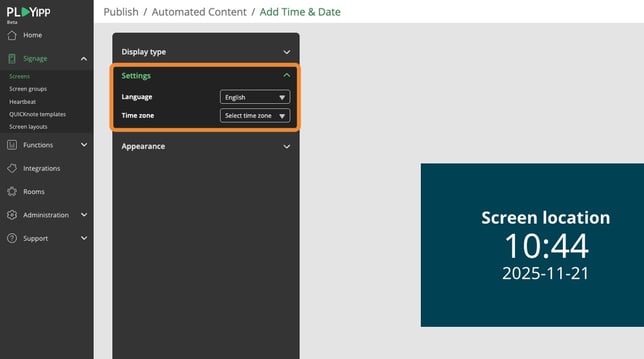
- Under settings, there are options for the language and time zone to be displayed.
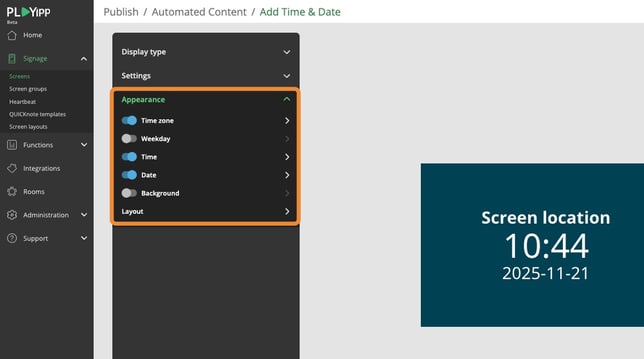
- Under Appearance, there are settings for what should be displayed and what colors and fonts these elements should be. If you want to remove or add something, click the buttons on the left side. If you want to edit the size, colors, or fonts of any element, click the arrow on the right side.
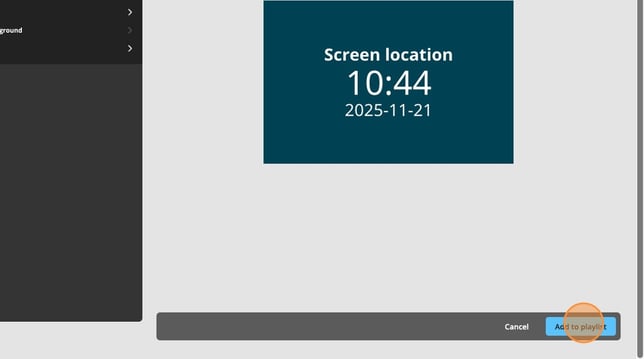
- When you are satisfied with your widget, click add to playlist
- Click on select folder
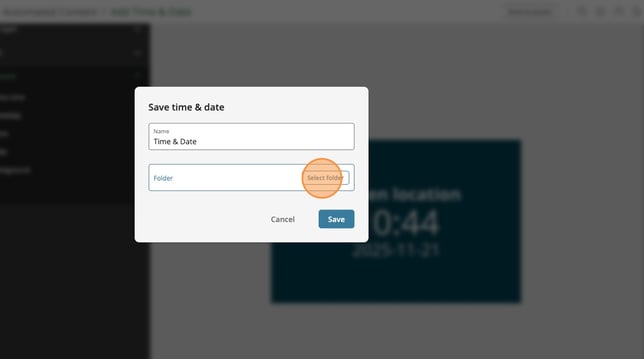
- Choose a folder where you want to save the widget
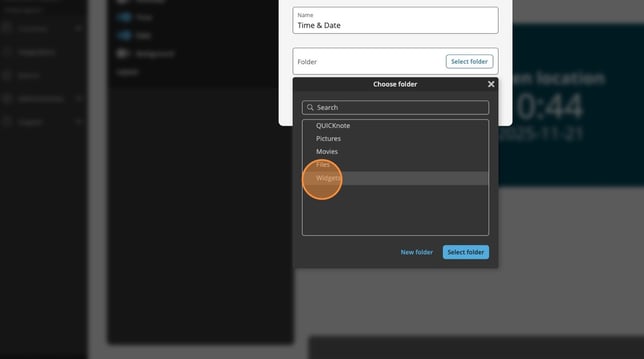
- Click on select folder
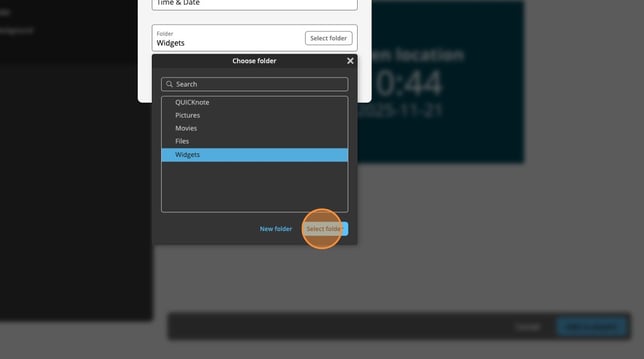
- Click on save