Google spreadsheets can be used without an integration in PLAYipp. You need to generate a link that you can then display as a web page on your screen.
NOTE: Depending on what kind of security you have in your Google environment, this option may not be available.
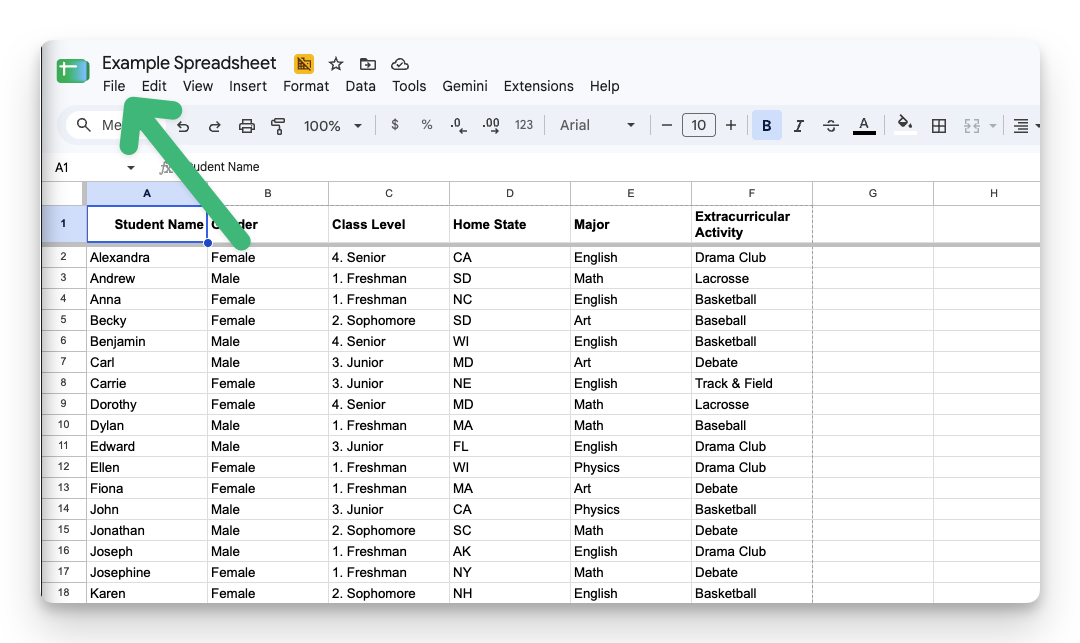
- Click File
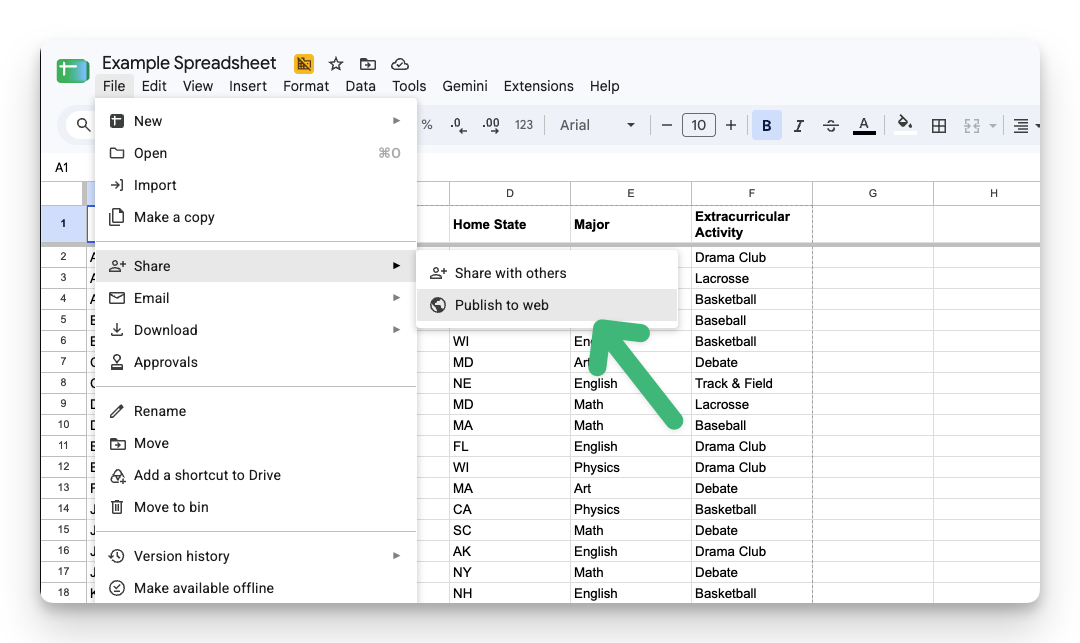
- Click File > Share > Publish to web
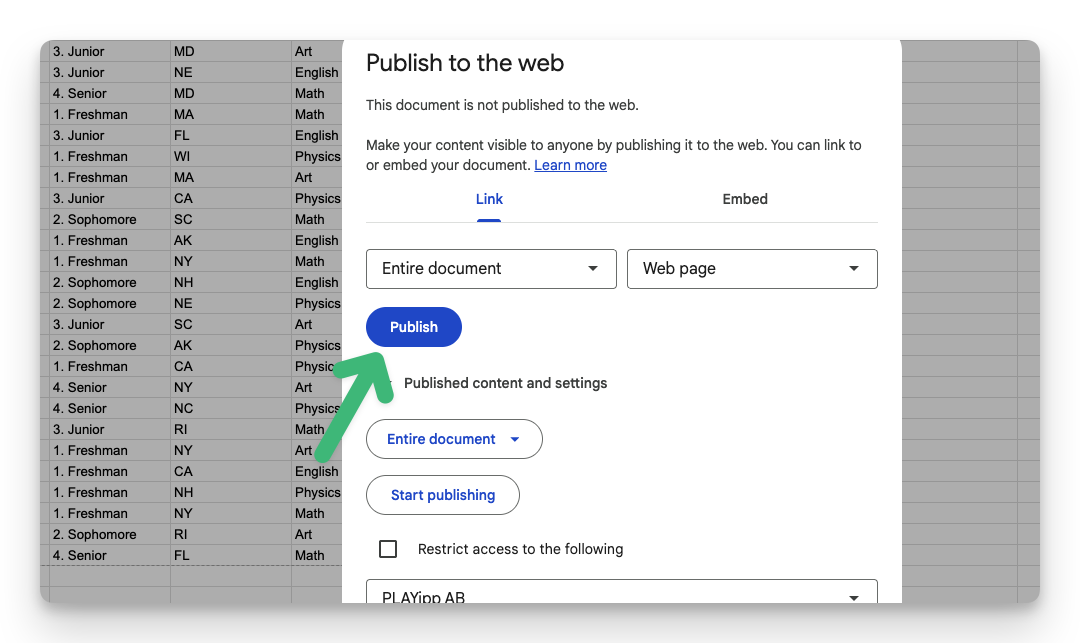
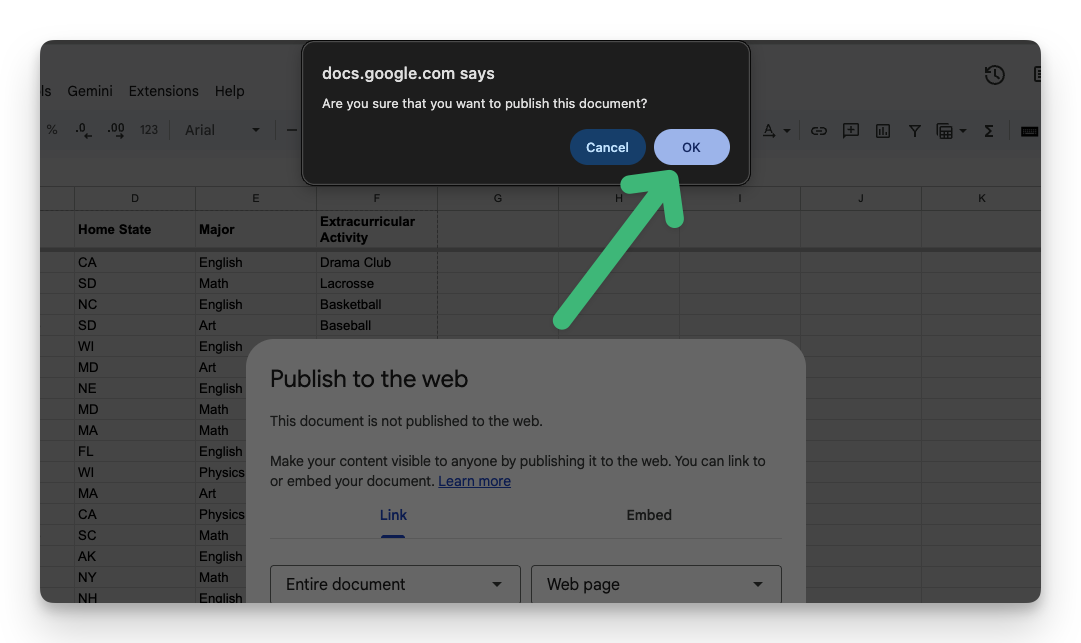
- Click Publish
- Click OK
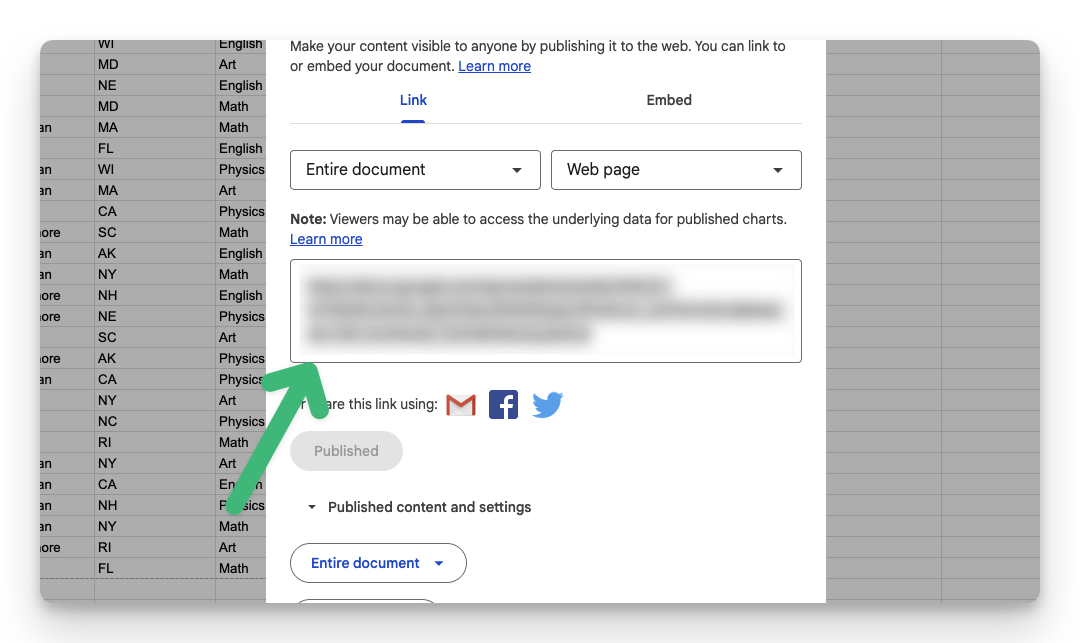
- Copy this link
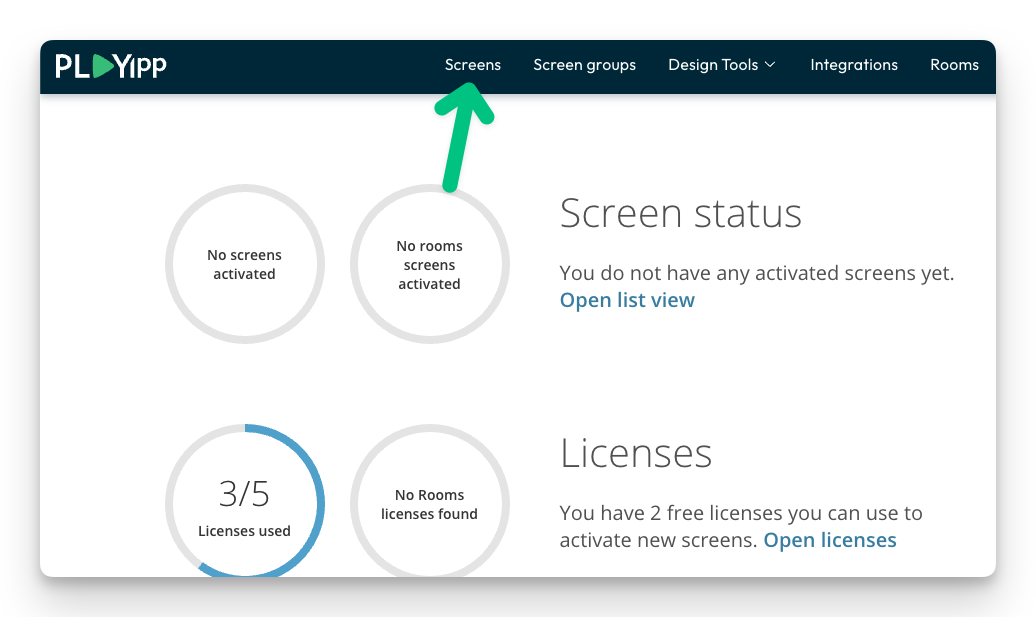
- Click Screens In the main menu
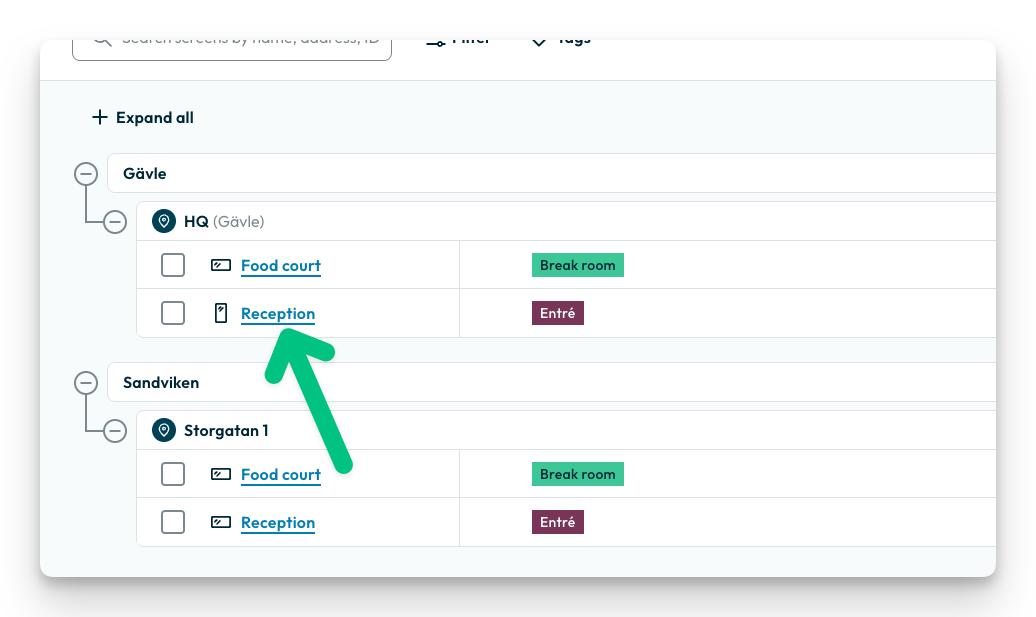
- Click on the screen or group where you want to publish to.
In this example, we select the screen called Reception. If you want to publish to a group, you instead select Screen groups in the main menu.
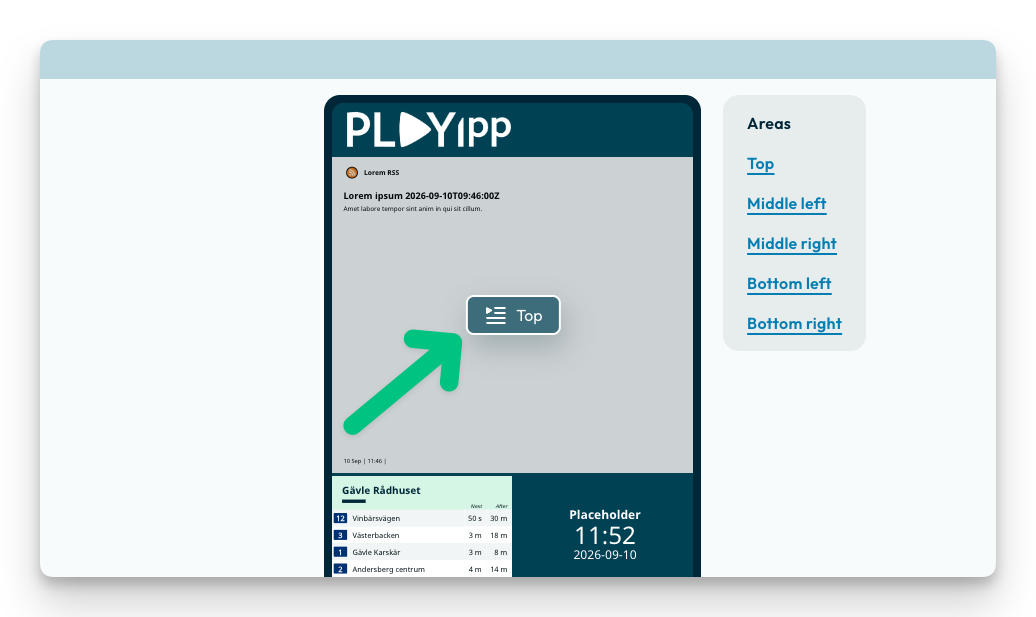
- Click the playlist button in the area you want to publish to
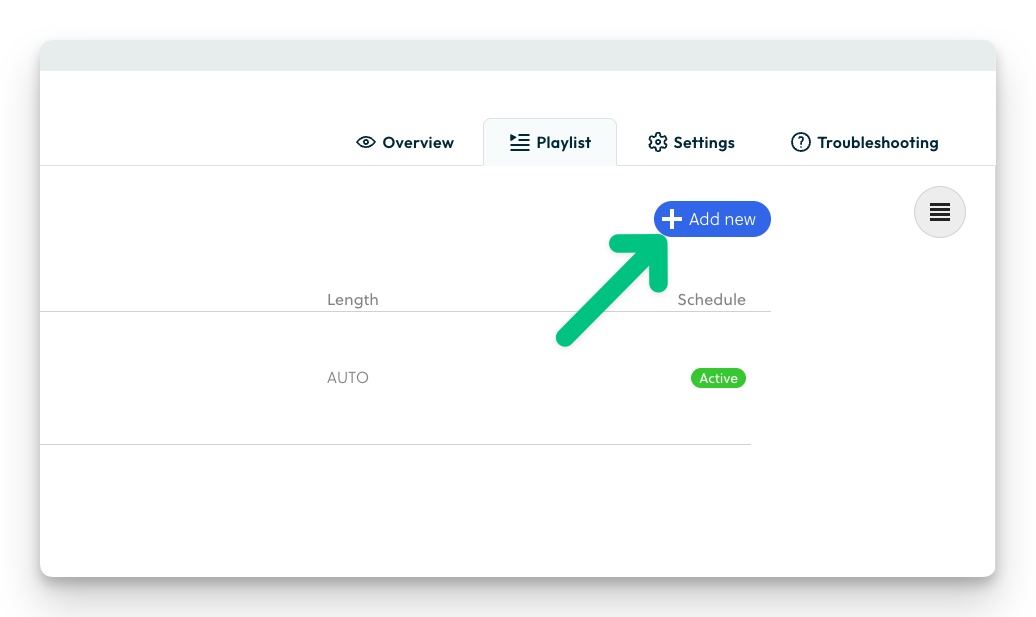
- Click "Add new"
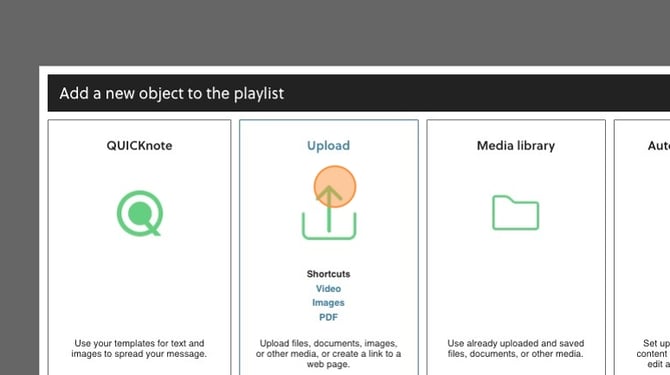
- Click on Upload
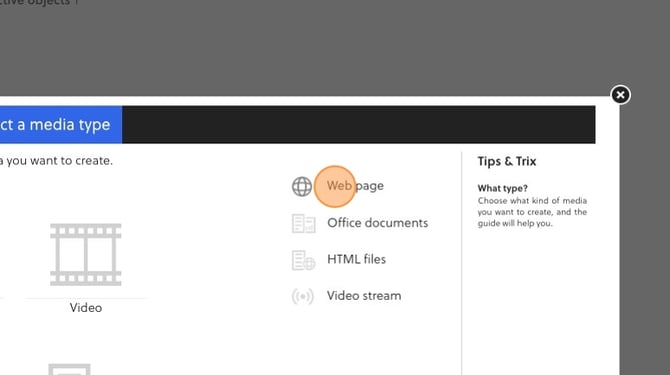
- Click on Webpage
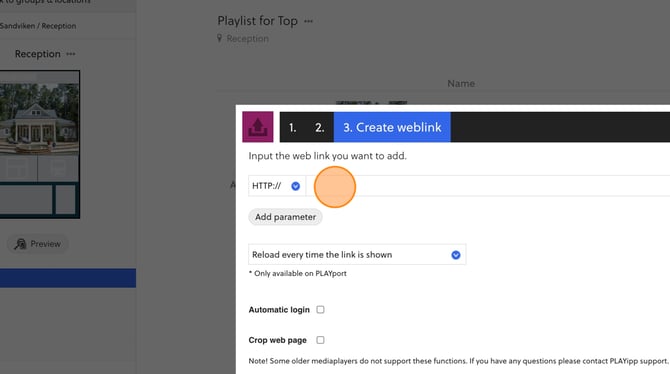
- Paste the link here
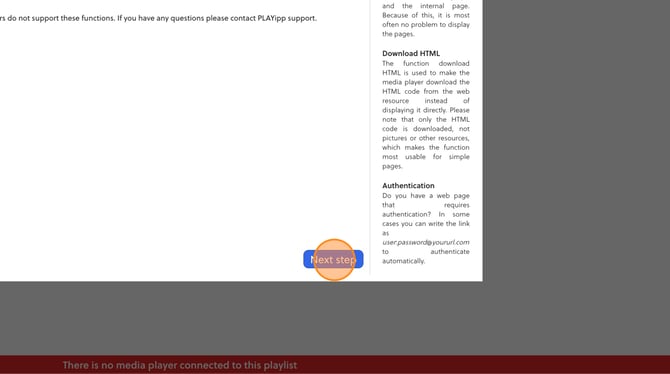
- Click next step
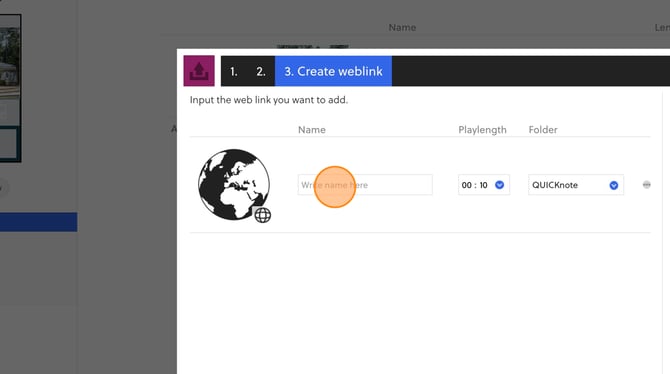
- Now you need to give the object a name. This name will be shown in the playlist. You also need to set a play length and choose what folder to save the object to.
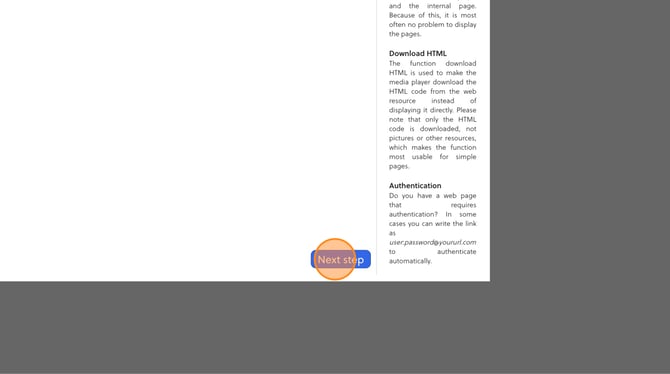
- Click next step
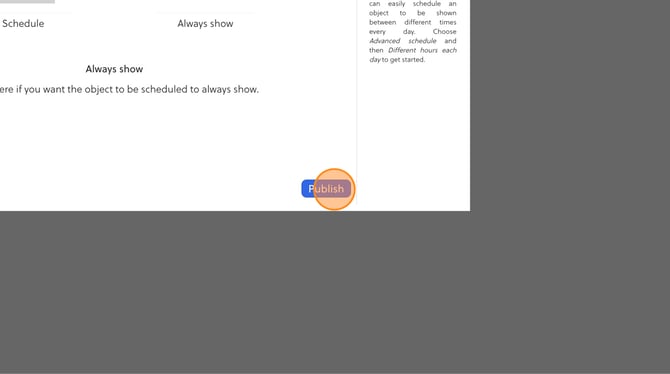
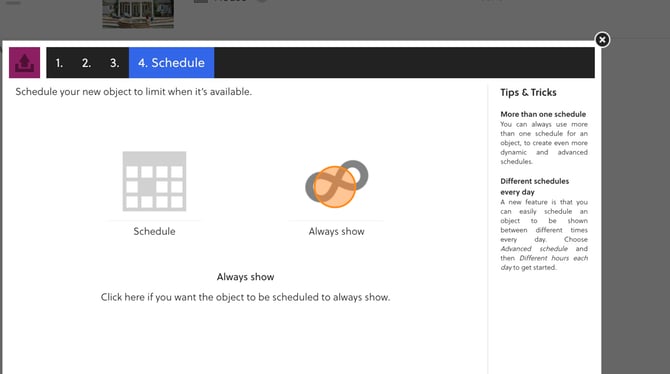
- In this step, you will be able to schedule the object if you want to. If you want the object to show until further, choose always show. You can read more about how schedules work here: Scheduling
- Click Publish