
A feed widget shows posts and news from social media, intranets and websites on your screens. The widget fetches new posts automatically, so the content on screen stays up to date.
Note: This guide describes the flow for individual screens. Screen groups use an older flow for now, which will soon be replaced by this one.
Contents
Before you start
The feed widget can show posts from the following sources:
- RSS
- Omnia
- Microsoft Viva Engage
- Spintr
- WordPress
The source needs to be connected as an integration before you can choose it in the widget. You do this under Apps in the main menu, see Feeds
Add the widget
- Click Screens in the main menu and select the screen you want to publish to.
- Select the area of the layout where the widget should be shown. You can do this in two ways:
- On the Overview tab, click the area you want to publish to.
- Open the Playlist tab and select the area under Areas on the left.
- Click Add object.
- Select Automatic content.
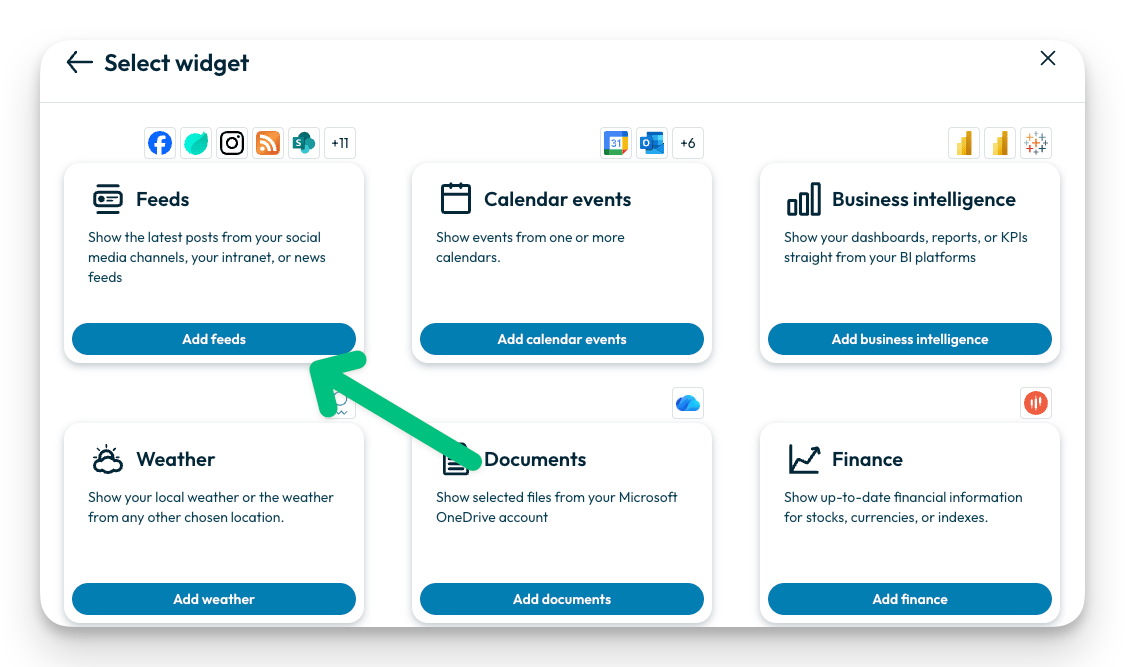
- Click Add feeds on the Feeds card.
Choose a source
- Under Select provider, click the integration you want to show posts from.
- Choose the feed you want to show, for example an account, a page or a channel.
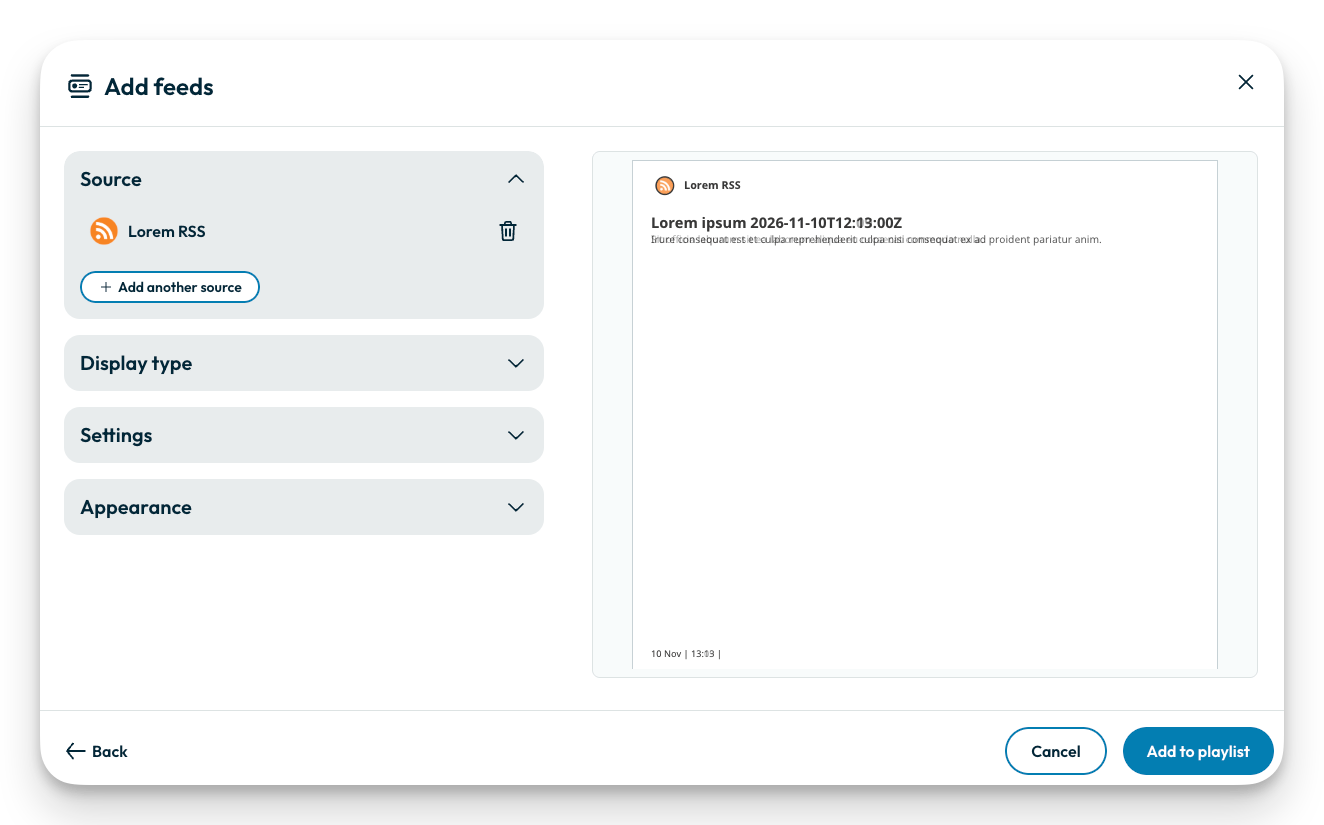
- To show posts from several feeds in the same widget, click Add another source under Source. Remove a feed with the trash can icon.
Customize the appearance
Once you have chosen a source, a preview of the widget is shown on the right. The settings are on the left, grouped into sections that you expand by clicking them.
Display type
Under Display type, choose how the posts are presented. Display types were previously called templates.
Settings
Under Settings, customize which posts are shown and how the feed behaves.
Appearance
Under Appearance, customize how the content of the posts looks. Use the preview to see how the widget will look on screen.
Save and publish
- Click Add to playlist.
- Under Name, a name is suggested. Change it if you like (max 150 characters).
- Turn on Save to media library if you want to be able to reuse the widget on other screens.
- Under Schedule, choose when the widget should be shown. By default it is shown always. Read more about scheduling here.
- Click Add.
The duration is set automatically.
The widget is added to the playlist and marked New. The change is published automatically after three minutes if you are idle, or immediately if you click Publish now.