Feed widgets can be used in several integrations to display feeds e.g.: Instagram, Facebook, RSS, Omnia, Microsoft Viva engage, Spintr and WordPress.
First, you need to add an integration against a system. You do this via Integrations and then select your system that you want to integrate with. You can see how to do that in these articles: Integrations and functions
To add a feed widget, follow these steps:
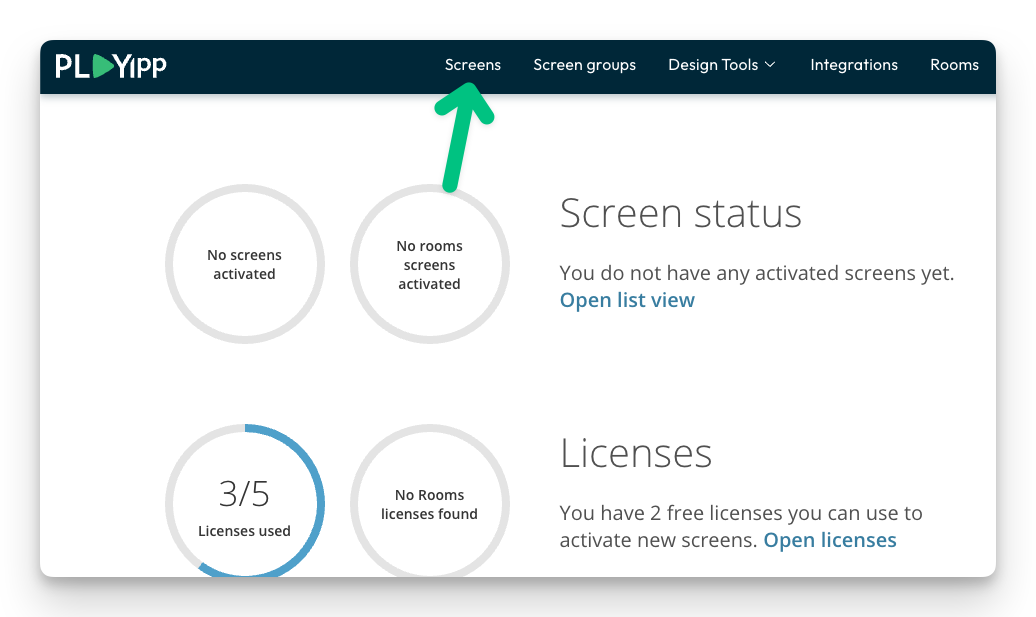
- Click Screens In the main menu
- Click on the screen or group where you want to publish to.
In this example, we select the screen called Reception. If you want to publish to a group, you instead select Screen groups in the main menu.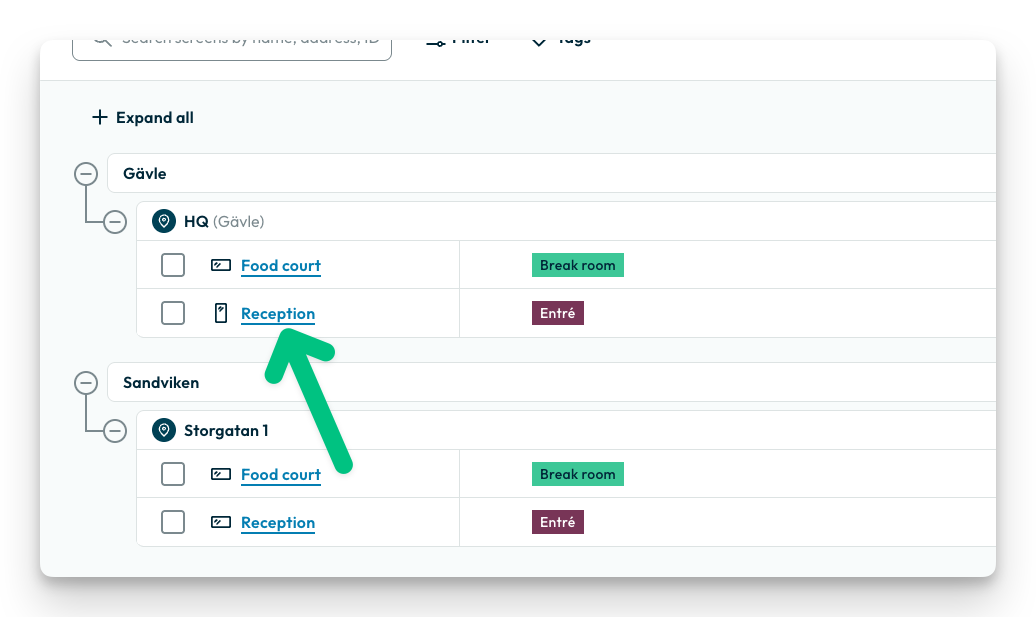
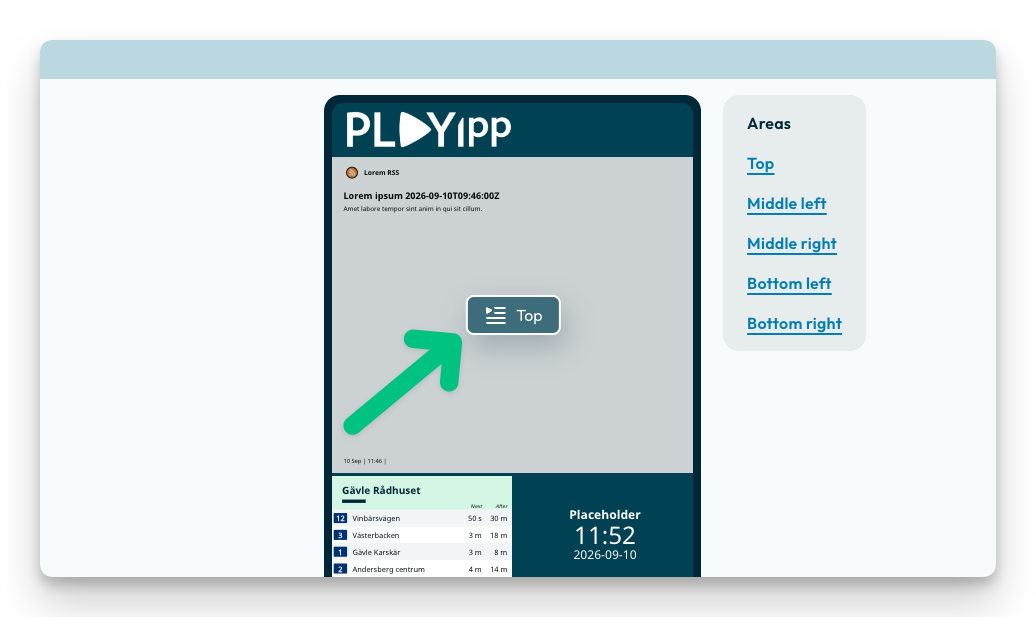
- Click the playlist button in the area you want to publish to
- Click "Add new"
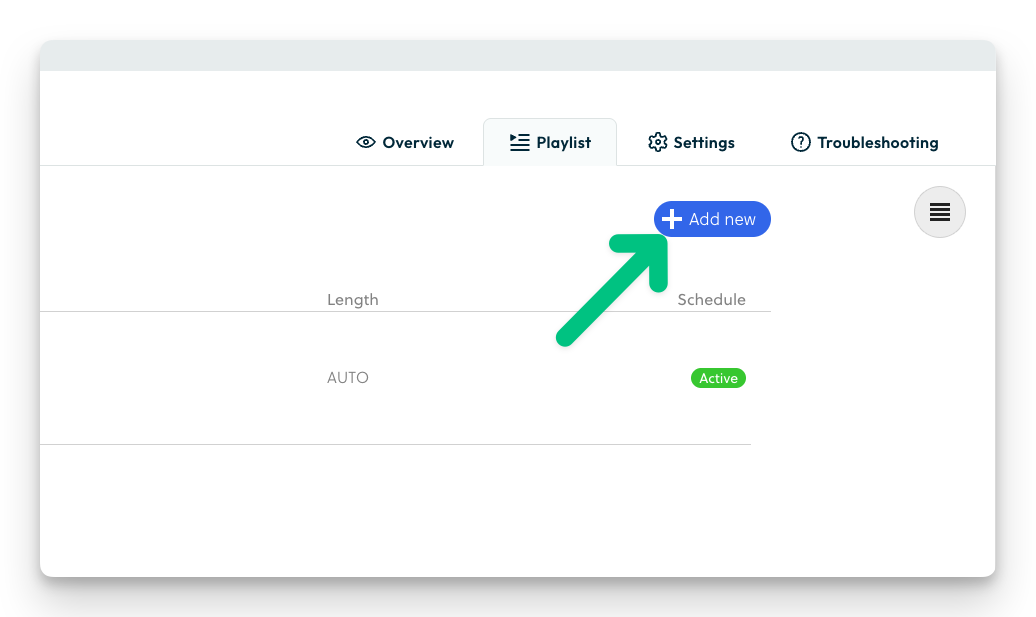
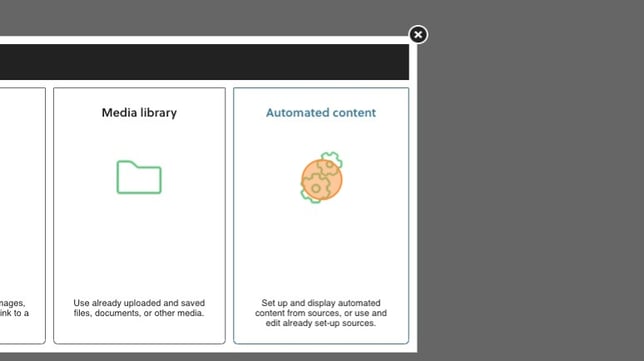
- Click on Automated content
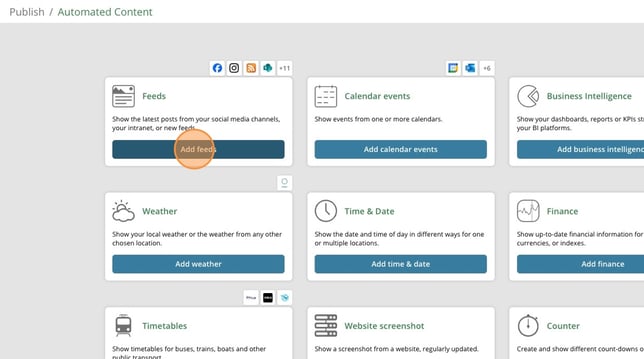
- Click add feeds
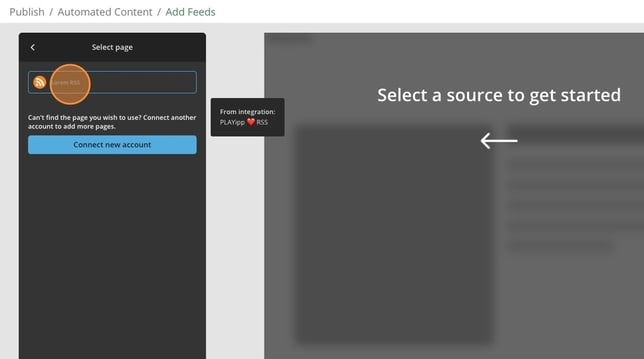
- Click on the integration you want to display.
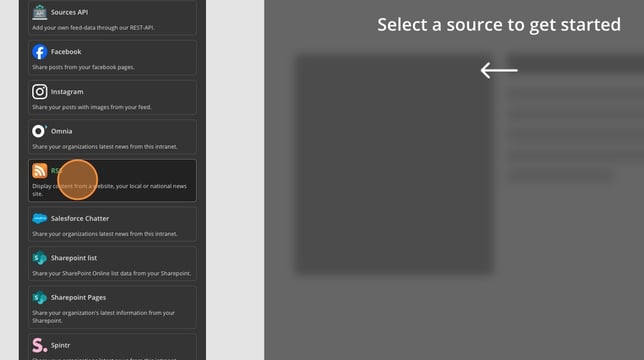
- Click on the source you want to display
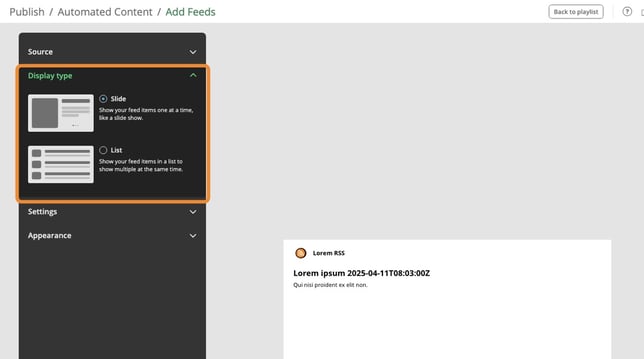
- Under display type you can change the feed shall look like. (This was earlier called templates)
You can customize how the feed shall look like in the next steps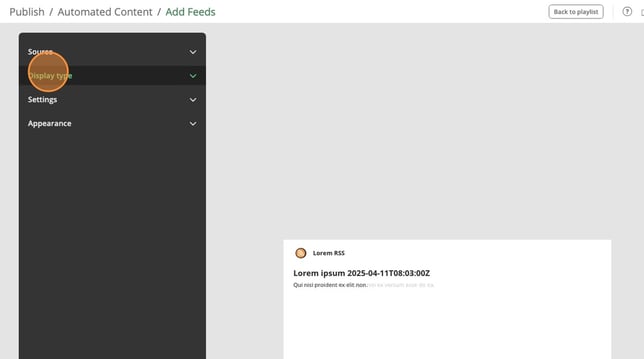
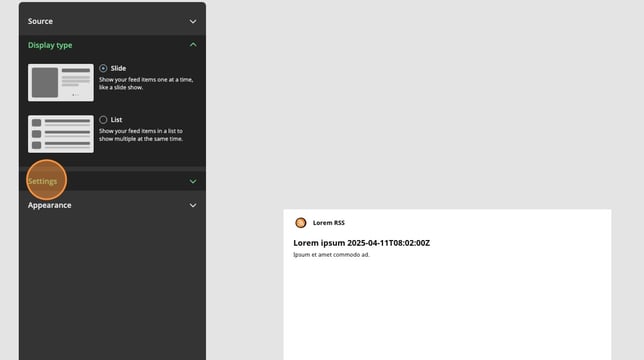
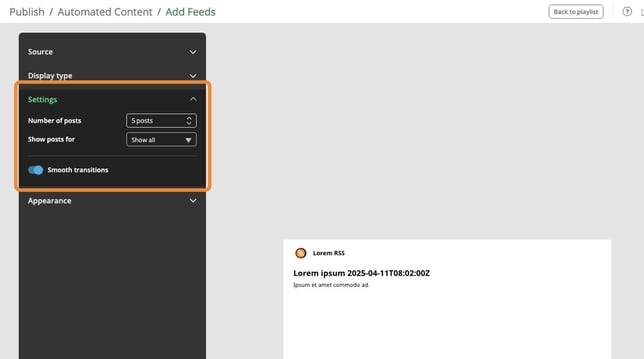
- If you click on settings you have some options to customize the feed.
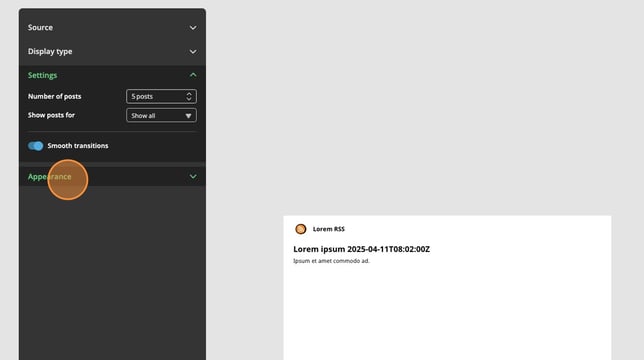
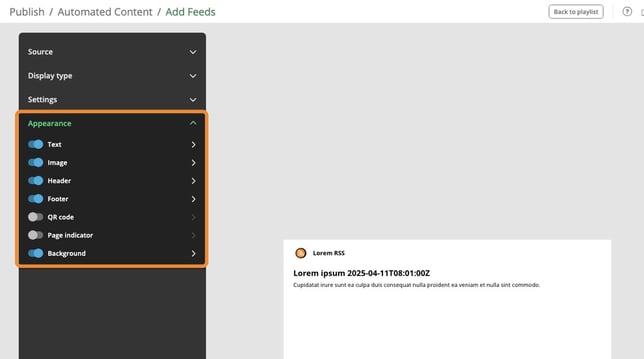
- If you click on appearance you have some options to customize how the content looks like in the feed
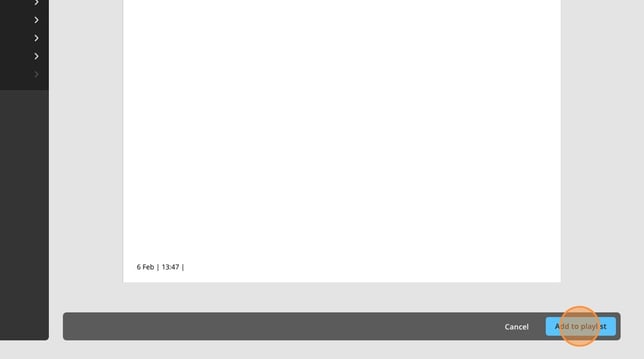
- When you are happy with your feed click on Add to playlist
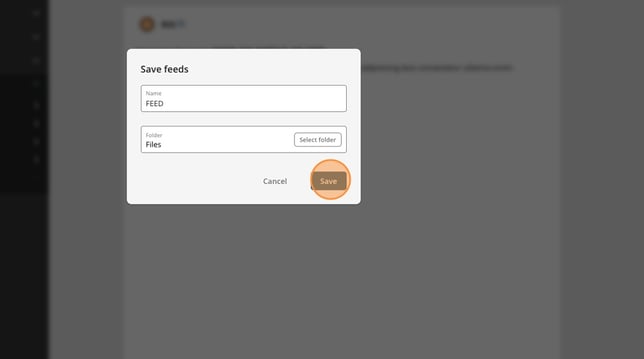
- Click here and give your feed a name
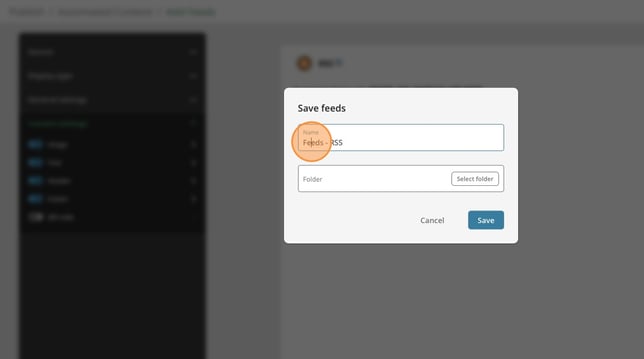
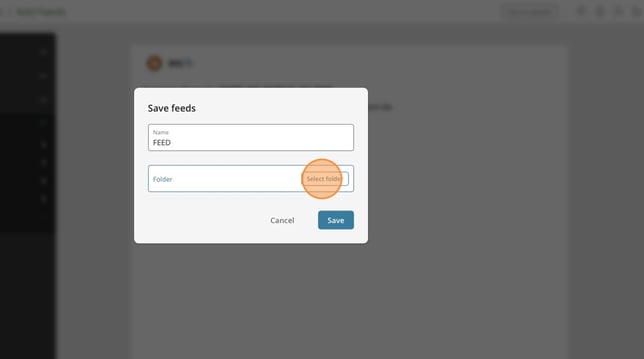
- Click select folder
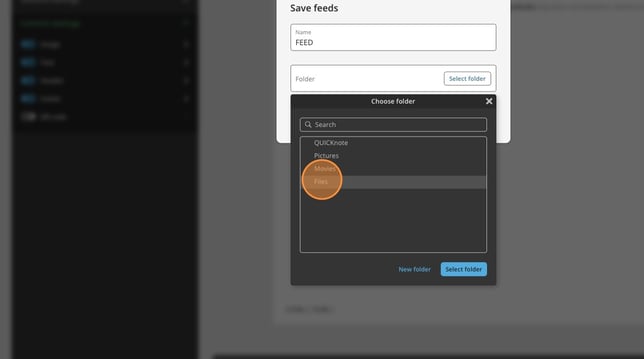
- Click on the folder you want to save the feed to.
- Click select folder
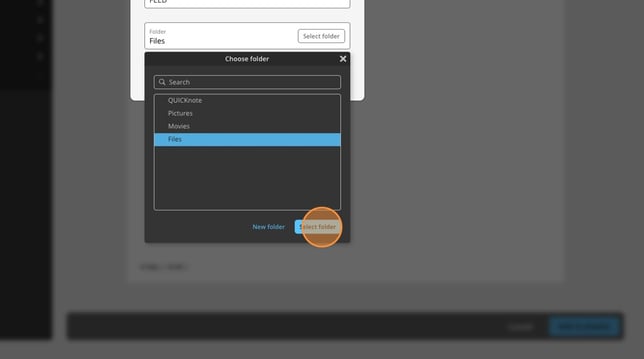
- Click save