
Note: The steps in this guide may look slightly different depending on your screen's model and software version. The overall process is the same.
Tip: Use a USB keyboard and or mouse for a smoother installation process. We use Logitech K400, keyboard with mouse trackpad built in.
Before installing
To install PLAYipp software on Philips screens, you need to follow these steps:
-
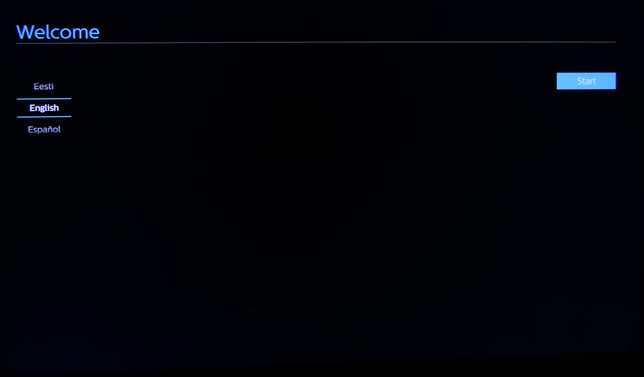
Start the screen and choose your preferred language.
-
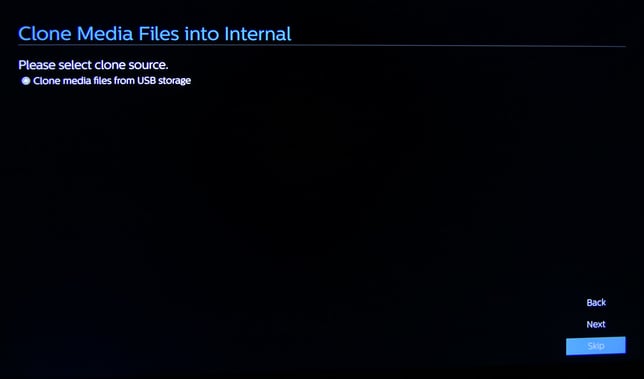
Choose “Skip” when asked to “Clone Media Flies from USB”.
-
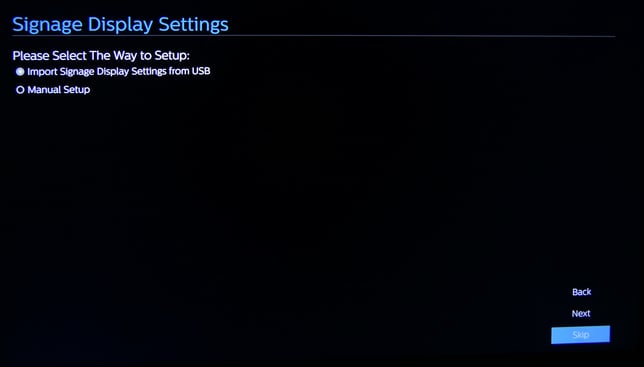
Choose “Skip” on the Signage Display settings page.
-
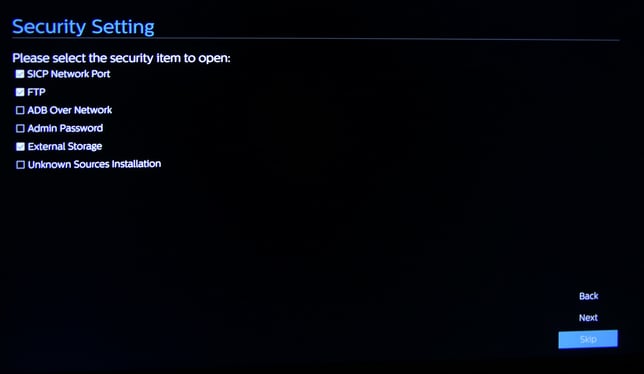
Customize Security Settings options or skip this step.
-
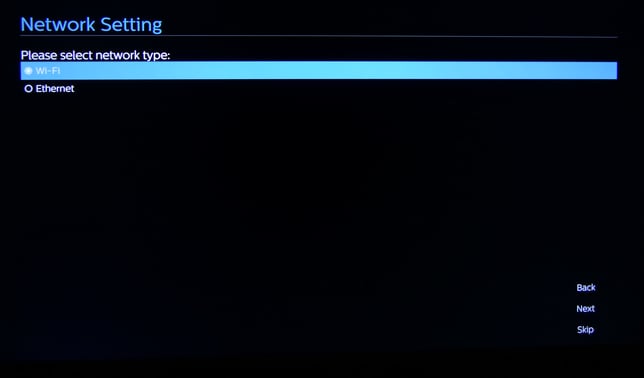
Select the preferred network type and connect the screen to your desired network.
-
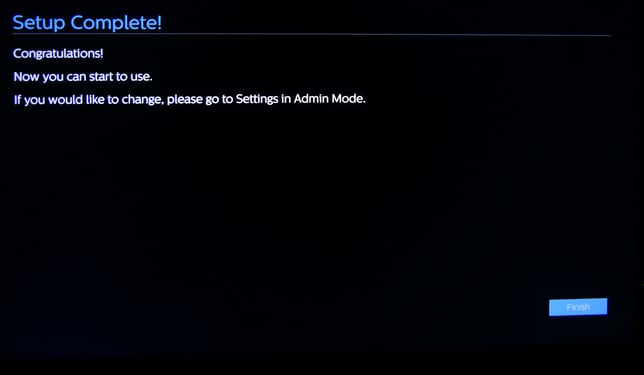
Click Finish
-
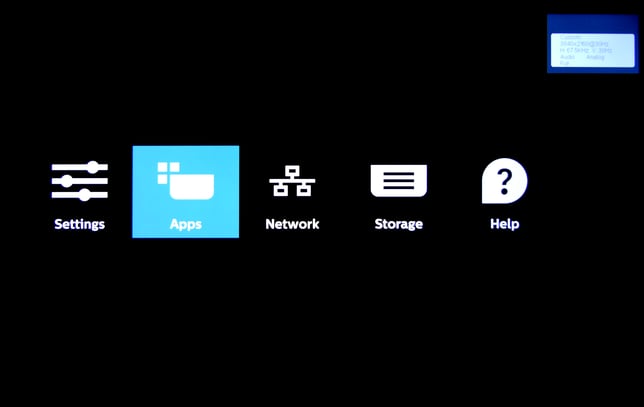
Press the Home button and then 1 + 8 + 8 + 8 on your remote. Now choose Apps
-
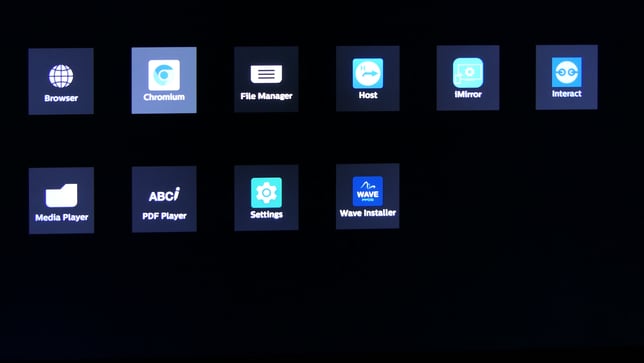
Open the Chromium app.
-
Enter the web address https://install.playipp.com/ into the on-screen browser.
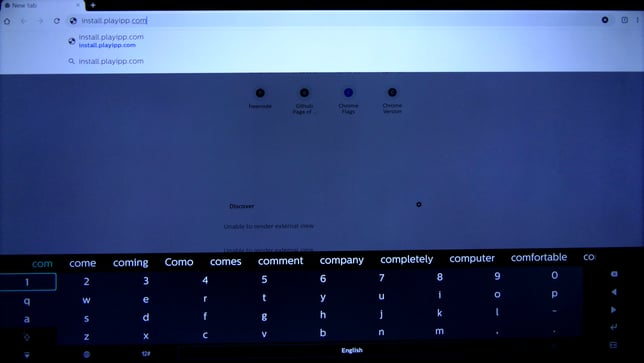
The website can detect the device type automatically for most of our supported models, but if this fails, a list of possible device types will be displayed instead and you will be able to select the correct device type manually.
-
Press OK on your remote control to start the download.
To shift the focus to the text prompt, you need to press the Adjust button once. The text "Tap OK on your remote ..." will now start flashing on the screen to indicate that the focus is correct.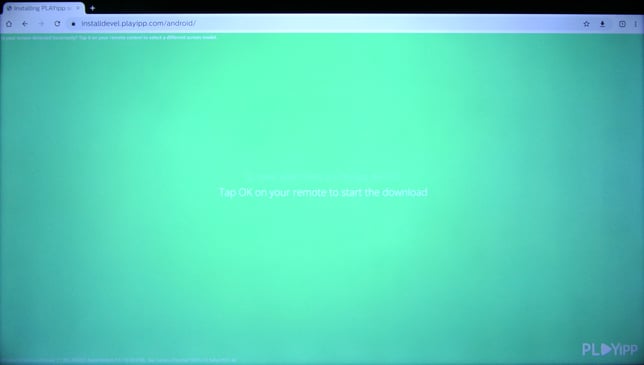
-
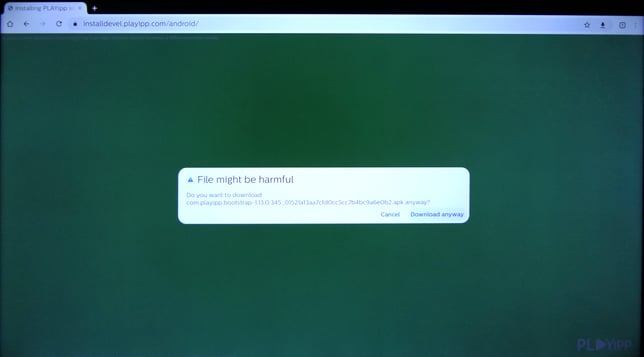
Chromium may ask for permission to download files from the site. Choose “Download anyway” to continue with the download.
-
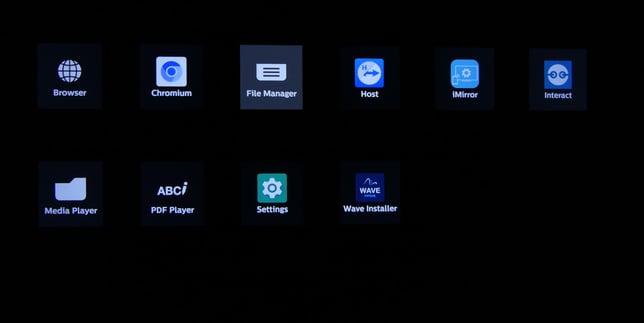
Use the back button on your remote to close your browser and to return to the Apps menu. Choose File manager.
-
Choose Internal.
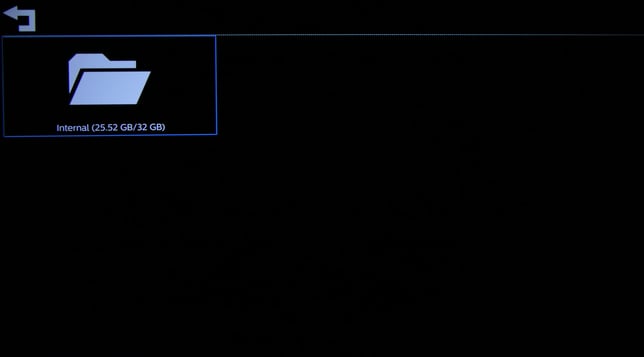
-
Open the Download folder
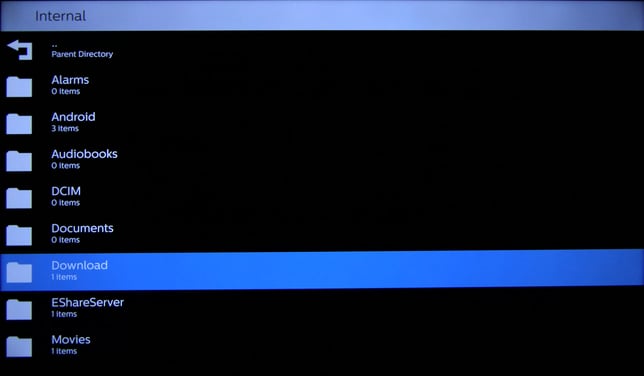
-
Select and open the file “com.playipp.bootstrap...”.
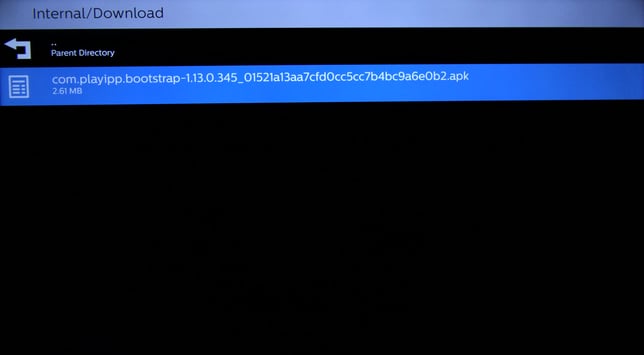
-
You may need to enable the option labeled “Unknown sources” before opening the app. This setting can be found in Settings > Security > Unknown sources
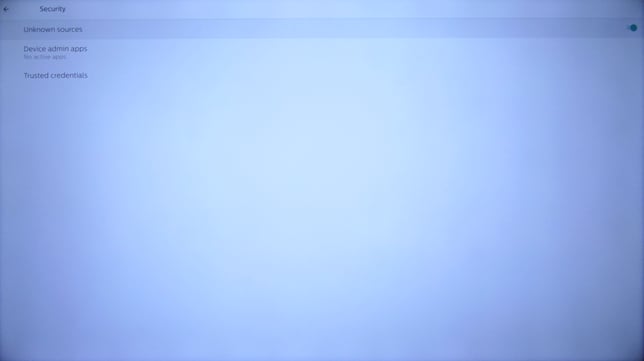
-
Go back to the filemanager and start the app again. Confirm the installation by selecting Install.
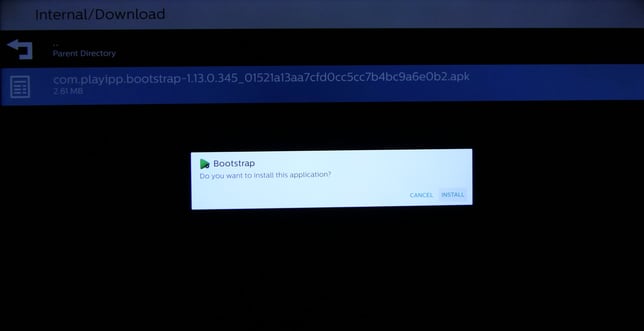
-
Select Open after the initial installation is completed.
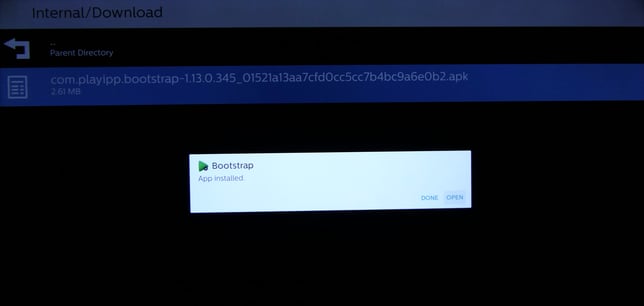
-
The app will now download and install additional content.
-
Use the back button on your remote to return back main menu when the installation is completed.
-
Open the Settings menu.
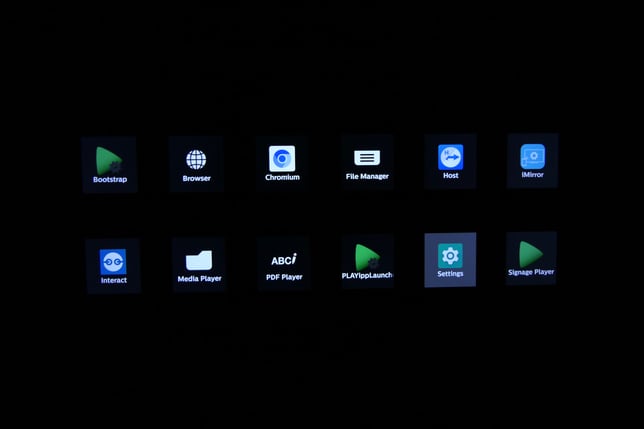
-
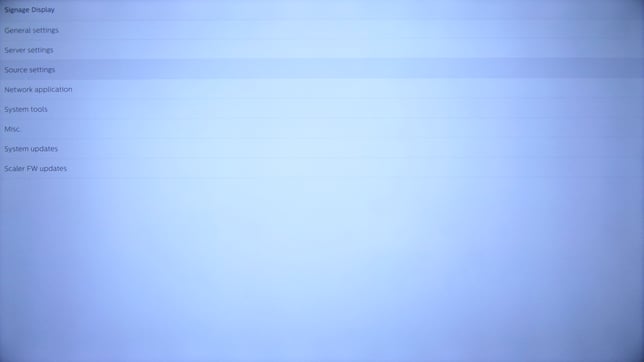
Open Signage display.
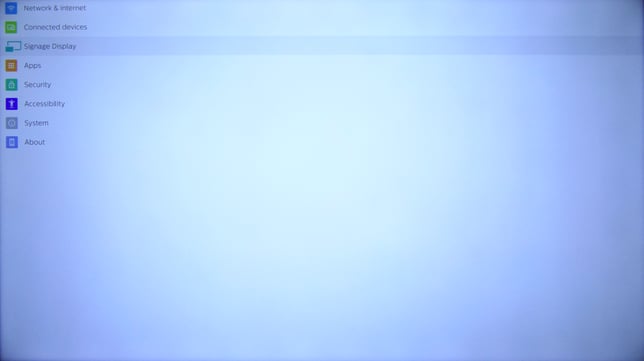
-
Open Source settings.
-
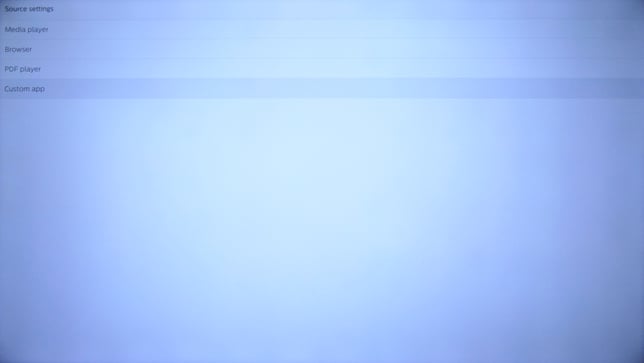
Select Custom app.
-
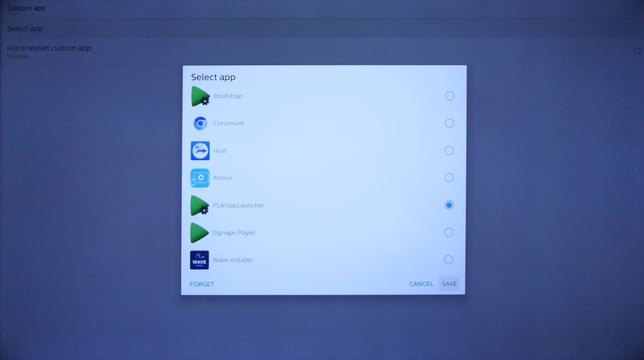
Select PLAYippLauncher and then Save to confirm your selection.
-
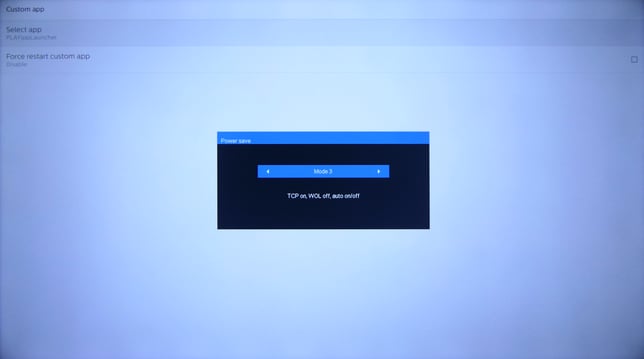
Press the Home button on your remote and open the Advanced Option section, navigate to Power save and make sure Mode 3 or Mode 4 is selected.
Power Save Modes on Philips 4550D
Mode 1 [TCP off, WOL on, auto off]
Mode 2 [TCP off, WOL on, auto on/off]
Mode 3 [TCP on, WOL off, auto on/off] Recommended
Mode 4 [TCP on, WOL off, no auto on/off] Recommended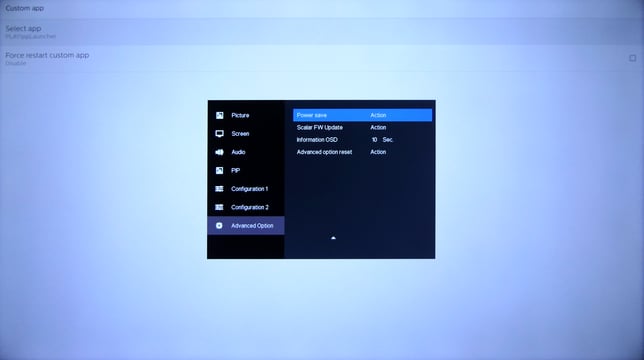
-
Use the back button on your remote to exit the menu.
-
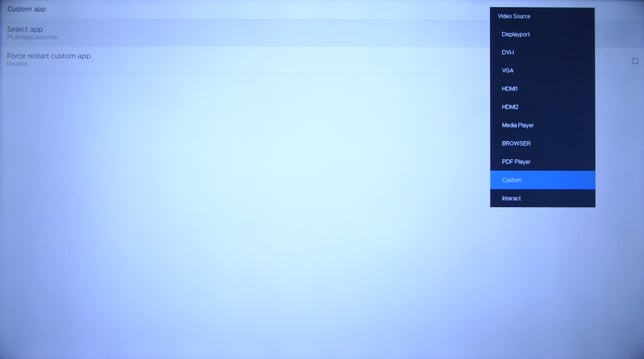
Now press the Source button on your remote and select Custom.
-
PLAYipp will now launch!
Be sure to take a look at our Activate signage screen help center article for detailed instructions on how to activate your newly installed screen!