
Note!
First you need to verify which screen you have to find the correct guide. You can find a list with all the supported screens here.
Choose to install the screen with either only the remote control or you can also connect a keyboard for faster writing.
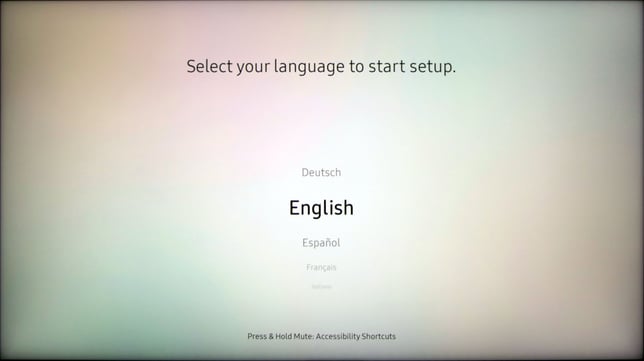
- Choose language
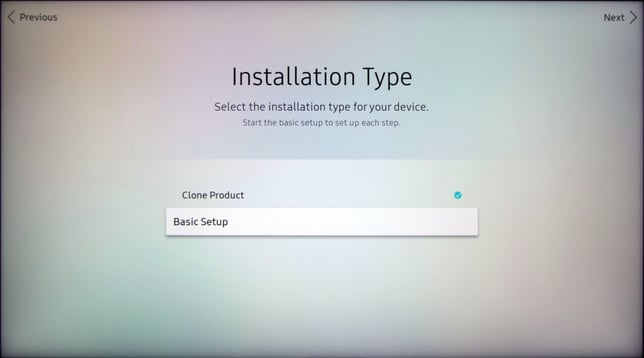
- Choose basic setup
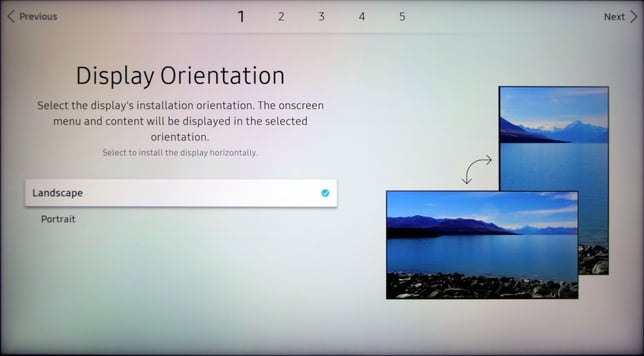
- Choose rotation
- Turn off Auto Power Off
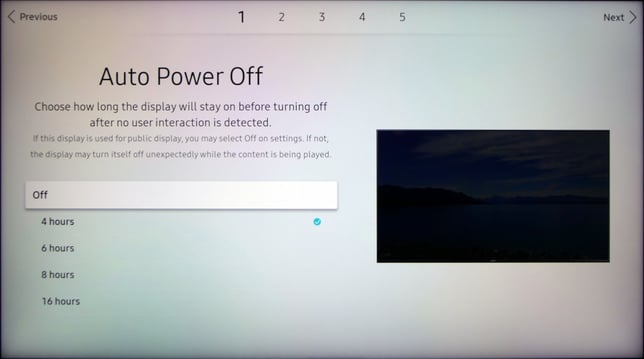
- NOTE: Some displays have a step to set Brightness Limit here.
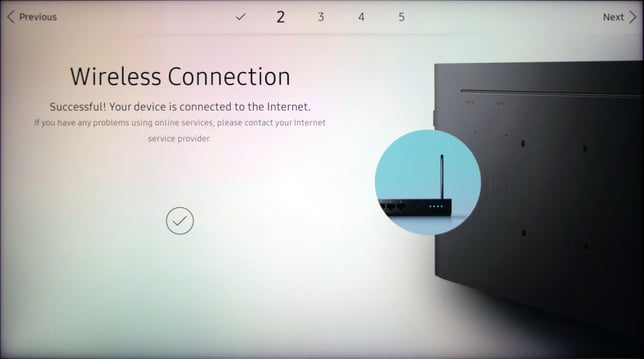
- Connect to a wireless or wired network.
- Choose play via URL-launcher.
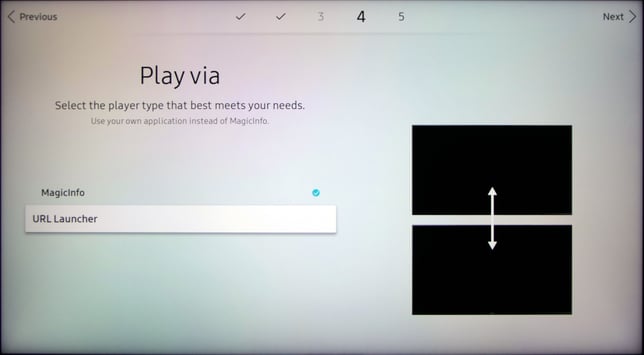
If you do not find the URL launcher, follow these steps:
- Select System menu.
- Select Play via.
- Select URL Launcher Settings. - Enter the URL "https://samsung.playipp.com"
NOTE: Only lowercase letters!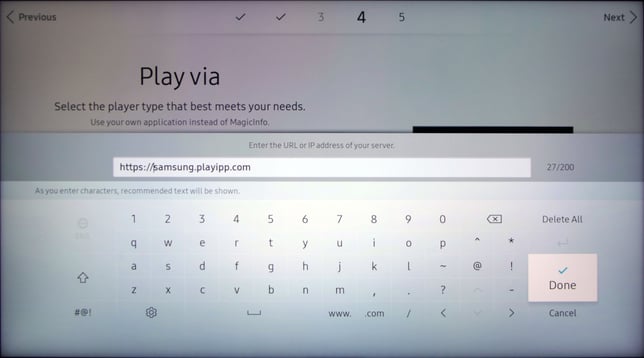
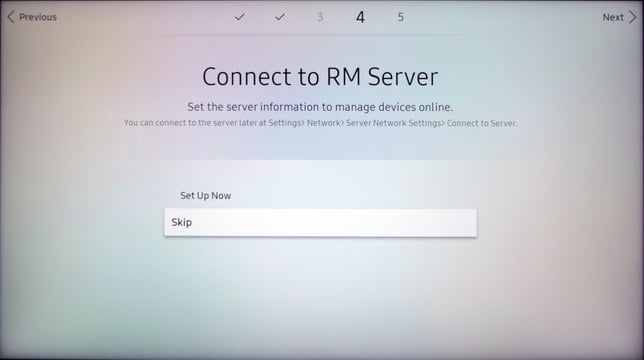
- Choose skip.
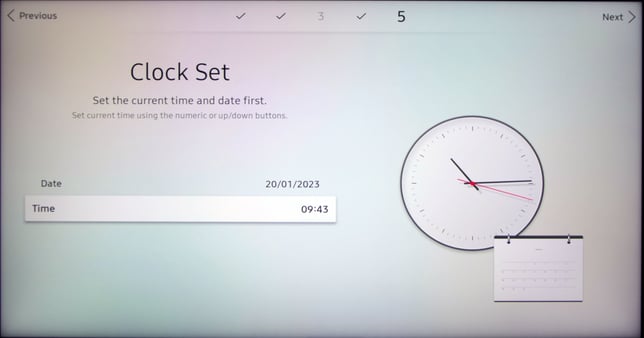
- Set the date and time
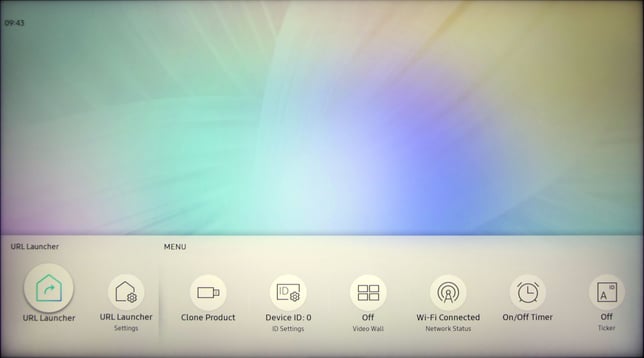
- Click on home and select URL-Launcher
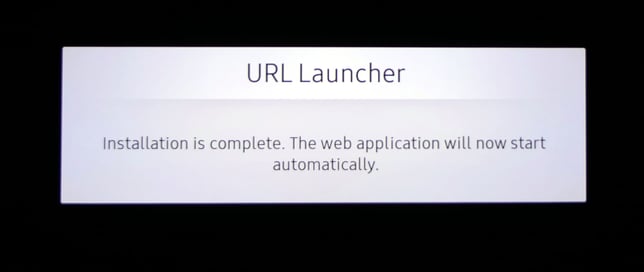
- The PLAYipp software is installed and updated.
- Turn off the screen and click mute 182 power on
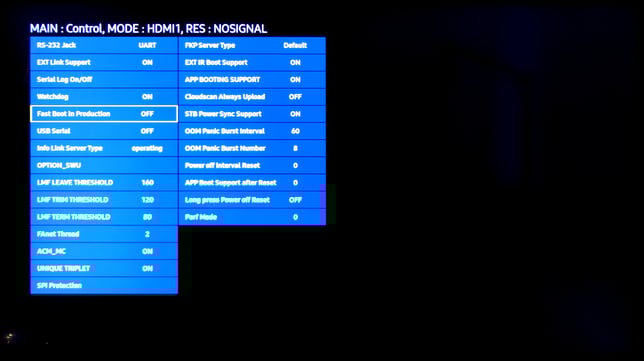
- Navigate to: Control > Sub Option.
- Activate the option “Fast Boot in Production”.
- Reboot the screen
When the software has started the activation code will be displayed on the screen.
Read the article about Activate signage screen for instructions on how to activate the media player.