
You may receive an error message on your screen stating that the license has expired or that the screen has been disabled. If this happens, there is no active license connected to your screen. This may be because someone has removed the license from the screen, or because the license period has expired and has not been renewed.
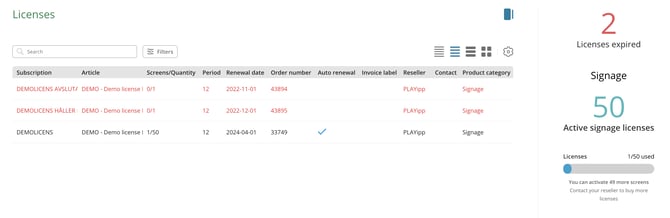
Start by checking whether there is an available license to be used by your screen. You can find this under Administration > Licenses. Read more about the license view here: Keep track of all licenses.
Connect a subscription to your screen
Once you have confirmed that there is an active subscription available, follow these steps:
- Go to Signage in the navigation menu.
- Click on Screens.
- Select your screen in the tree or list view.
- Go to the Settings tab for the selected screen.
- Click Edit next to the Subscription heading.
- Select which subscription the screen should be connected to.
The screen will be activated and resume displaying the published content.