
Power save mode lets you schedule when your screens turn on and off automatically. Using power save mode when screens aren't needed (such as outside business hours) reduces energy consumption and extends screen lifespan.
Note: Power save mode is not supported on all screen models. If your screen doesn't respond properly to power save schedules, use the screen's built-in power save settings instead.
Setting up Power Save Mode
Note: The images in this guide show an older version of PLAYipp with the previous main menu. Read more about the new main menu in this article.
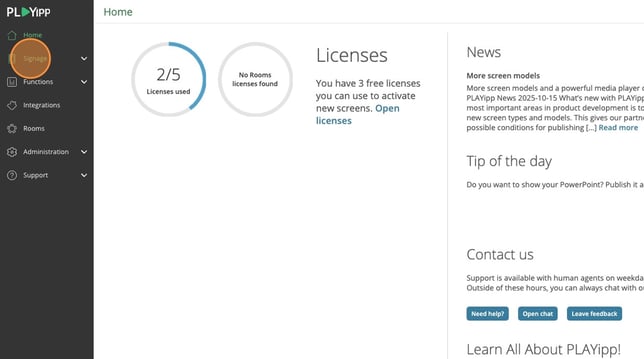
- Click Signage In the main menu
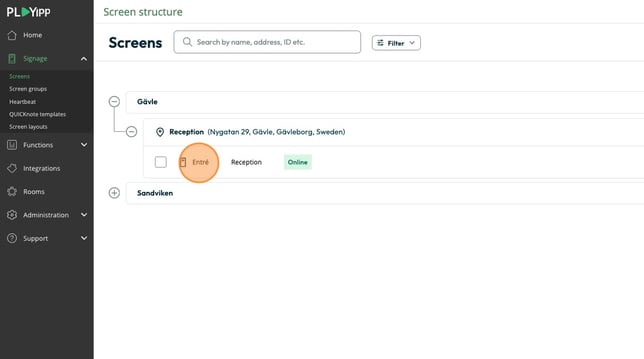
- Select the screen or screen group you want to schedule
- For individual screens: Click the screen from the screen list (e.g., "Entré")
- For multiple screens: Select Screen groups from the main menu and choose the group
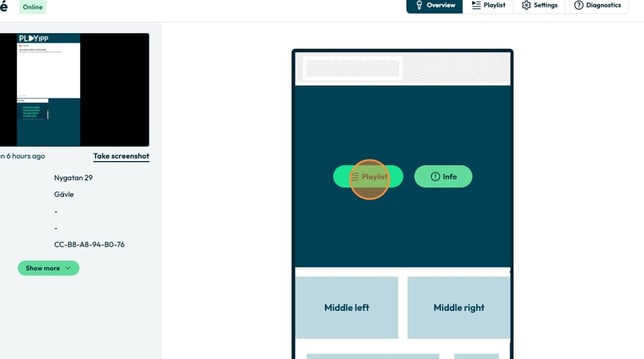
- Click the playlist button on any area
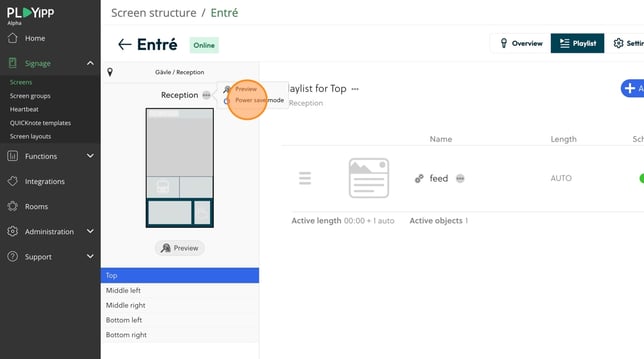
- Click on the "..." button above the layout
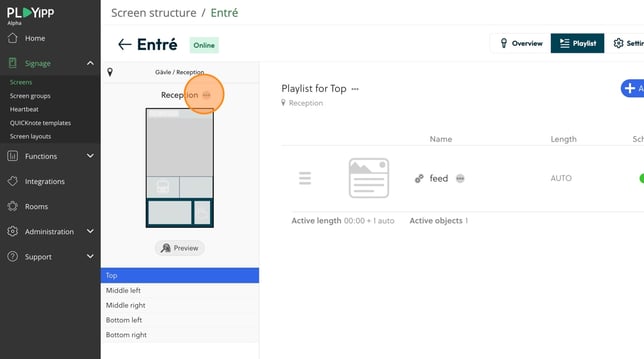
- Click “Power save mode”
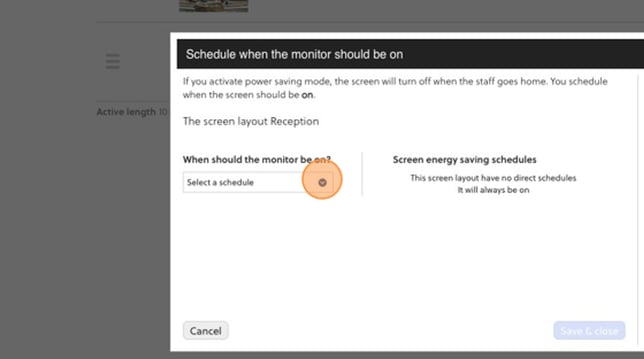
- Choose your schedule type from the dropdown menu
How schedules work
You have three schedule types to choose from (see Scheduling for details on each type).
When you set up a schedule, you define when the screen should be on. During all other times, the screen automatically enters power save mode.
Important: If no schedule is set, the screen remains on 24/7.