One of the most common file format to publish in PLAYipp is pictures. To get the best result on your pictures, it's important to choose the best file format for your that specific picture. Photos should be in a JPG format and logos or illustrations should be PNG. For best results; use images that have the same or higher resolution than the surface image to be published on. The same applies if you drastically reduce the size of an image. Then many details can disappear. You can see in this guide how to find out the resolution of your area: What resolution is the area I am publishing to?
To publish a picture, follow the steps below
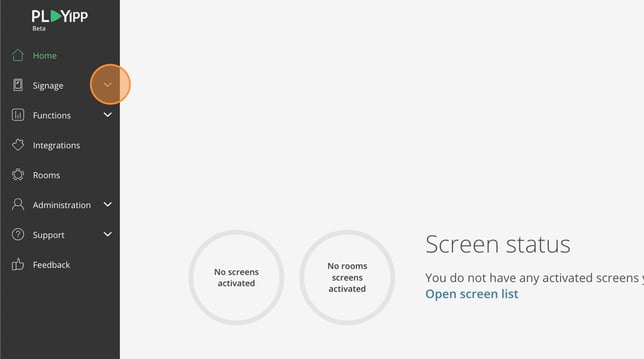
- Click Signage In the main menu
- Click on the screen or group where you want to publish to.
In this example, we select the screen called Entré. If you want to publish to a group, you instead select Screen groups in the main menu.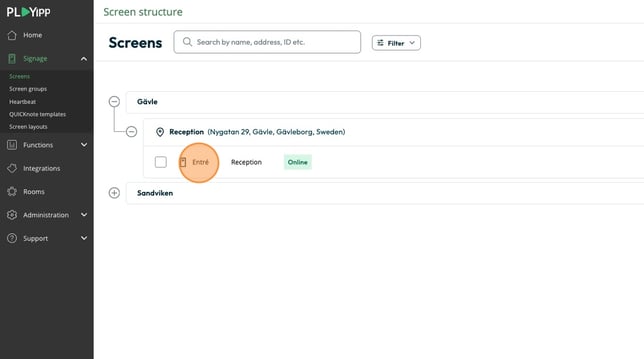
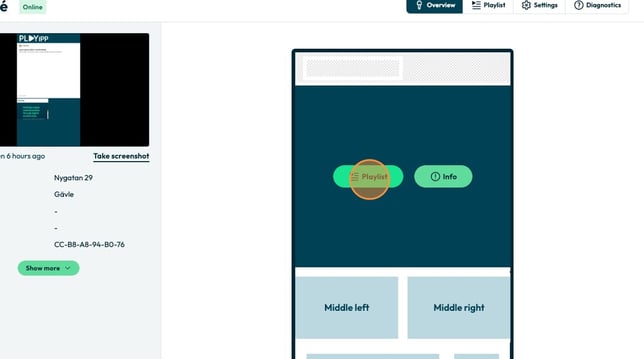
- Click the playlist button in the area you want to publish to
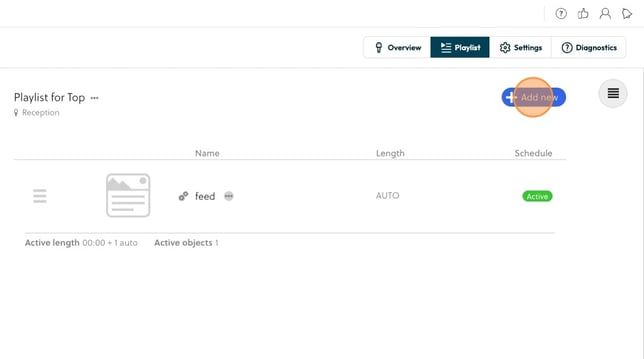
- Click "Add new"
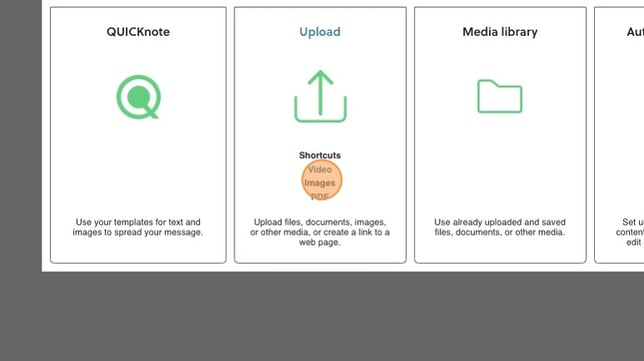
- Click "Images"
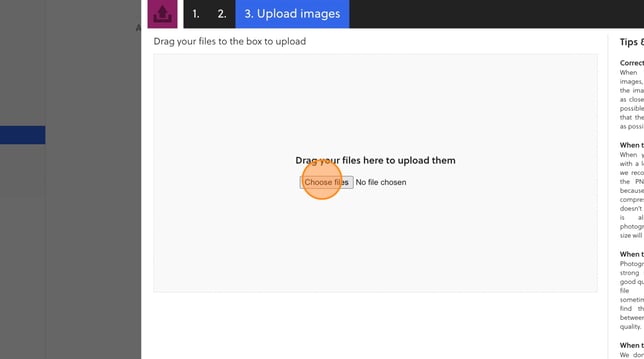
- Click "Choose files"
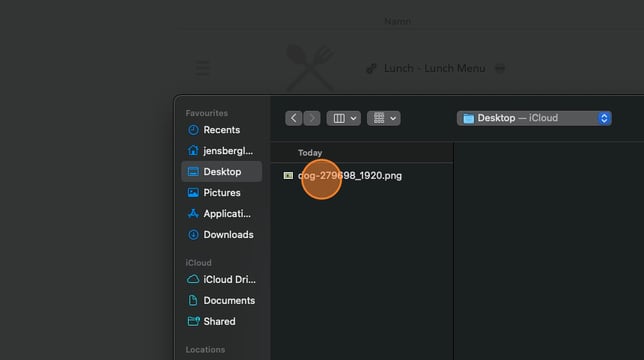
- Choose the image you want to upload
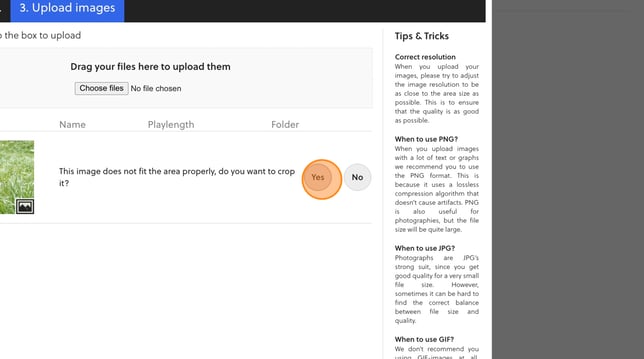
- You will now be asked to crop the image. If you don't do that, it will be adjusted automatically. If we click yes, we will be able to crop the image itself.
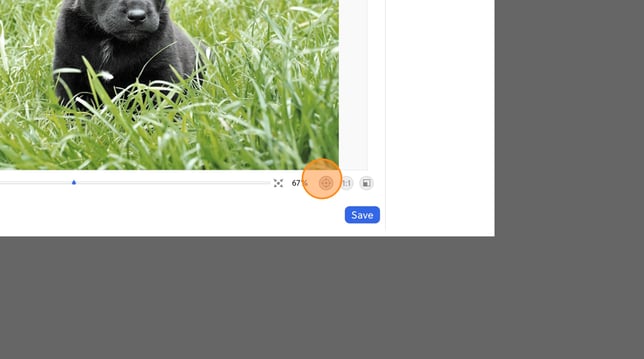
- If you click here, the image will center the image and adjust it as large as possible without cropping anything.
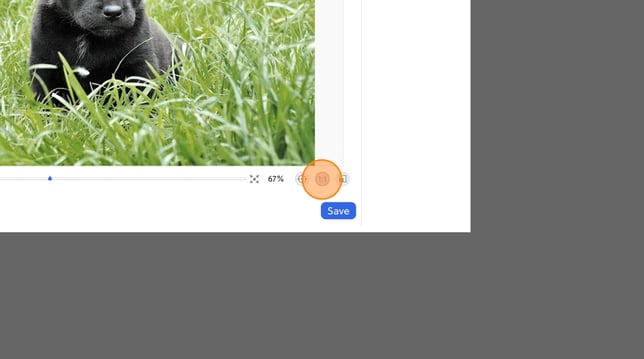
- If you click here, the image will scale to 1:1
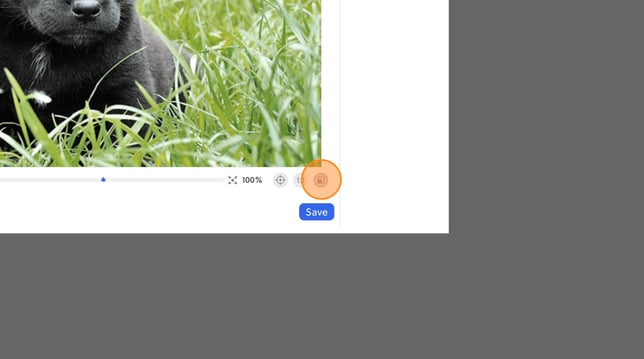
- If you click here, the image will fill the entire surface and crop as much as necessary to fill the entire surface.
- By clicking and dragging here, you can zoom the image yourself.
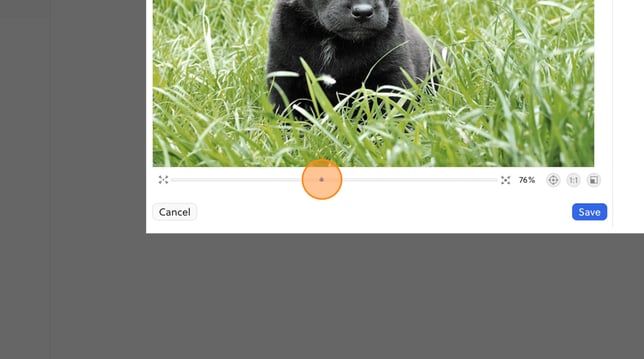
- By clicking and dragging the image, you can move it and choose how it should be cropped.
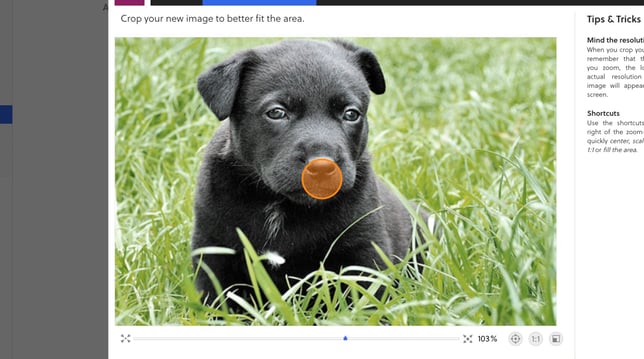
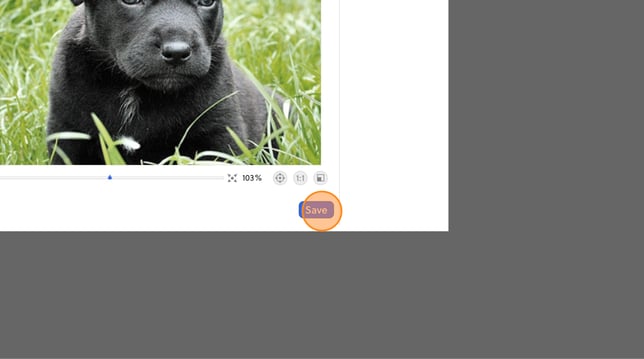
- When you are done with how you want to crop the image, click "Save”
- Here you can change the name of your image that you upload.
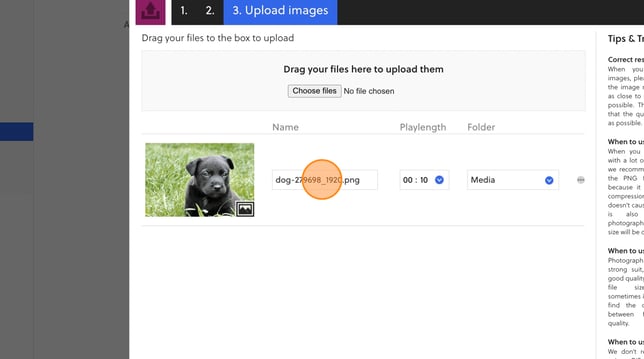
- Click here to change the playing length of the image.
Playlength is how long the image will appear in the playlist before the next item appears.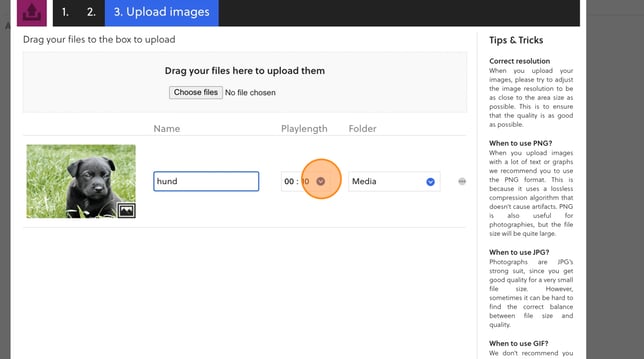
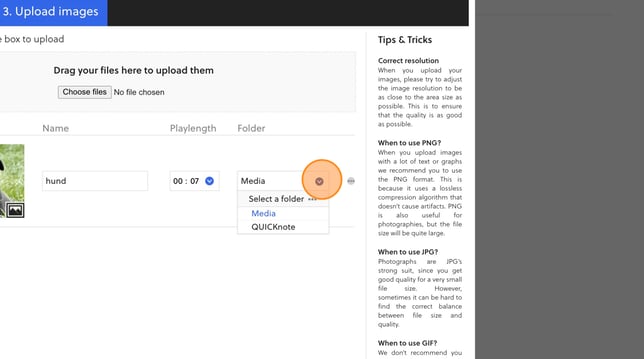
- Here you can choose which folder the image should be saved in.
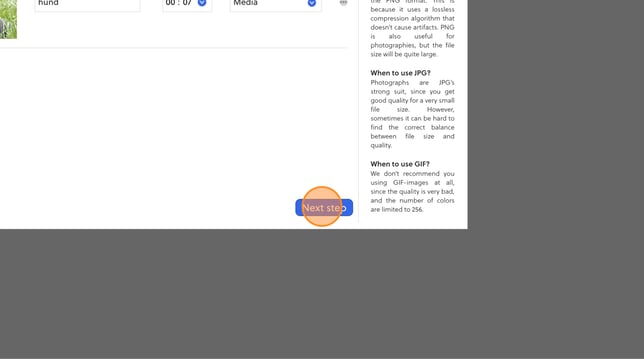
- Click "Next step"
- Choose if you want to schedule your widget or if you want it to always show. You can read more how you schedule content here: Scheduling
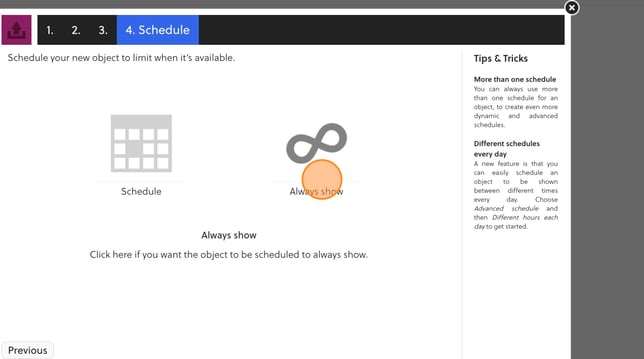
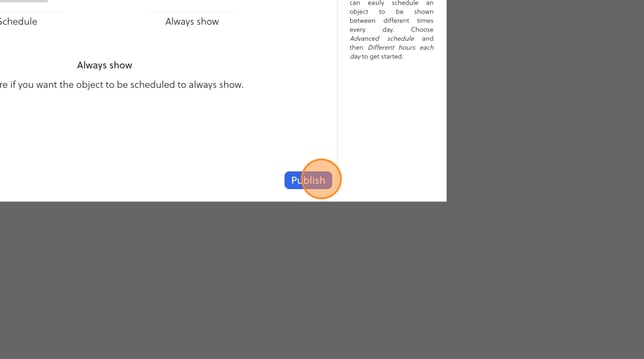
- Click "Publish"