If several users are to have the same permissions, we recommend that you create a user group. You can create a user group with the permissions they need and then add the users who should have the same permissions.
By doing so, you avoid making the same permissions several times for different users and can make your work more efficient.
User groups have the same possibilities for customizing permissions as a user.
Read more about how to manage user rights here: Manage user rights
Create a user group
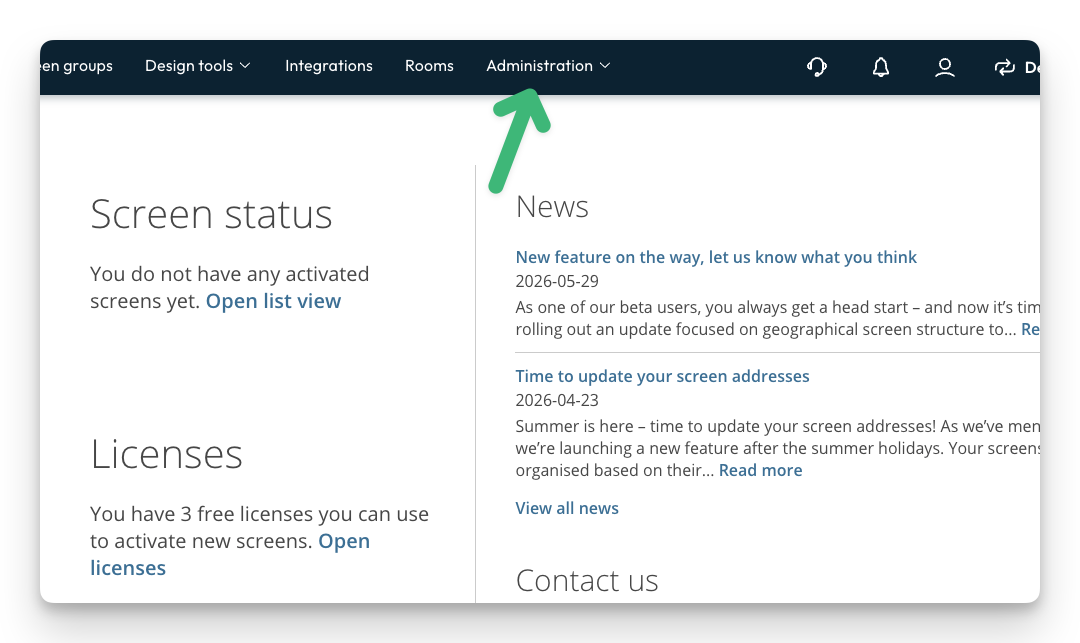
- Click here
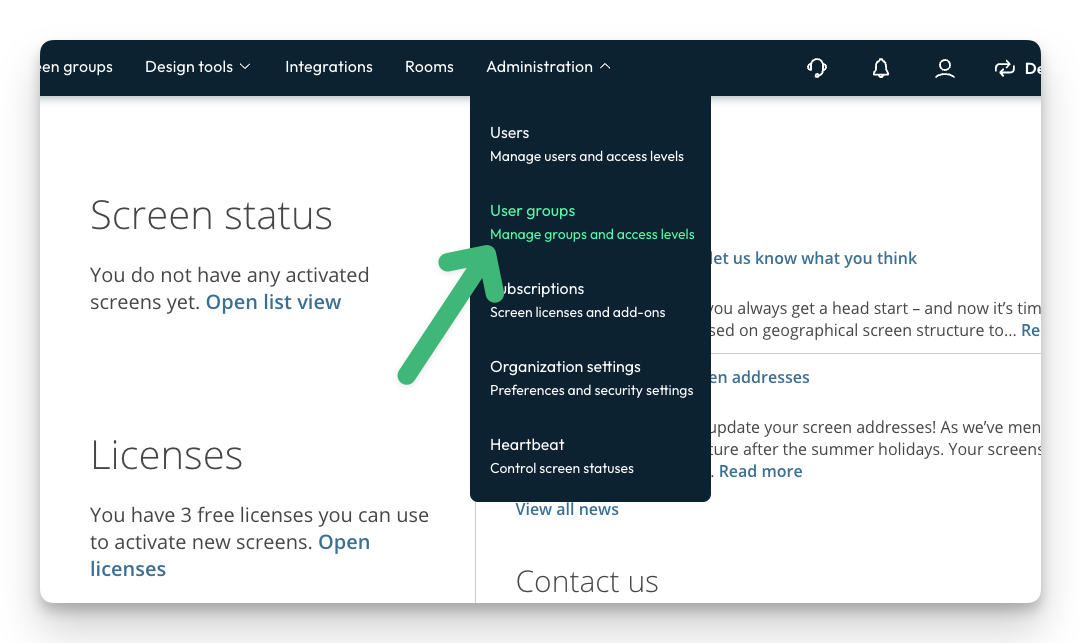
- Click "User groups"
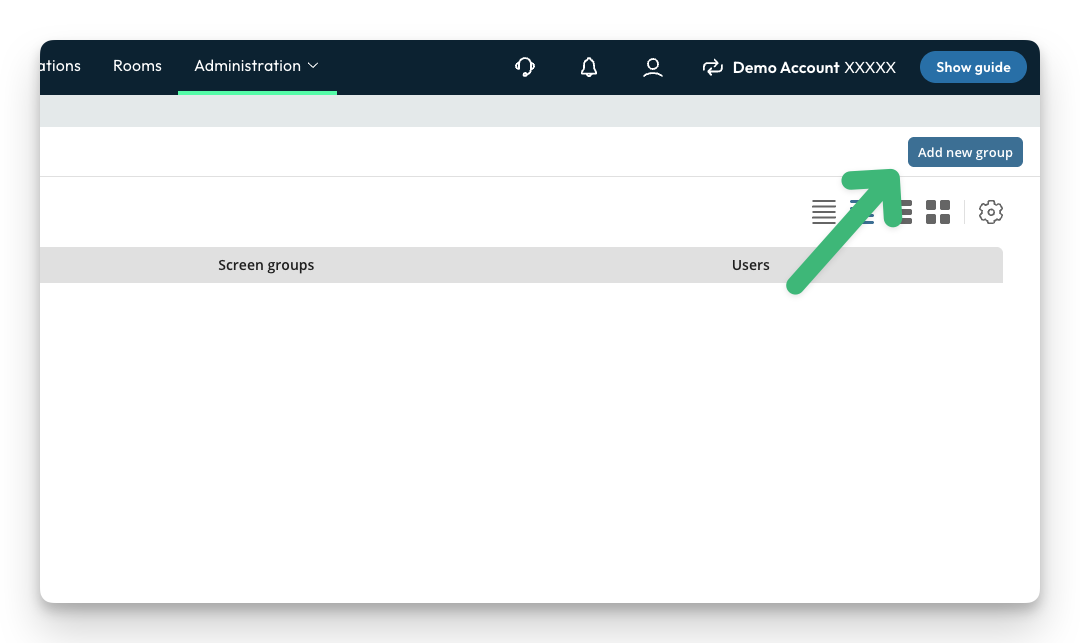
- Click "Add new group"
- You can now add some details on the user group; Name and notes
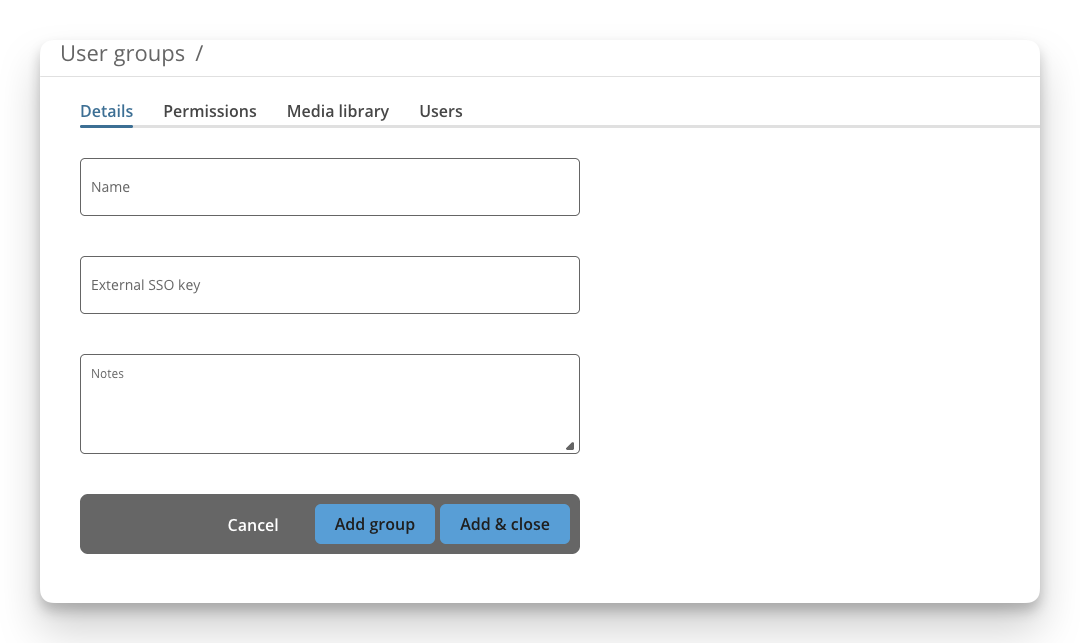
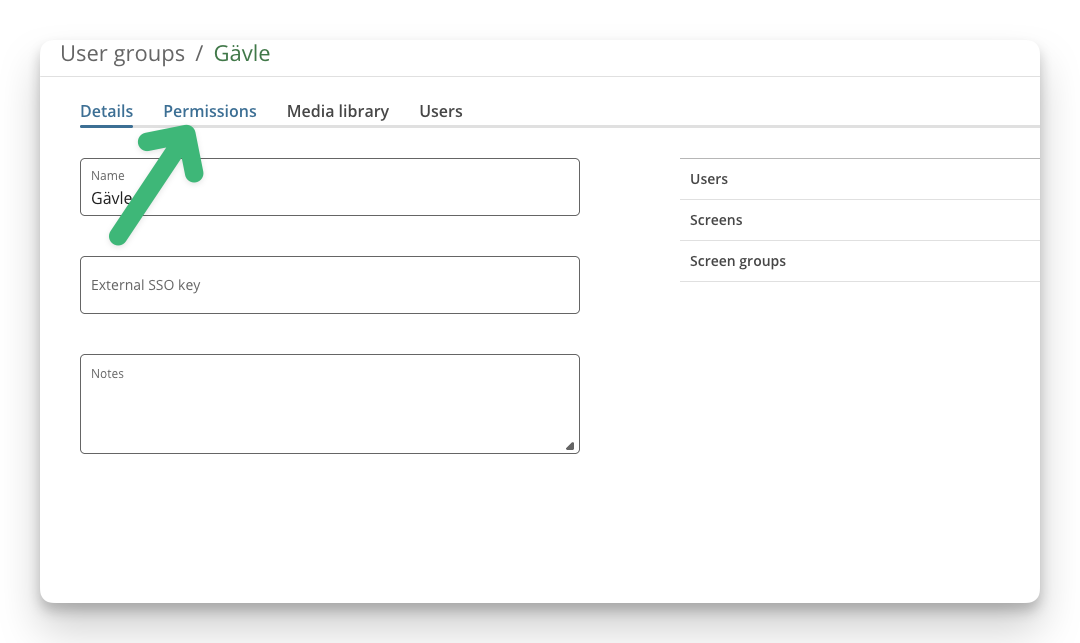
- Under the permissions tab, you can set the permissions for the user group and the user in the group. You can read more about permissions here: Manage user rights
Add users to a user group
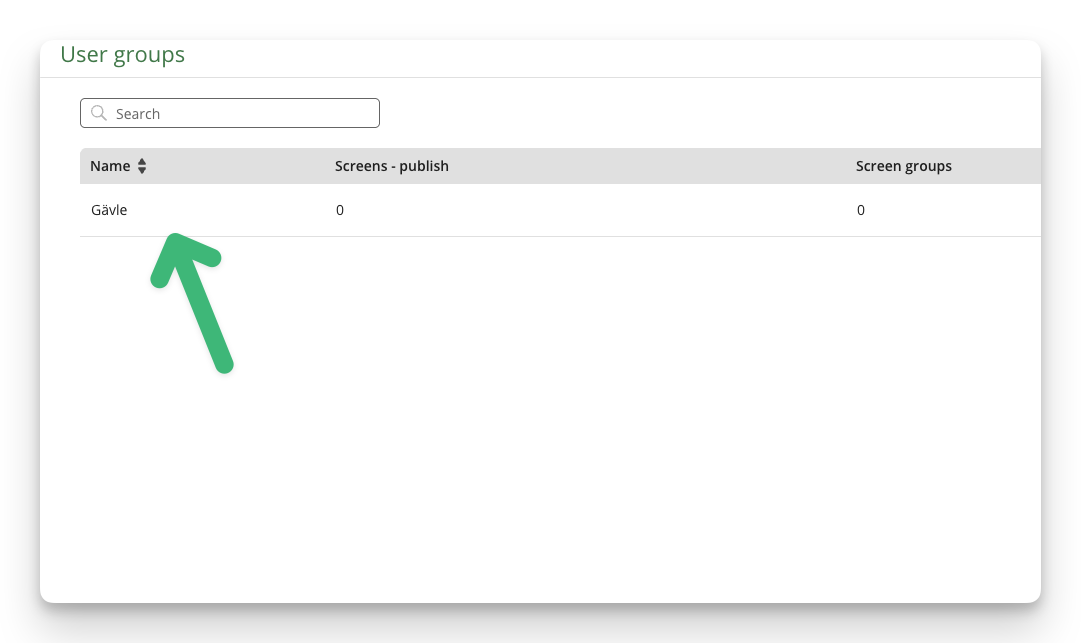
- Navigate to the user group (Administration > User groups) and click on your group.
- Click on the Users tab
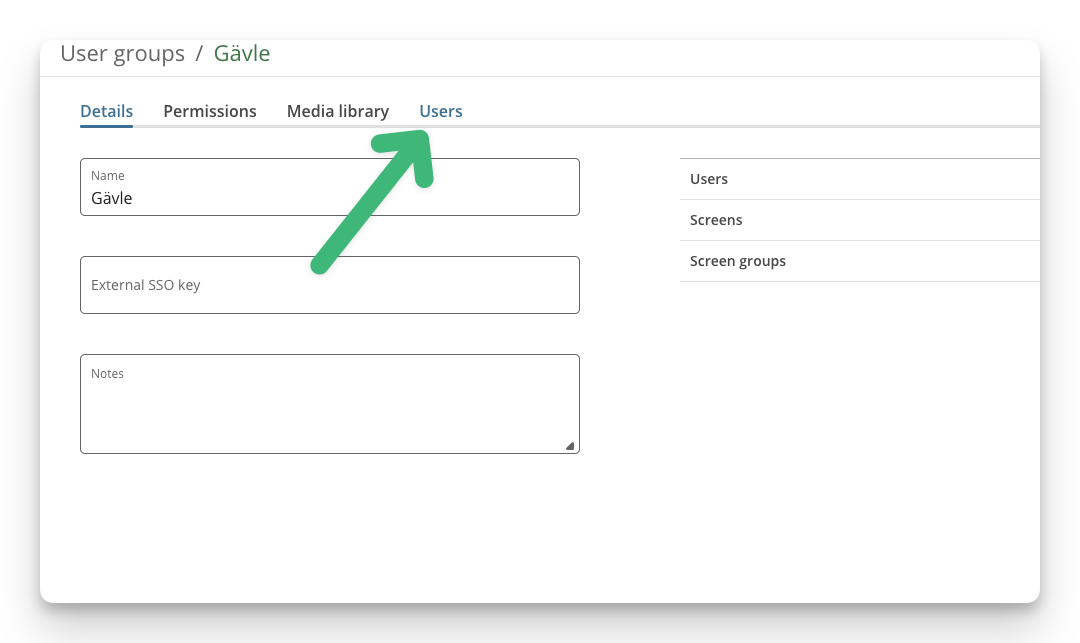
- Click on Edit

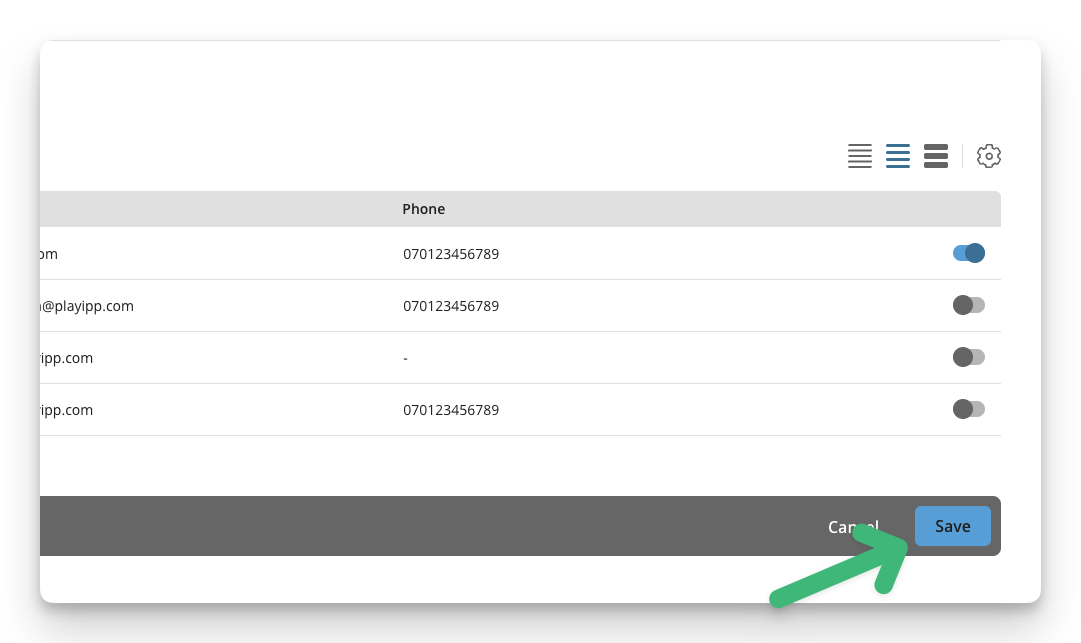
- Click on the toggle button to add a user to the group
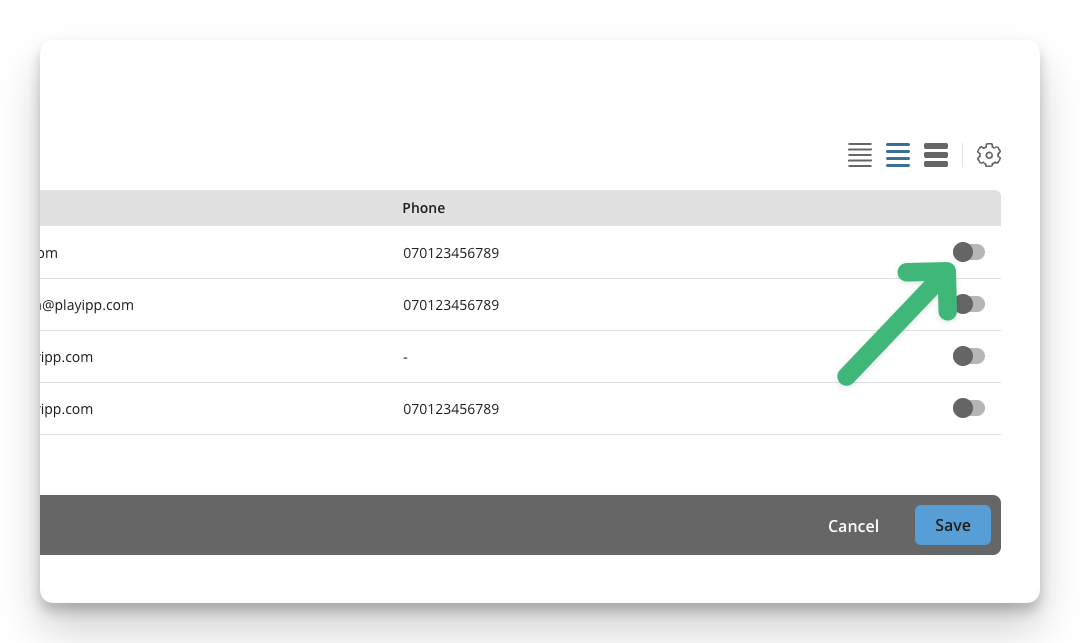
- Click on save