
To monitor and manage the OMNIplay3 media player, network connectivity is essential. Without a network connection, the device will not be able to retrieve critical information and any updates that may cause problems in the startup process or when retrieving new content from your media library in PLAYipp.
You will need a keyboard with a touchpad or a computer mouse to enter android settings to connect the player to wireless network.
Android Settings
Enter Android Settings by placing your cursor on top of the screen, drag and drop down the window, and click on the settings icon.
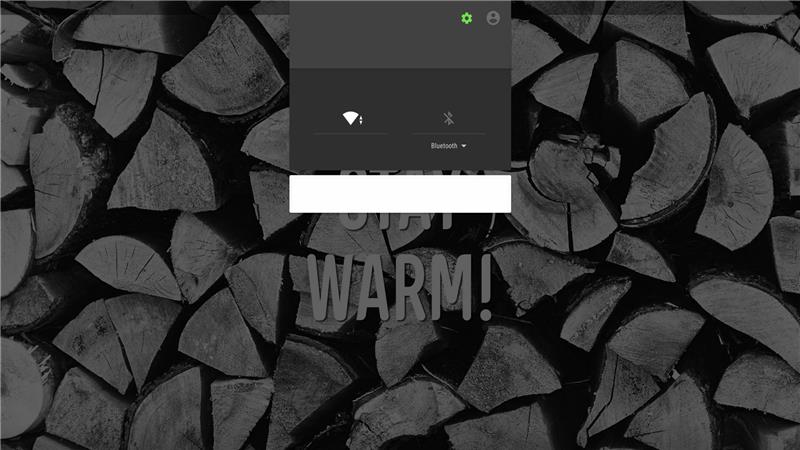
Please note that the settings icon may change position depending on your model. It will either be placed on the top side of the box as displayed on the picture, or on the bottom right side of the box.
Once in settings, select Wi-Fi or Ethernet.
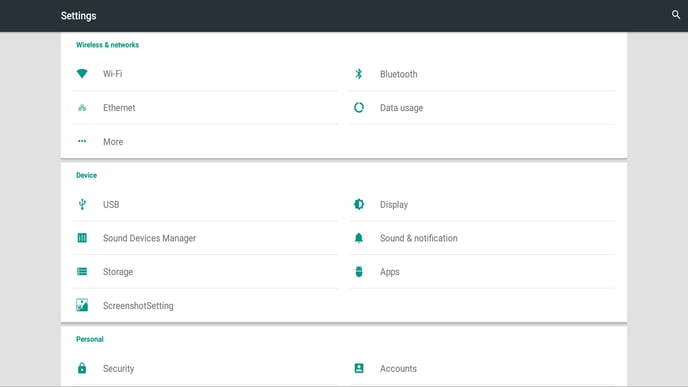
Wi-Fi
- In Settings, click Wi-Fi
- Enable wireless network access (OFF/ON)
- Select your local network from the list of available networks, and enter your password.
- Verify that it says Connected.
Ethernet
Connect the RJ45 network cable in the network port to OMNIplay3.
- In Settings, click Ethernet.
Make sure you are connected, and IP address information is retrieved.
Exit Android Settings
Right-click to exit Android Settings.
