
By configuring which colors and fonts are available, you can limit which colors and fonts a user can use. These fonts and colors can be used in QUICKnote templates, widgets, and layouts. If the font you want to use is not available, you can upload it yourself.
Contents
Managing fonts
Accessing brand profile
Note: The images in this guide show an older version of PLAYipp with the previous main menu. Read more about the new main menu in this article.
-
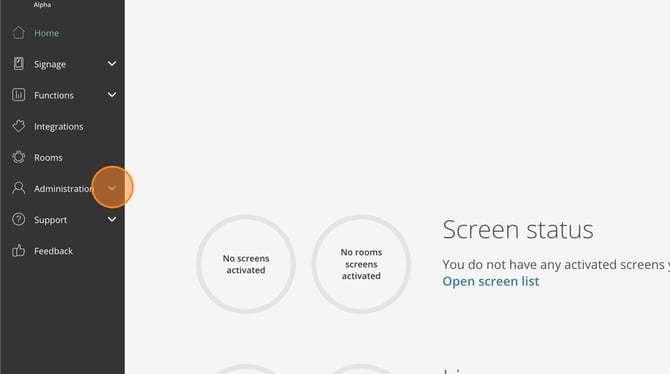
Click on Administration
-
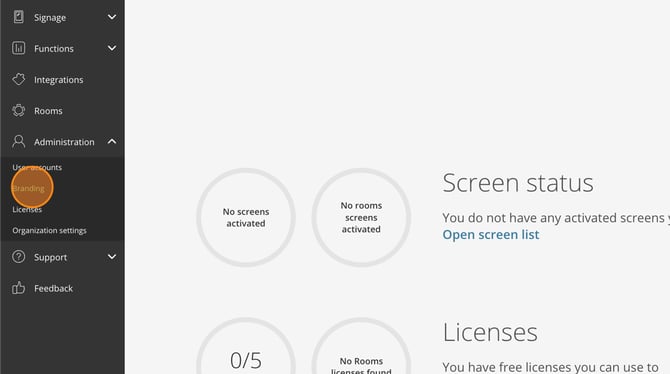
Click on Branding
-
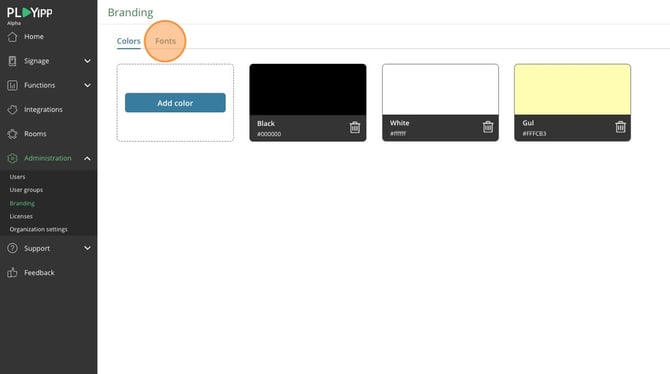
Click on Fonts
Activating system fonts
-
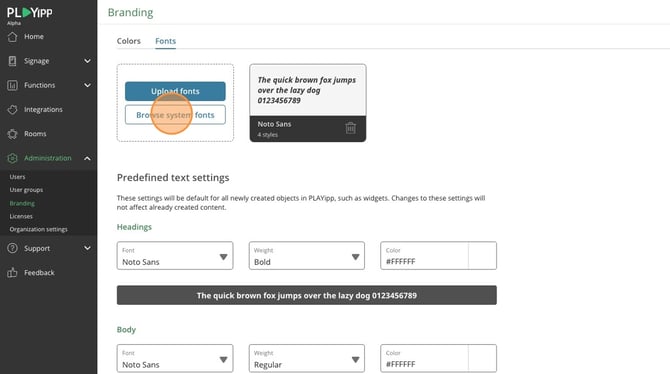
Click on browse system fonts
-
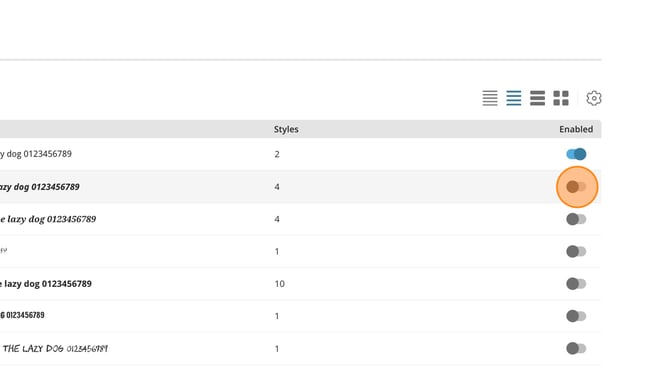
Click the toggle button to activate a font so it is available for everyone in your company to use
-
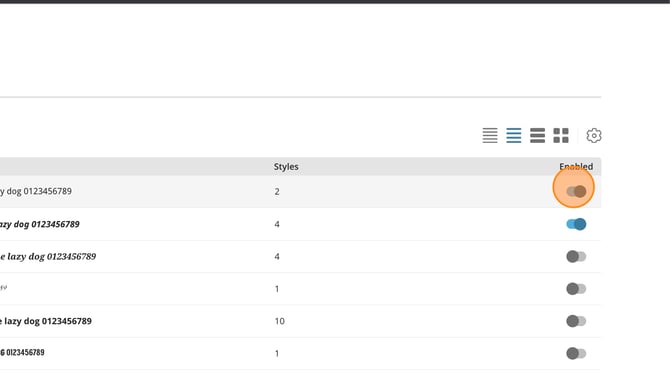
If you want to remove a font, click the same button to deactivate it
Uploading custom fonts
If the font you want to use is not available, you can upload custom fonts.
-
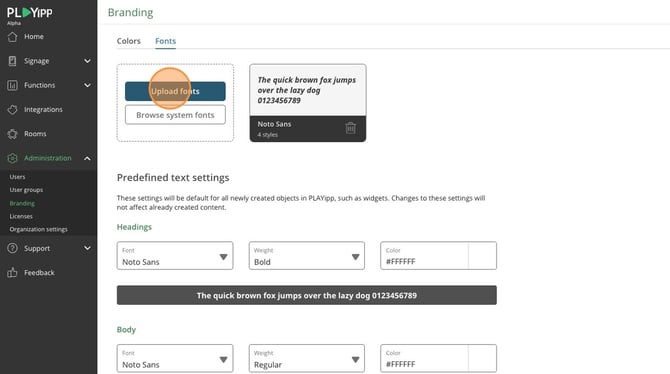
Click on "Upload font"
-
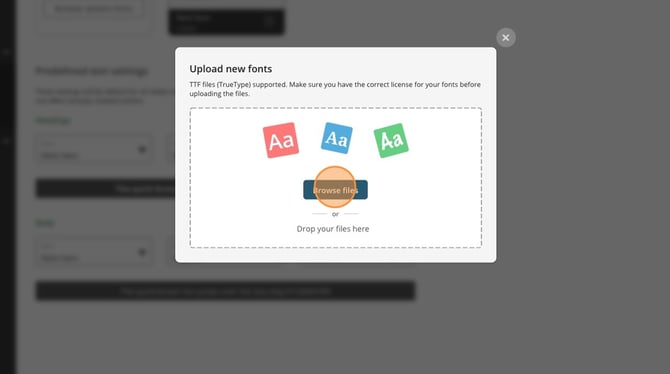
Click on "Browse files" or drag the file there
Next step: Continue to the colors section to add colors that complement your fonts.
Adding colors
From the same Brand Profile page, you can also add colors that are available to users
Add a new color
-
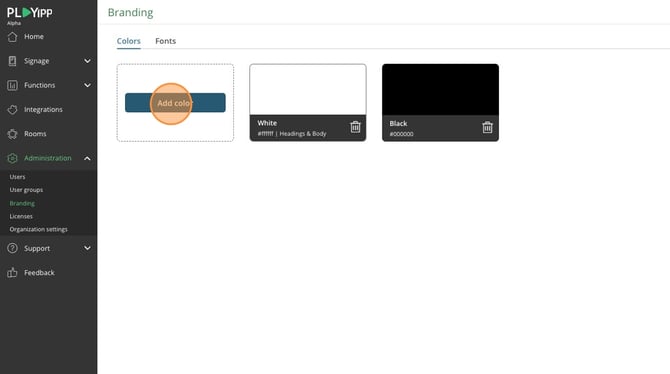
Click on Add color
-
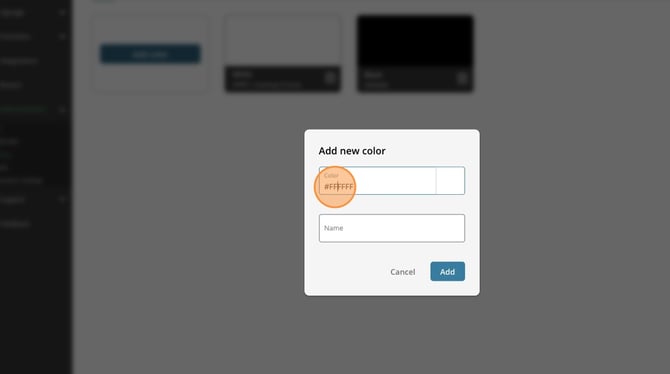
Enter the HEX color code directly in the field
or
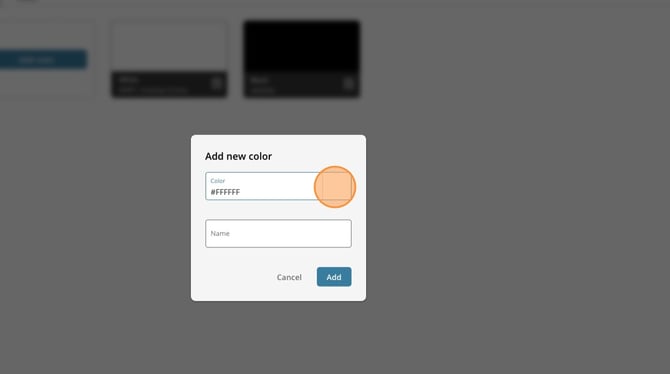
Click on the color field to open the color picker
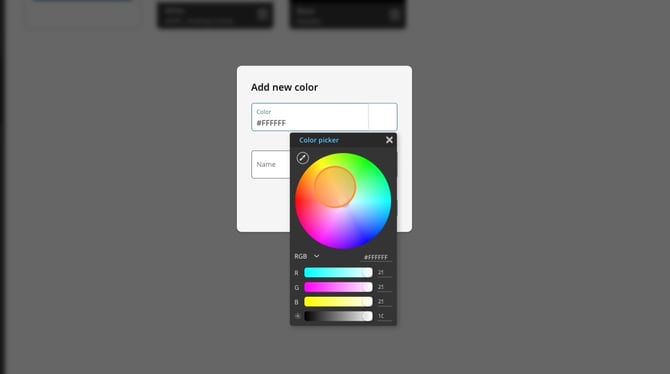
Select the desired color in the color picker
-
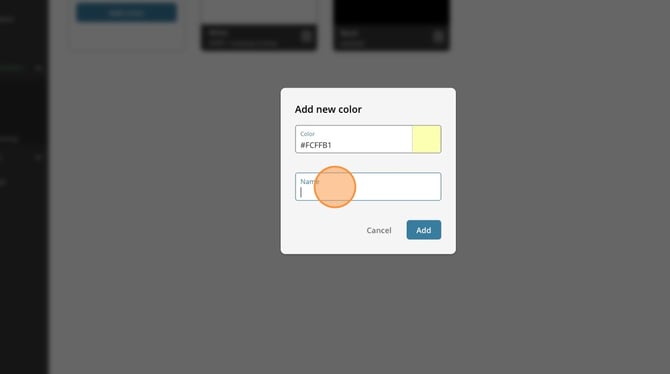
Give the color a name
-
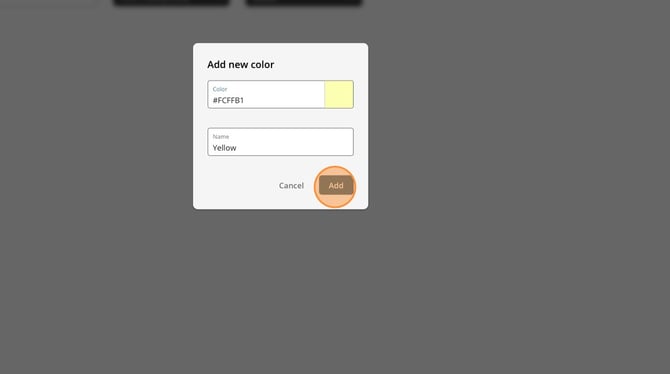
Click Add to save the color
Remove colors
-
Find the color you want to remove in the list of available colors
-
Click on the trash can icon next to the color
-
Confirm the deletion in the dialog box that appears
NOTE: Existing layouts, widgets, and templates using the color will continue to display that color, but the color will no longer be available to select for new content.
Complete your brand profile: See the fonts section to manage fonts that match your color choices.
Frequently Asked Questions
Which file formats are supported for fonts? The supported formats are .TTF (TrueType Font) and .OTF (OpenType Font).
Do I need a license to upload fonts? Yes, make sure you have a license to use the font you are uploading. Check the font owner's license terms before uploading.
Can I use the same font on all screens? Yes, when a font is activated or uploaded, it is available to all users in your company and can be used on all screens.
Is there a limit to how many colors I can add? There is no technical limit, but to maintain a consistent brand profile, it is recommended to limit the number of colors to those actually needed according to your brand guidelines.
What happens if I add a color with the same color code as an existing one? If you add a color with the same HEX code but a different name, a new color will be created with the new name. You can therefore have multiple colors with the same color code but different names (e.g., "Corporate Blue" and "Accent Blue" with the same code #0066CC).
Why does the color look different on the screen than in the color picker? This can be due to the screen's color calibration or brightness. Different screens may render colors slightly differently. Always test colors on the actual screen where the content will be displayed.
Troubleshooting
The font doesn't appear after upload
- Check that the file is in the correct format (.TTF or .OTF)
- Refresh the page or log out and back in
- Wait a few minutes - it may take some time for the font to sync in the system
- Check that the font doesn't have special characters in the filename that could cause issues
Font upload fails
- Check that the file size is not too large (maximum recommended: 5 MB)
- Make sure the file is not corrupt - test opening it on your computer first
- Check your internet connection
- Try a different browser
The color I added doesn't show in my templates or widgets
- Refresh the page where you are working
- Check that the color has actually been saved (it should appear in the color list)
- Some older templates may need to be recreated to see new colors
I cannot remove a color
- Check if the color is being used in active layouts, widgets, or templates
- You may need to first remove or replace the color in these before it can be deleted
- Some system colors cannot be removed
Next steps
Now that you have configured your brand profile, these fonts and colors can be used in:
- QUICKnote templates
- Widgets
- Layouts
This ensures a consistent visual profile across your entire digital signage solution.