
Choose to install the screen with either only the remote control or you can also connect a keyboard to be able to select and key in data more quickly.
Firmware V7.97.0.0 or later is required to install the app. The version is visible under: home screen > signage settings > device info > software version. If you need to update the software, contact b2bsupport@vestel.com.tr
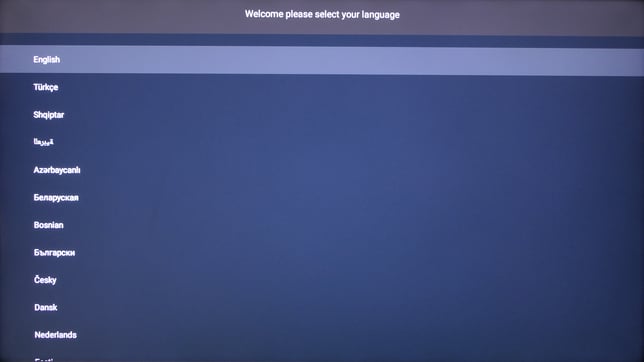
- Choose the preferred language
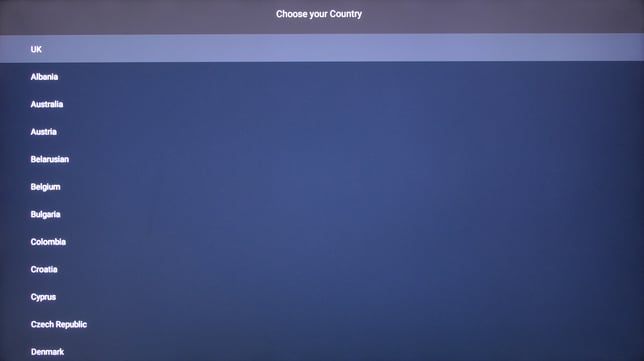
- Choose your country
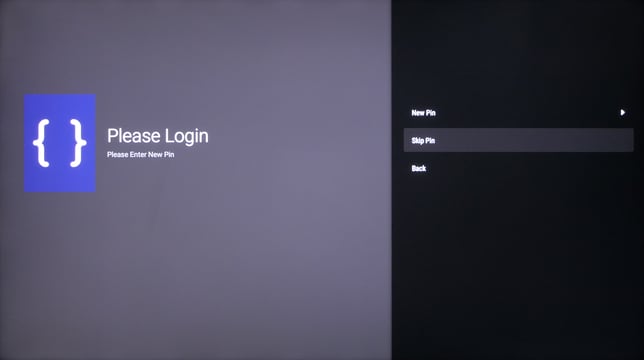
- Choose a pin for the device (optional)
- In “Signage settings” select the preferred orientation and leave everything else on default
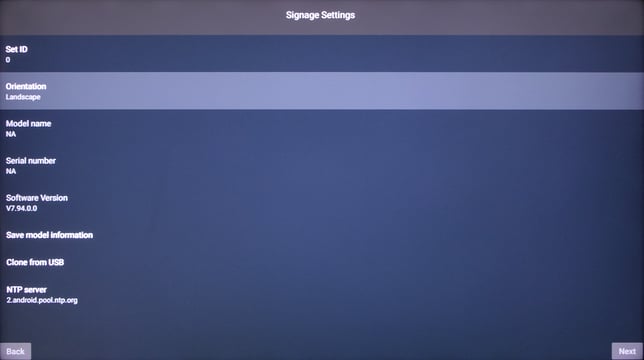
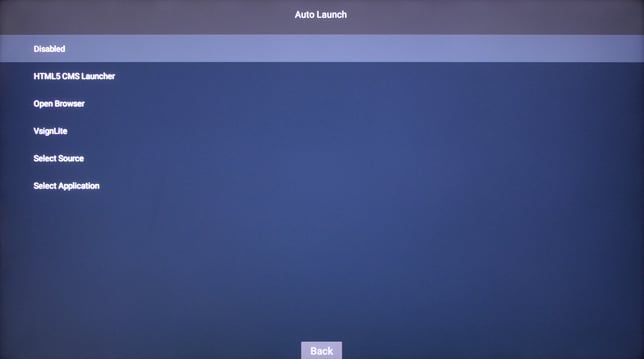
- Leave “Auto launch” on disabled
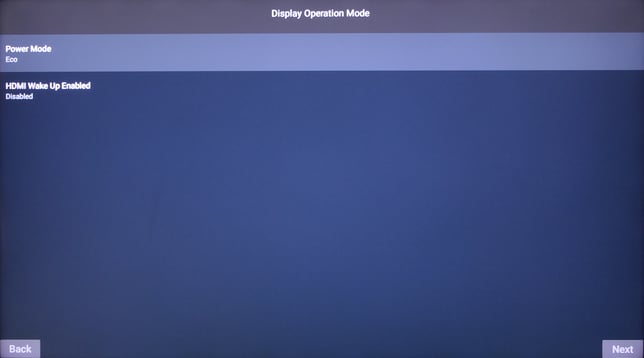
- Leave “Display operation mode” settings on their default values
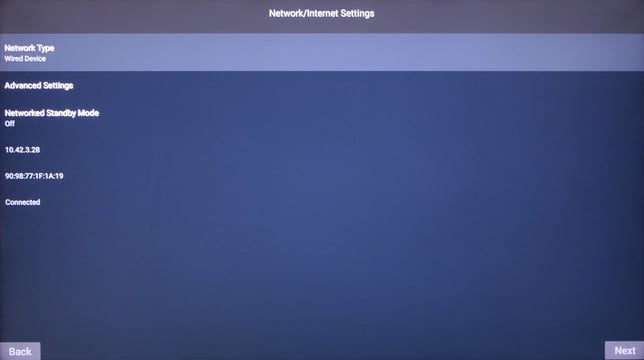
- Connect to your preferred network type
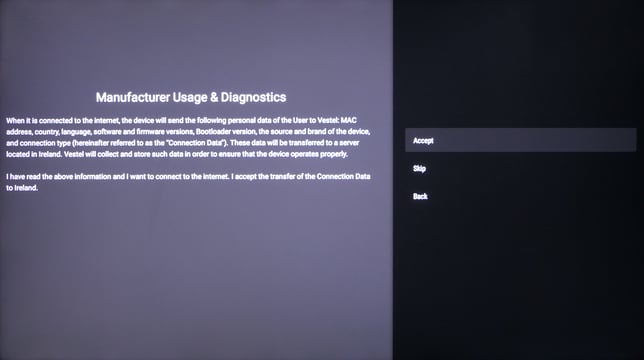
- Accept the “Manufacturer usage & diagnostics” agreement.
- Press menu on the remote and navigate to System settings
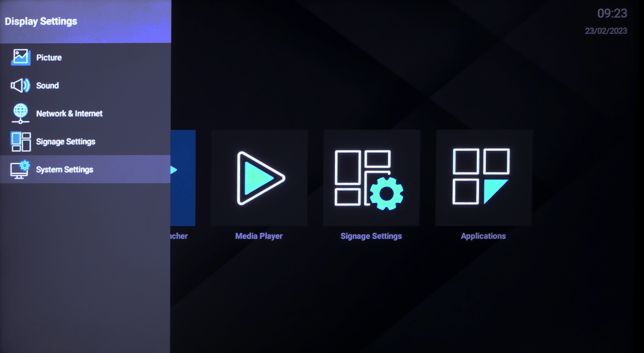
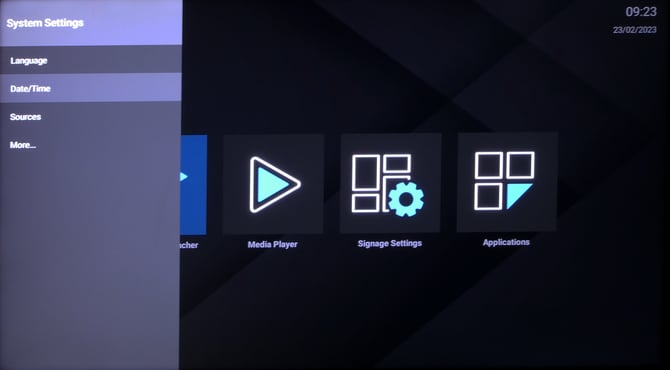
- Go to date / time
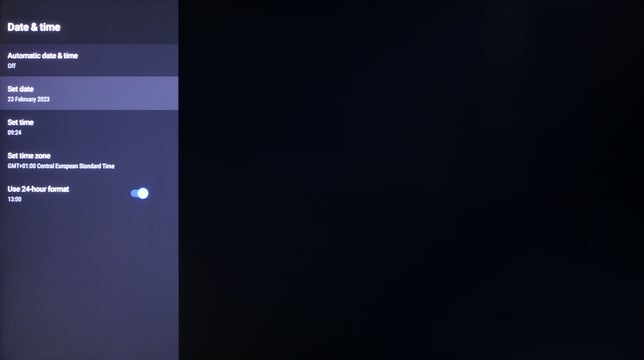
- Set your timezone or date and time
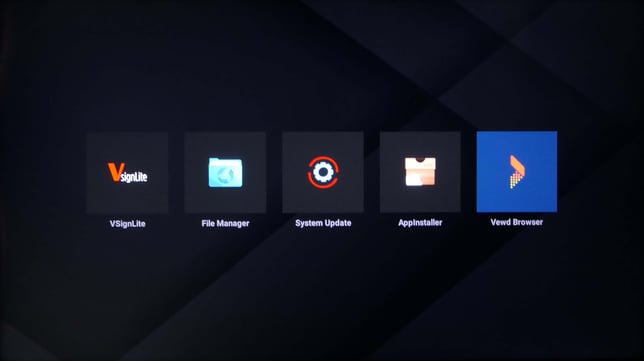
- Go back to and open aplications
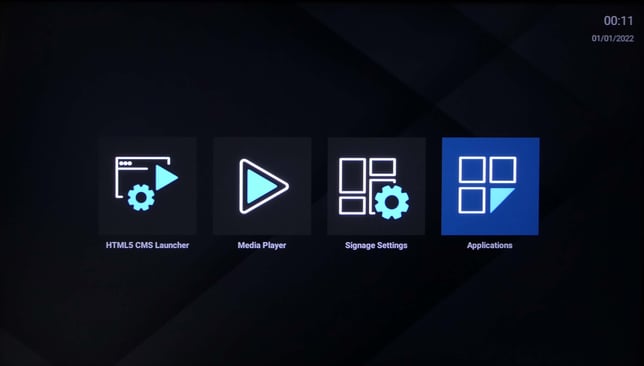
- Open “Vewd Browser” application
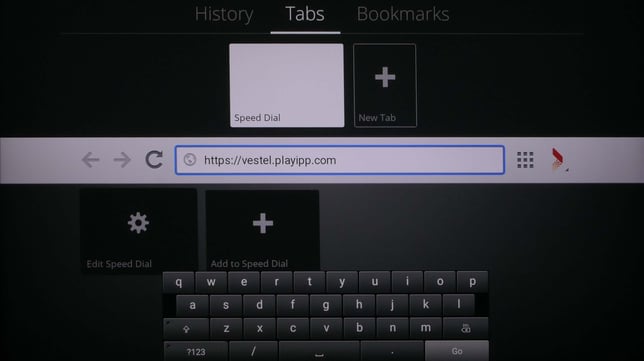
- Navigate up to the address bar and enter "https://vestel.playipp.com"
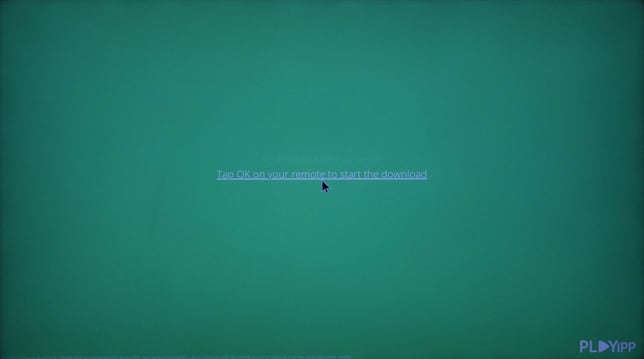
- Tap Ok on your remote to start the download
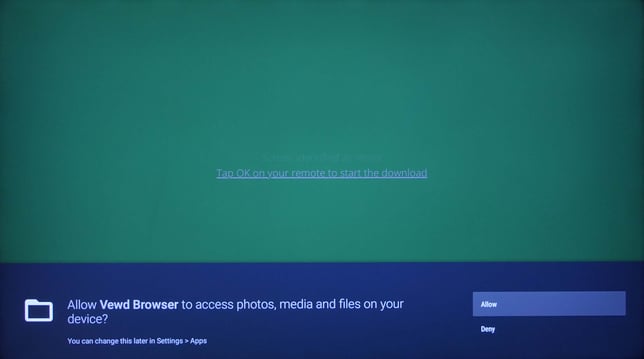
- Choose “Allow” when the “Vewd browser” asks for permission to access photos, media and files on the device
- Back out of the “Vewd browser”
- Then select “AppInstaller” while still being in the “Applications” menu
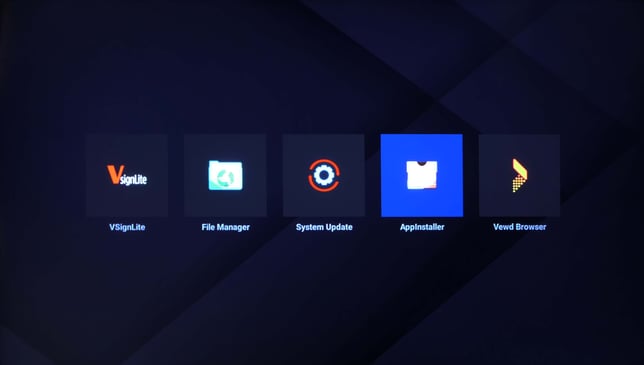
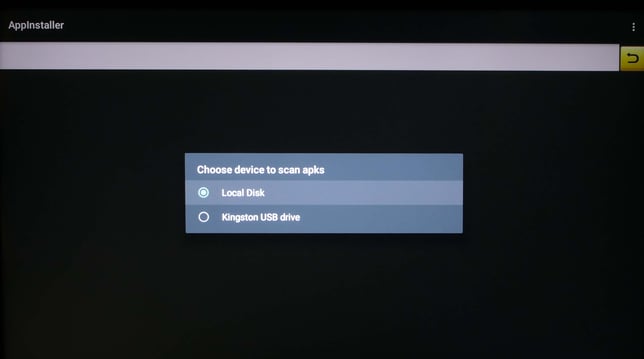
- Choose “Local Disk”
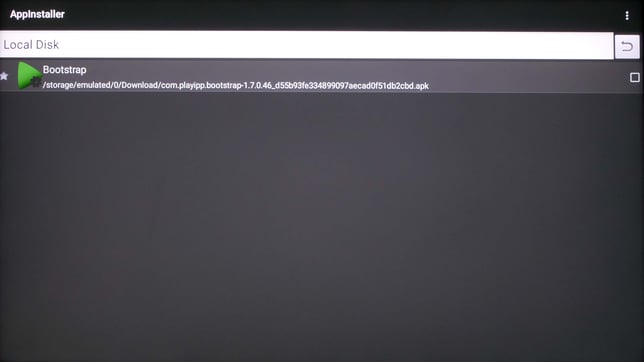
- Select “bootstrap”
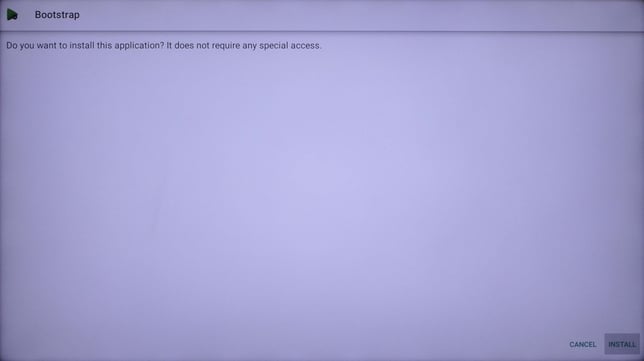
- Choose “Install”
- Choose “Open”
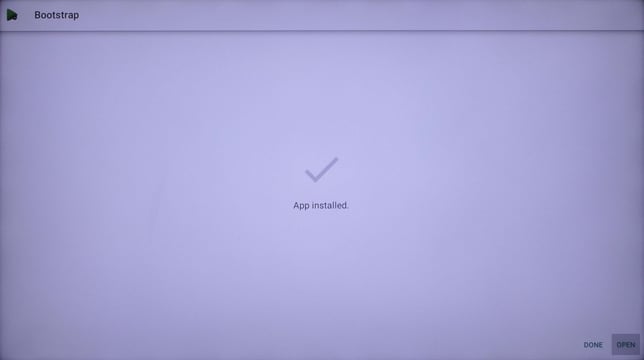
- Back out of “AppInstaller” after the apps have all finished installing.
- Select and launch the app called “Playipp launcher” while still remaining in the “Applications” menu
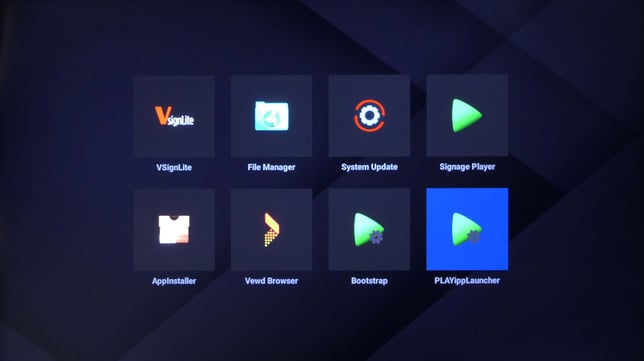
- All done! The app will now launch and install any pending updates.
- At startup the screen will display three green circles if the player have an internet connection. If three red circles appears then there is no internet connection.
When the software has started the activation code will be displayed on the screen.
Read the article about How to activate signage screens for instructions on how to activate the media player.