
This feature has not been released yet This article describes functionality that is currently under development and not yet available in PLAYipp.
Questions? Feel free to contact our support team.
The playlist in PLAYipp has been rebuilt from the ground up and has a new look that matches the rest of PLAYipp. It basically works as before, but the update includes many long-awaited features, a new way to add content and a media library that now has its own page.
Contents
- New playlist design
- A new way to add items
- Web links and HLS streams have moved
- Priority sections and screen group content
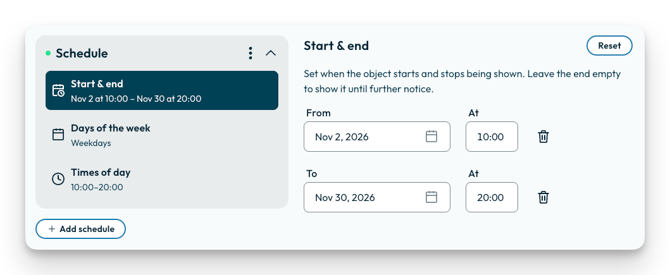
- Scheduling in three steps
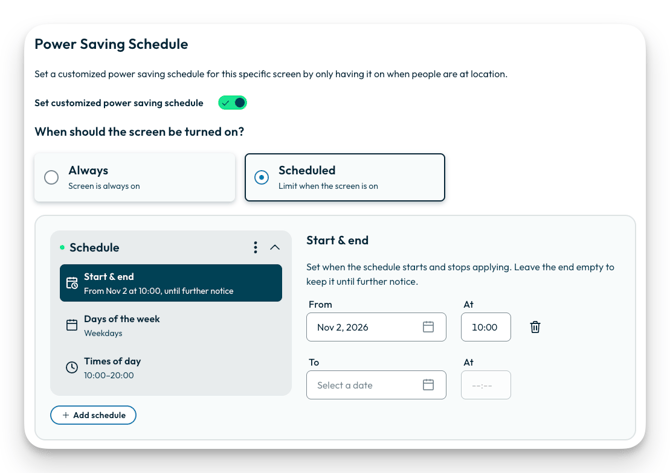
- Power save mode scheduling
- Working together on a playlist
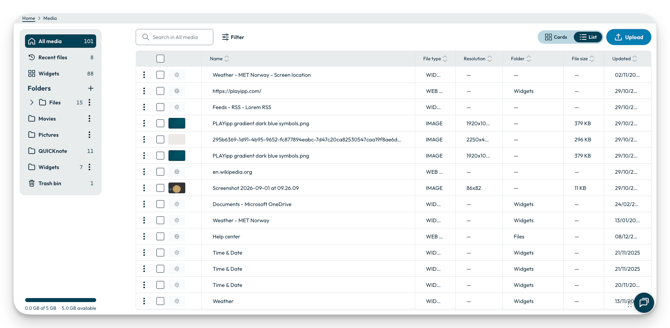
- The media library has its own page
- Rights in the playlist and media library
New playlist design
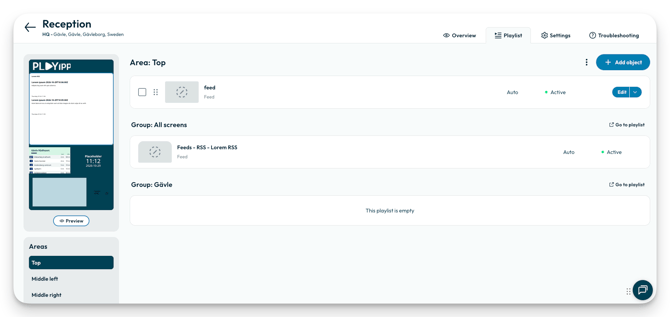
The playlist has been rebuilt from the ground up and now has the same look as the rest of PLAYipp. What's new in the playlist:
- An updated preview of the screen and its areas, with play, pause and volume in the preview.
- Edit several items at once.
- A dot shows which screens have unpublished changes.
- New and updated items are labelled.
- Changes left unpublished are published automatically after three minutes, but not while someone is still working in the playlist.
A new way to add items
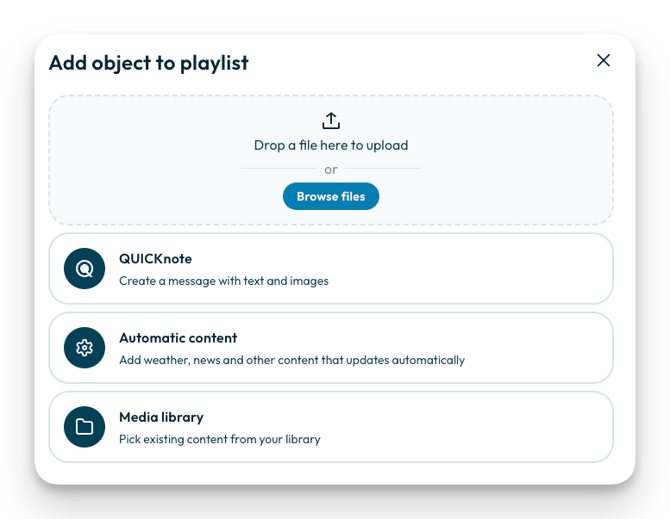
When you click Add in the playlist, a new menu opens. From there, you choose the type of content you want to add:
- Upload files: images, video, MP3 audio, PowerPoint and HTML.
- QUICKnote: add a QUICKnote to the playlist.
- Automatic content: all widgets and integrations, as well as web pages and video streams from an HLS link.
- Media library: choose from files that are already in your media library.
You can also drag files straight onto the playlist. New items are added at the top of the playlist.
Web links and HLS streams have moved
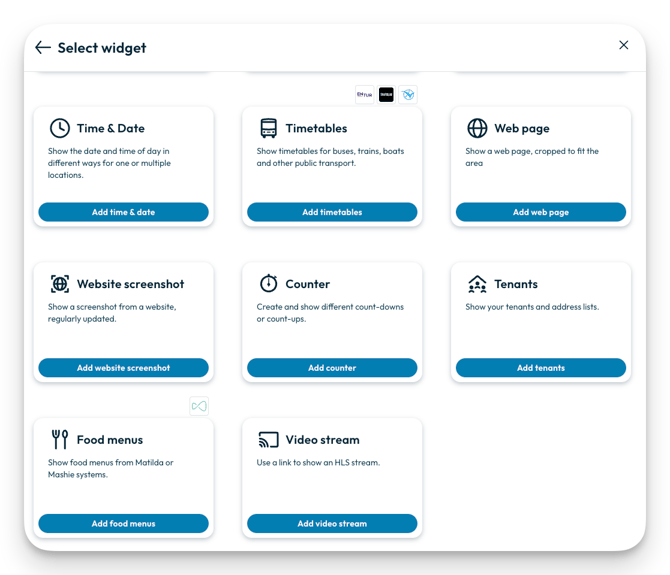
Web links and HLS streams were previously found under Upload. You now find them under Automatic content.
To add a web page or an HLS stream:
- Open the playlist.
- Click Add.
- Select Automatic content.
- Select web page or Video stream.
Priority sections and screen group content
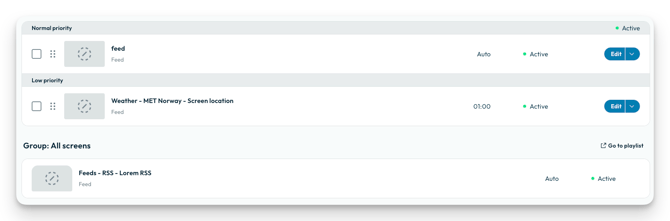
The playlist is divided into priority sections. The playlist now also shows content from the screen groups the screen belongs to. The group's content is shown below the screen's own content, and Go to playlist takes you straight to the group's playlist. Users who don't have rights to edit the group's content see it as read-only.
Scheduling in three steps
All schedules are now set up in three steps. This applies both when you schedule items in the playlist and when you set up power save mode.
- Select the start date and time and the end date and time.
- Select which days during the period the schedule should apply.
- Select which times the schedule should apply on the selected days. You can choose the same times for all days or different times for different days.
Time is shown on a 24-hour clock in every language.
Power save mode scheduling
When you set up when your screens turn on and off in power save mode, you use the same three steps as for item scheduling (see Scheduling in three steps).
When the update is available in all environments, you can read more about it in the Power save mode guide.
Working together on a playlist
The playlist shows who is editing it right now, and another user can take over editing.
History records edits, moves and group actions. The playlist information window shows who last edited the playlist and when.
The media library has its own page
The media library was previously found in a side menu in the playlist. It now has its own page in the main menu, which makes it easier to get an overview of and manage all your files.
You find the new media library under Design tools > Media. The page is available to all users who have read or read/write rights to at least one folder.
In the media library, you can:
- Organise files in folders.
- Search for files.
- Upload files.
- Preview files.
- Download files.
- Delete files.
- Manage deleted files in the trash.
You can still choose files from the media library when adding items to the playlist, through the menu that opens when you click Add.
Rights in the playlist and media library
The new playlist and media library follow the same user rights as before:
- Area and layer rights.
- Publishing rights.
- Read-only access.
- Folder rights, including subfolders and rights given through a user group.
Users only see the actions they are allowed to use.