
Table of Contents
Connect Microsoft Calendar
To connect your Rooms screens with Microsoft Calendar, you must be an administrator of your Microsoft organization.
Note: It may take up to an hour before the rooms appear as selectable rooms in our system after you have created the connection. This is a limitation in the Microsoft API.
To create a connection to your Microsoft environment, follow these steps:
- Click on "Rooms" in the menu and select "Microsoft calendar"
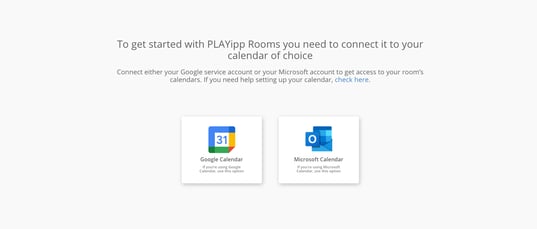
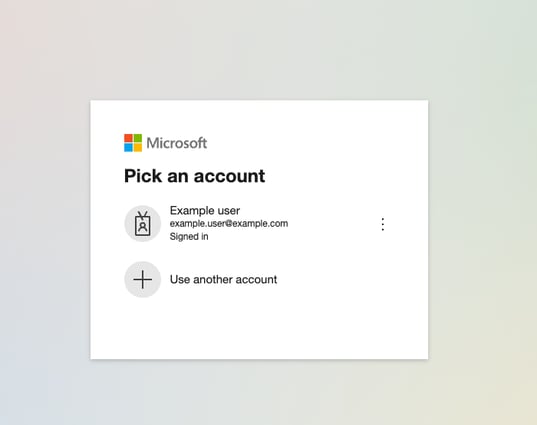
- Log in with your Microsoft admin account.
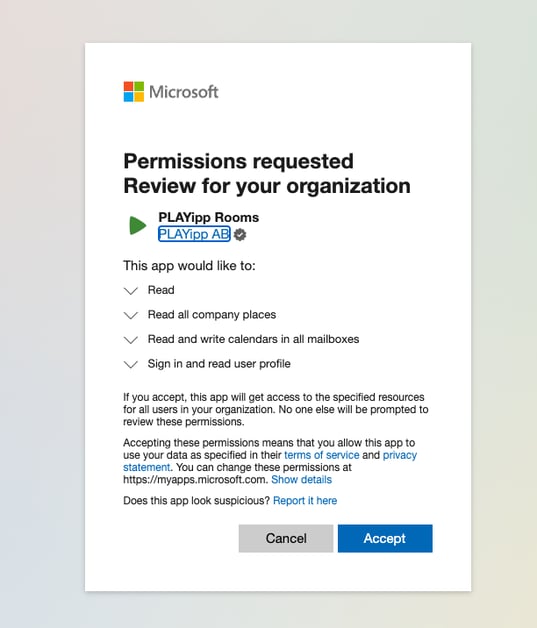
- Permissions required:
- Read organization information
- Read all company places
- Read and write calendars in all mailboxes
- Sign in and read user profile
- The connection is now completed. You can now select a room when you activate a screen by following this guide: Activate Rooms screen
If you don't have any rooms for your Microsoft Calendar you can add them by following this guide.
Displaying private meetings in room calendars (Exchange)
In Microsoft Exchange room calendars ("Rooms & equipment"), meeting titles and private status are hidden by default for meetings marked as "Private". To allow PLAYipp Rooms to display these meetings correctly, an Exchange setting needs to be adjusted.
Note: This requires running a PowerShell command by an administrator with the appropriate permissions in your Exchange environment. This setting cannot be configured through Microsoft's graphical interface.
How to do it:
- Open PowerShell Launch PowerShell as an administrator on your computer.
- Connect to Exchange Online Run the following command and sign in with your administrator account:
Connect-ExchangeOnline
- Apply the setting Paste and run the line below. Replace the email address with the address of the room calendar:
Set-CalendarProcessing -Identity "room.name@company.com" -RemovePrivateProperty $false
This setting needs to be applied for each room calendar where private meetings should be displayed.