
Together with Sitevision, PLAYipp offers a solution that makes it easy to distribute important information to all employees, regardless of their location. Through this integration, news and updates from Sitevision will automatically be displayed on digital screens via PLAYipp.
Watch the webinar on how to set up the integration here!
Table of Contents
- What is Sitevision?
- Content format and limitations
- Getting started with Sitevision integration
- Download the app in Sitevision marketplace
- Authenticate integration in PLAYipp
- Add a source
What is Sitevision?
Sitevision is a Swedish-developed web publishing system (CMS – Content Management System) and a platform for intranets, extranets, and websites, with a particular focus on the public sector, businesses, and organizations with high demands for security, accessibility, and simplicity.
The system is known for its user-friendliness, high flexibility, and strong integration capabilities. With Sitevision, you can build everything from simple websites to advanced intranet solutions – without needing to be a developer.
Content format and limitations
Fields marked Optional are not expected to be on every article.
PLAYipp uses only the standard metadata properties.
| Field | Description | |
|---|---|---|
| SV.Title | Required | The headline of the article |
| SV.Content | Required | The full article text |
| SV.Description | Optional | The short intro/lead text shown before the main body |
PLAYipp fetches a maximum of 20 articles per update cycle.
Articles can be filtered by:
- Free text search
- Tags
- Target audiences
- Archives
Getting started with Sitevision integration
To get started with PLAYipp, you first need to download the PLAYipp app from the Sitevision Marketplace. Once the app is installed in your Sitevision environment, the next step is to activate the integration directly in the PLAYipp platform. Through this two-step process, a smooth connection is established between your website and PLAYipp's services.
Note: Sitevision integration only supports cloud-based Sitevision solutions.
Tip: A Sitevision Service Account is recommended for integration to PLAYipp.
Download the app in Sitevision marketplace
- Create a service account
Follow the instructions in the Sitevision documentation to create a new service account or contact SiteVision's support for assistance with this step. - Access Sitevision
Log in to Sitevision using the newly created service account credentials - Navigate to the marketplace
Go to the Sitevision marketplace from your dashboard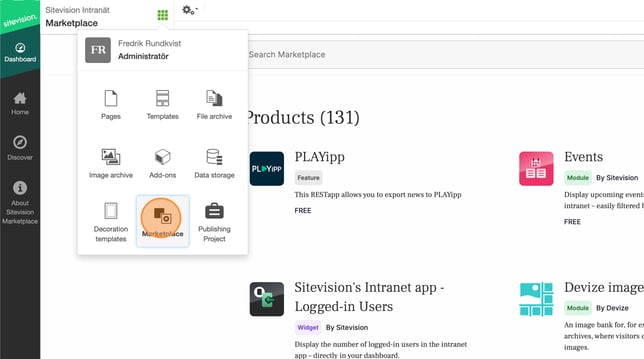
- Search for "PLAYipp" in the marketplace
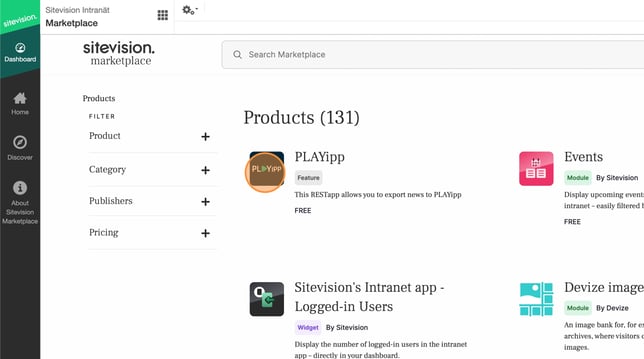
- Click the Install button to add the integration to your site
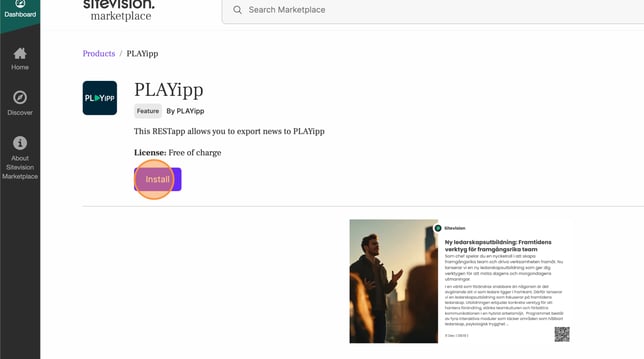
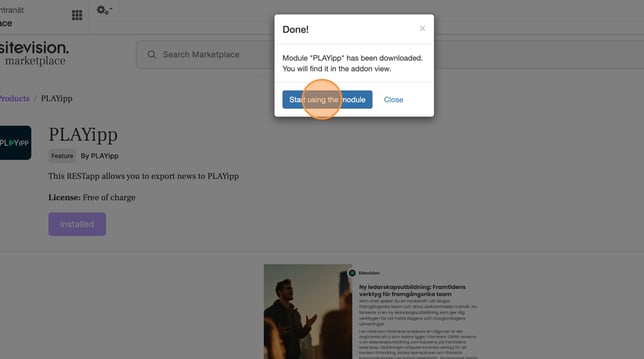
- Click start using the module
- Configure the integration
Click settings to access the PLAYipp configuration panel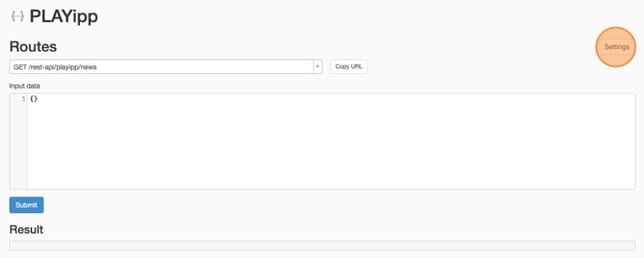
- Add the content sources you want the PLAYipp integration to access and fetch. We'll cover this in the next chapter.
Content Sources
This page displays all content sources that the PLAYipp app currently has permission to access.
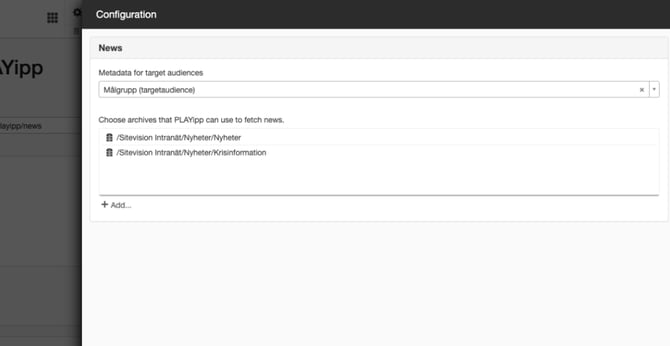
To add additional content sources:
- Click the Add button
- Select the desired content from the available options
The PLAYipp integration will then be able to fetch and display content from your newly added sources.
Authenticate integration in PLAYipp
Once the app is installed in Sitevision, you can activate the integration in PLAYipp. To do this, follow these steps:
Note: The images in this guide show an older version of PLAYipp with the previous main menu. Read more about the new main menu in this article.
- Click on integrations
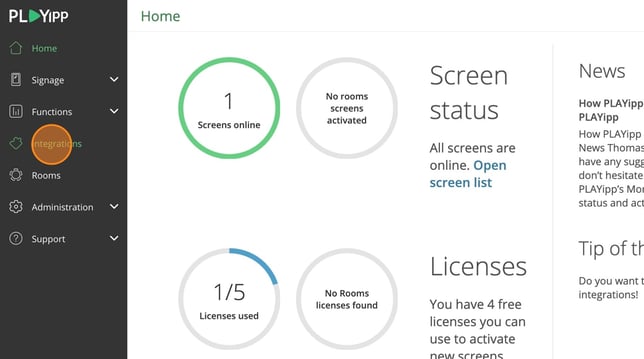
- Click on Sitevision
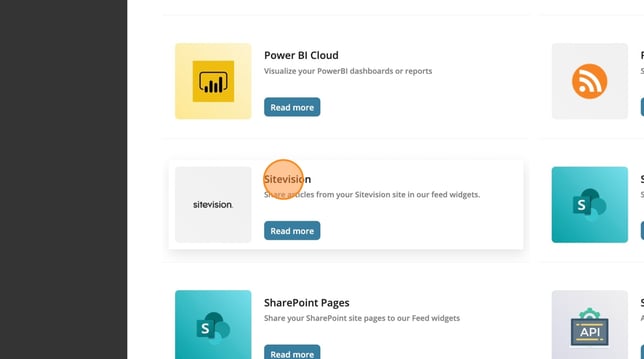
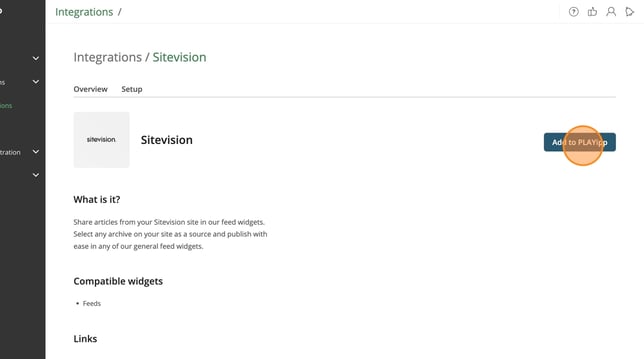
- Click on add in PLAYipp
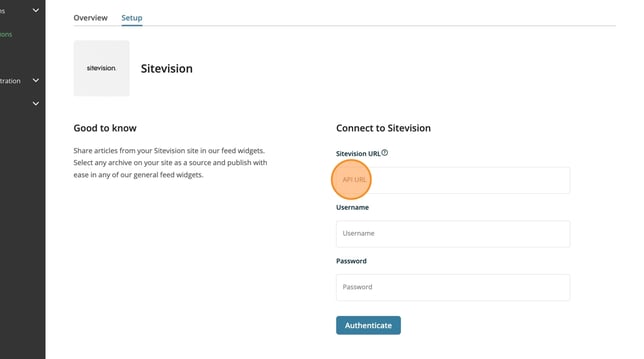
- Enter the URL for your Sitevision instance. This is the address you use to access your Sitevision content
- Fill in your Sitevision username
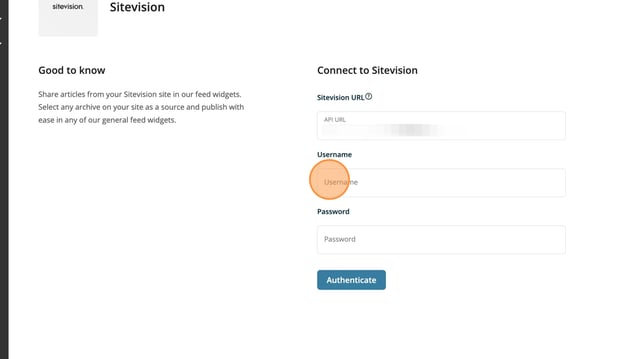
- Fill in your Sitevision password
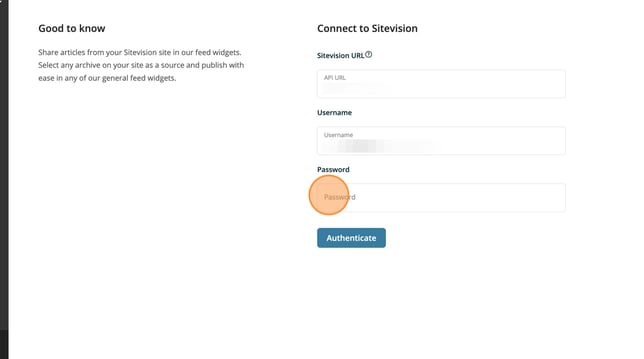
- Click on Authenticate
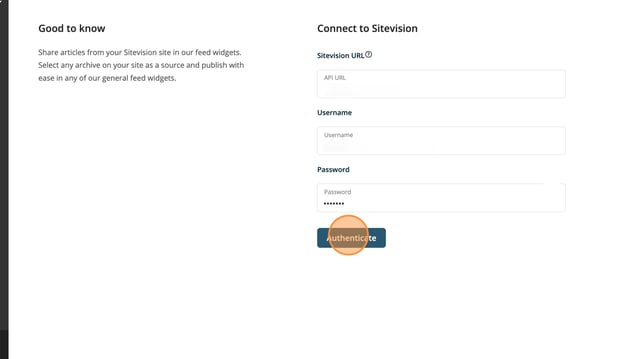
- The integration is now ready to add a source. We will go through this in the next section.
Add a source
To display content from Sitevision, you need to choose where PLAYipp should fetch the information from - content in a specific archive, with a certain type of label, or targeted at a specific audience.
You can either choose just one option (for example, all news articles in the 'news' archive) or combine the different options to make a more narrow fetch (for example, all news articles in the 'news' archive and with the label 'external').
These will be called sources. If you want to display different types of content on different screens, we recommend creating several different sources. For example, create a source called 'External' that only fetches information from the 'external news' archive while creating another source called 'Internal' that only fetches information from the 'internal news' archive.
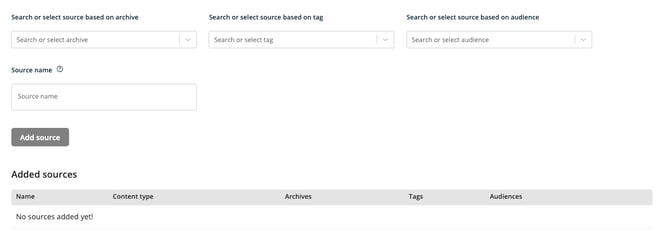
After you have added a source, you can display it in a feed widget.
To show your source on a screen, follow this guide: Add a feed widget