
With a finance widget, you can show current prices for stocks, currencies, commodities and stock markets on your screens. The widget fetches new data automatically, so the content on the screen stays up to date.
Note: This guide describes the flow for individual screens. Screen groups still use an older flow for now, which will soon be replaced by this one.
Contents
- Add the widget
- Select finance data
- Add new finance data
- Add sources under Apps
- Customize the appearance
- Save and publish
Add the widget
- Click Screens in the main menu and select the screen you want to publish to.
- Select the area of the layout where the widget should be shown. You can do this in two ways:
- On the Overview tab, click the area you want to publish to.
- Open the Playlist tab and select the area under Areas on the left.
- Click Add object.
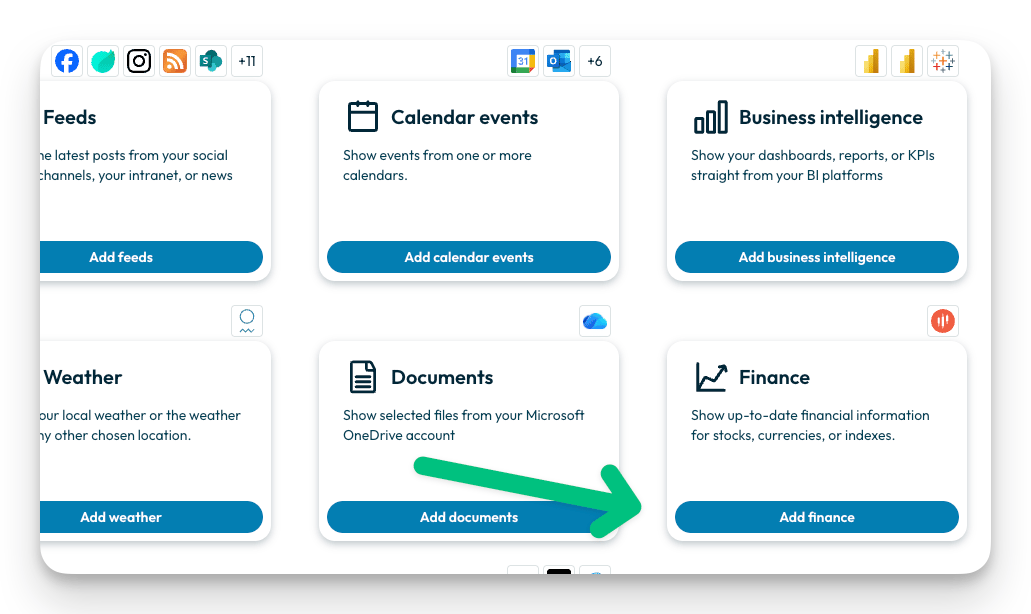
- Select Automatic content.
- Click Add finance on the Finance card.
Select finance data
Under Select finance data, you see the finance data that has already been added, both directly in the widget and under Apps. Each source shows which integration it comes from, for example From integration: EOD Historical Data.
Click the finance data you want to show. If it isn't in the list, add it as described in the next section.
Add new finance data
- Click Add new finance data.
- Under Type, choose what kind of data you want to show: Currency, Stock market, Stock or Commodity.
- Fill in the fields shown for the selected type. The fields differ slightly between types. For a stock market, for example, you choose the exchange under Stock market, and for a stock you first choose the exchange and then search for the stock.
- Click the add button below the fields. Its name depends on the type, for example Add stock market.
The new finance data is now shown under Select finance data. Click it to use it in the widget. You can also select it the next time you add a finance widget.
Add sources under Apps
If you want to prepare finance data in advance, you can also add it through the integration, without adding a widget.
- Click Apps in the main menu.
- Click Stock data in the Finance category.
- Under Added sources, click Add source and add the finance data the same way as in the widget.
The sources you add here are then shown under Select finance data when you add the widget. Read more about managing integrations here.
Customize the appearance
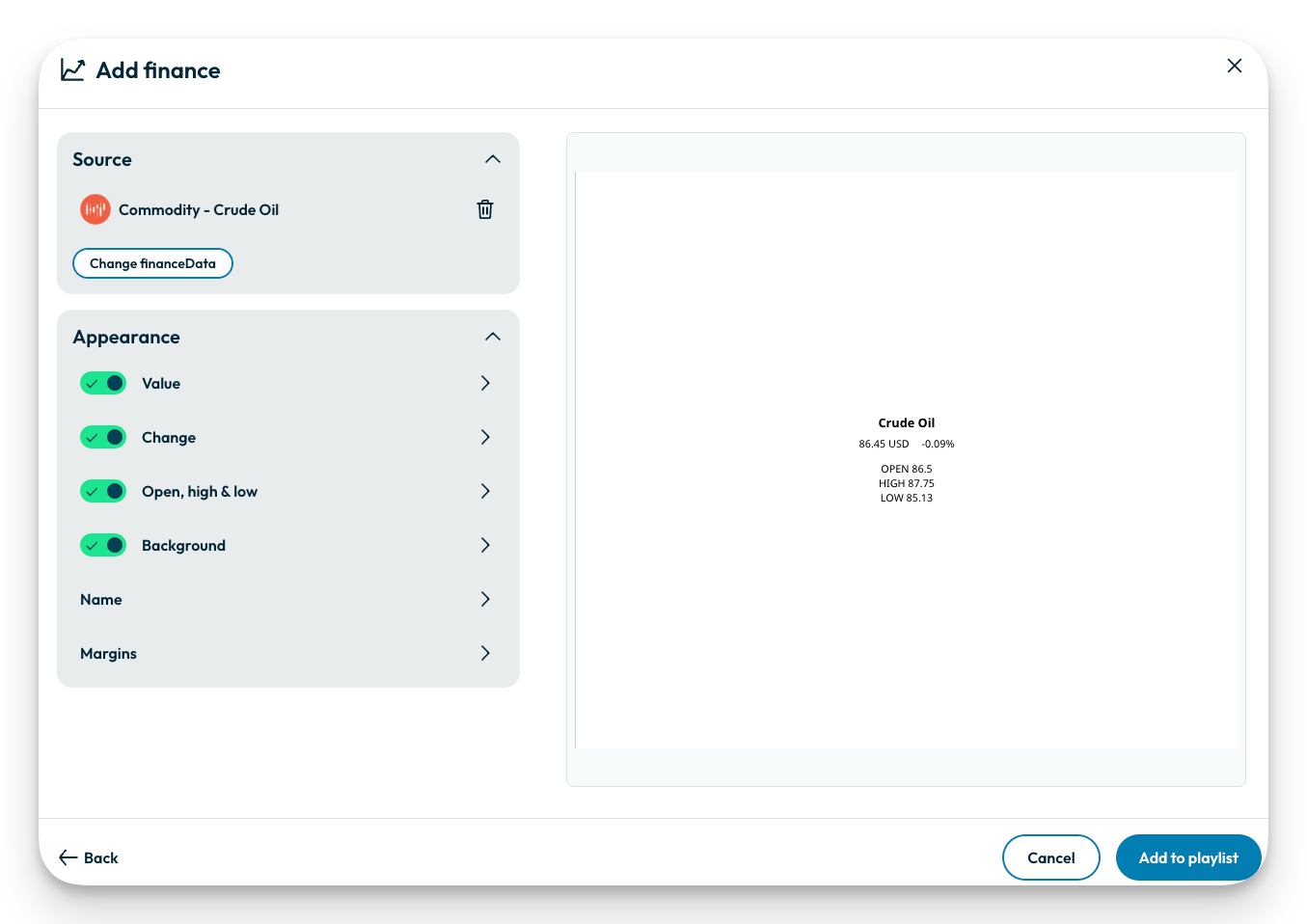
Once you have chosen finance data, a preview of the widget is shown on the right. On the left are two sections that you expand by clicking them.
Source
Under Source, you see which finance data the widget shows. Click Change financeData to choose another one, or the trash can icon to remove it.
Appearance
Under Appearance, turn the parts you want to show on or off:
- Value: the current price.
- Change: the change as a percentage.
- Open, high & low: the opening price and the day's highest and lowest price.
- Background: a background color behind the widget.
Click a row to change its font, weight, color and size. For Open, high & low, you can also set the margin above the row.
Under Name, you customize the name in the same way. Turn on Use code as name to show the ticker code (for example VALUNO.ST) instead of the name. Under Margins, you set the spacing for Margin - Row 1 and Margin - Row 2. Use the preview to see how the widget will look on the screen.
Save and publish
- Click Add to playlist.
- Under Name, a name is suggested based on the selected finance data. Change it if you like (max 150 characters).
- Under Duration, set how long the widget should be shown each time it plays, in minutes and seconds.
- Turn on Save to media library if you want to be able to reuse the widget on other screens.
- Under Schedule, choose when the widget should be shown. By default it is shown always. Read more about scheduling here.
- Click Add.
The widget is added to the playlist and marked New. The change is published automatically after three minutes if you are idle, or immediately if you click Publish now.