Tableau is a data visualization tool that makes it easy to analyze, understand, and share data through interactive charts and dashboards. This article contains everything you need to know about PLAYipp's Tableau integration.

Table of contents:
What is Tableau?
Tableau is a powerful data visualization and analysis tool that enables you to create interactive dashboards and reports based on data from various sources. It is often used by businesses to gain insight, track key performance indicators (KPIs), and make data-driven decisions.
When you integrate Tableau with PLAYipp, you can easily display your Tableau reports directly on digital screens – for example in office environments, production halls or stores. This means that important business data becomes available to more employees in real time, without them having to log into Tableau themselves.
With the integration, you can:
- Publish specific dashboards or views from Tableau to PLAYipp screens
- Control content with scheduling and targeting, just like other content in PLAYipp
- Keep employees up to date with the latest information, automatically
Get started with Tableau
To create an integration between Tableau and PLAYipp, you need to have access to an active account in both systems – both Tableau and PLAYipp. Once you have access to both platforms, you can follow the steps below to connect them and start displaying your dashboards directly on screens via PLAYipp.
Follow the guide below to get started with the integration step by step.
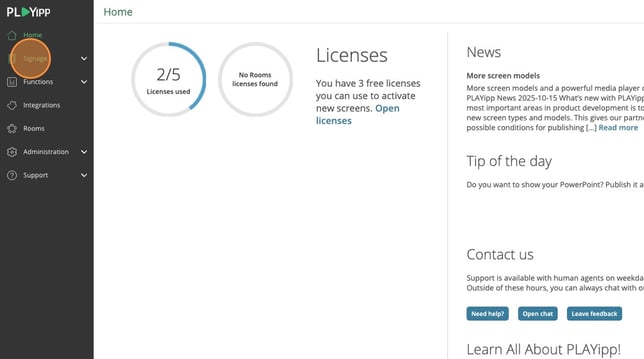
Note: The images in this guide show an older version of PLAYipp with the previous main menu. Read more about the new main menu in this article.
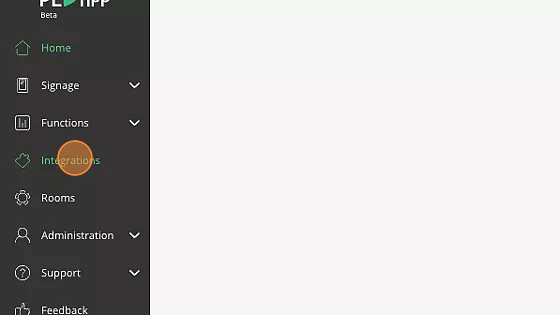
- Click "Integrations"
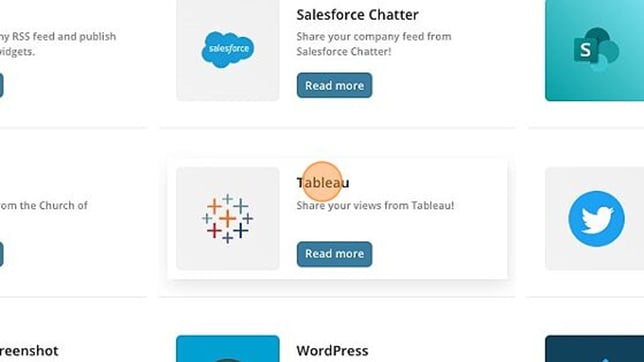
- Click "Tableau"
- Click "Add to PLAYipp"

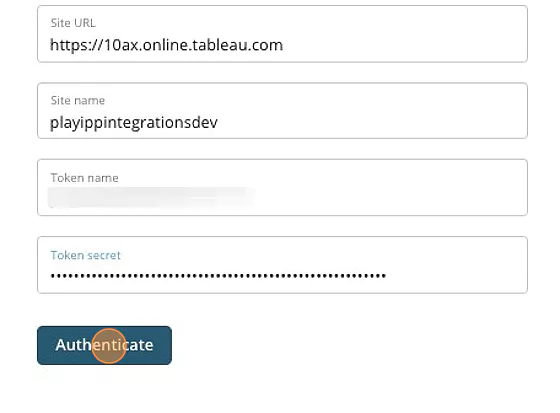
- You will now see 4 fields that you must fill in
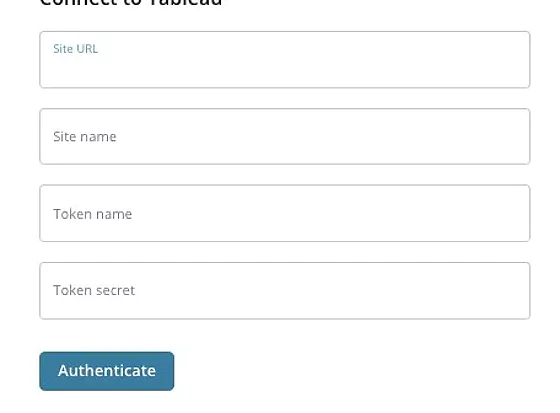
Site URL and site name.
This can be found in the URL in your Tableau portal
Note! These are just examples! You will have to look up your own Site URL and Site name.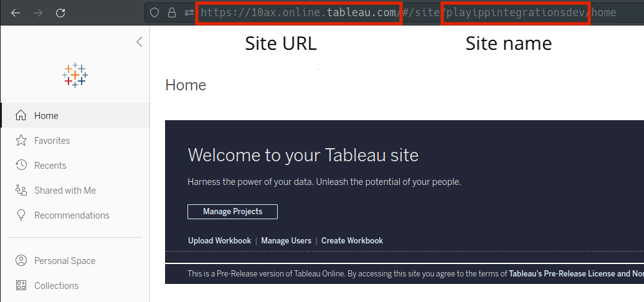
Token name and token secret.
You will need to create this from your settings in Tableau. You can read how you create this here: https://help.tableau.com/current/pro/desktop/en-us/useracct.htm#create-and-revoke-personal-access-tokens - Click "Authenticate"
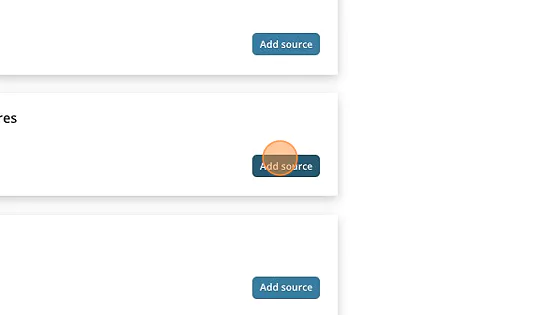
- Click "Add source"
- Click Publish in the main menu
- Click on the screen or group where you want to display the report
In this example, we select the screen called Entré.
If you want to publish to a group, you instead select Screen groups in the main menu.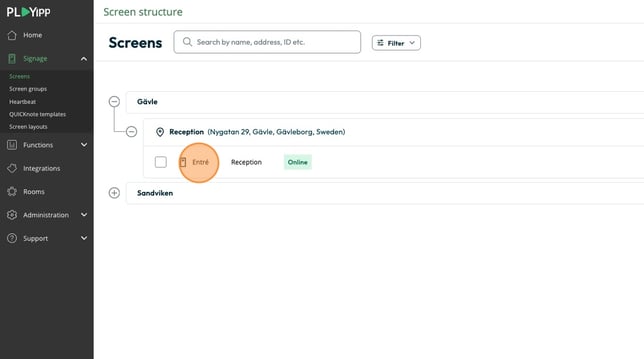
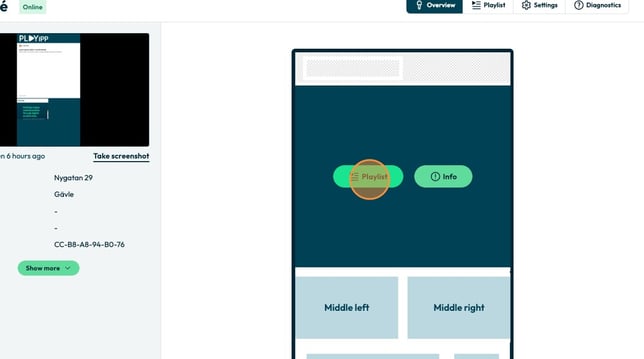
- Click on the playlist button in the area where you want to publish the content.
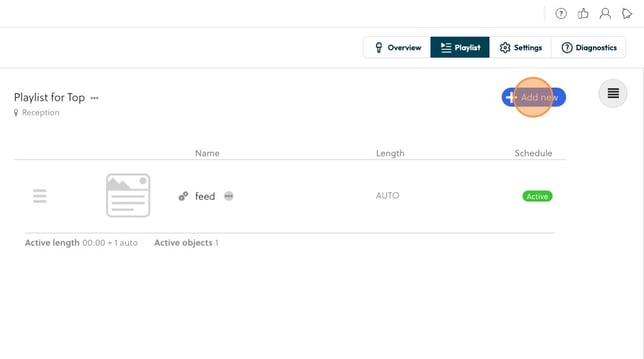
- Click "Add new"
- Click “Automated content”
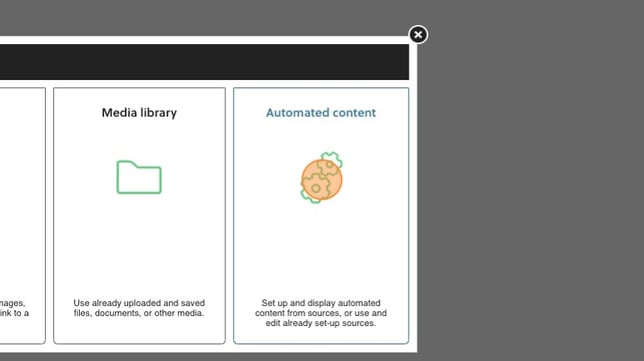
- Click Add business intelligence
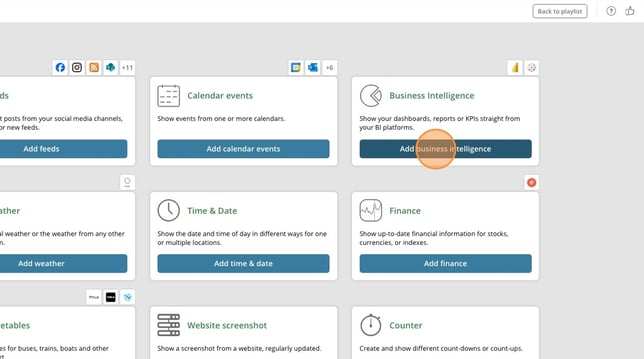
- Click Tableau

- Click on the source you want to display
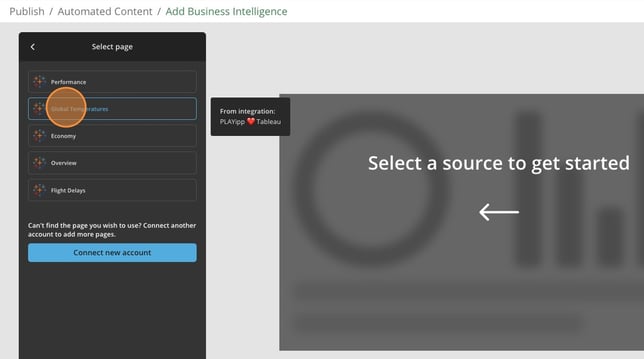
- Click on add to playlist
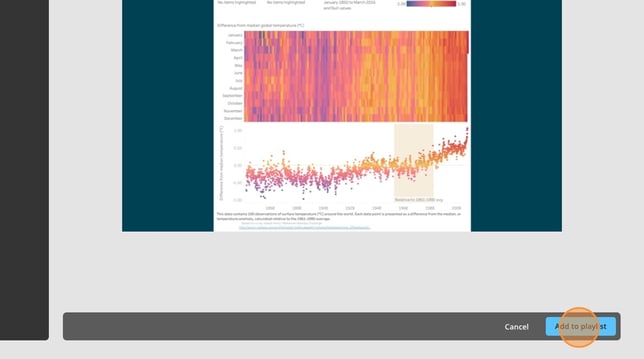
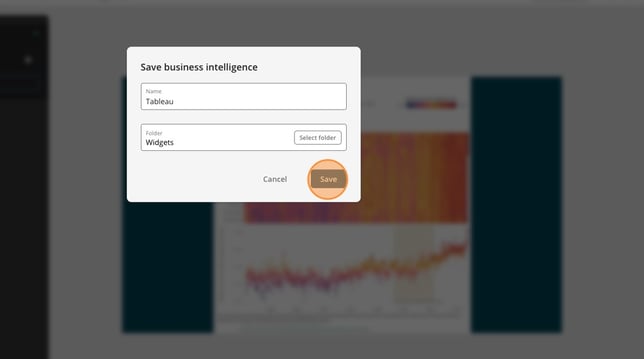
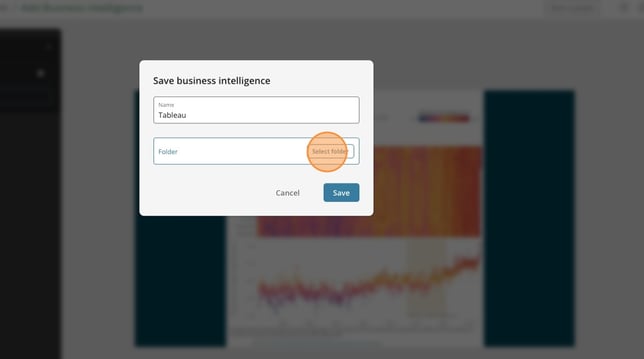
- Click here and give your widget a name
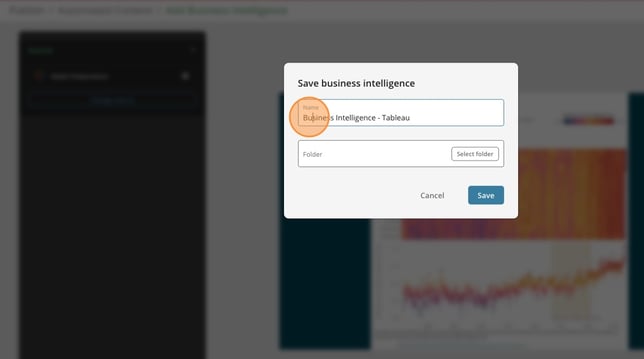
- Click select folder
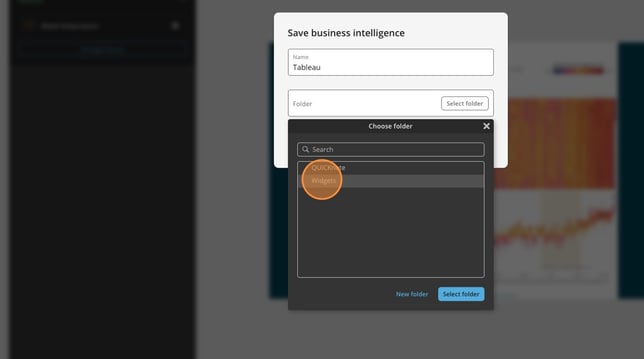
- Click on the folder you want to save the widget to
- Click select folder
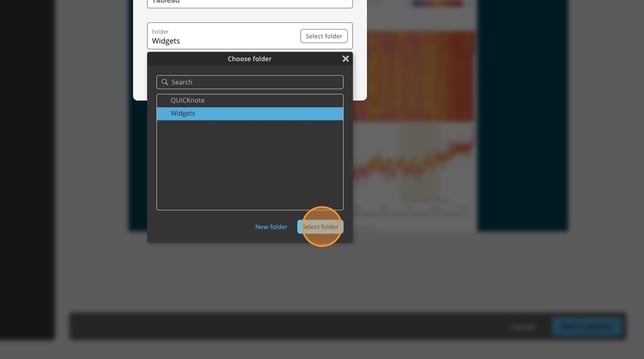
- Click save