
This feature has been released
This article describes functionality that is now available in PLAYipp.
Released: 27 Apr 2026
Questions? Don't hesitate to contact our support.
We are adding a new Troubleshooting tab to the screen view in PLAYipp. This tab brings together all the tools you need to diagnose and resolve screen issues in one place. No action is required from you, and all your existing settings and content will remain exactly as before.
Table of Contents
- What is the Troubleshooting tab?
- Screen details
- Screen commands
- Screenshots
- The screen is offline
- FAQ
- Contact us
What is the Troubleshooting tab?
The Troubleshooting tab is accessible directly from the screen view in PLAYipp, alongside the existing tabs for Overview, Playlist, and Settings. It contains a diagnostics panel with three sections: Screen details, Screen commands, and Screenshots. There is also a FAQ panel with answers to the most common screen issues. If a screen goes offline, an additional section appears with guidance on how to resolve the issue.
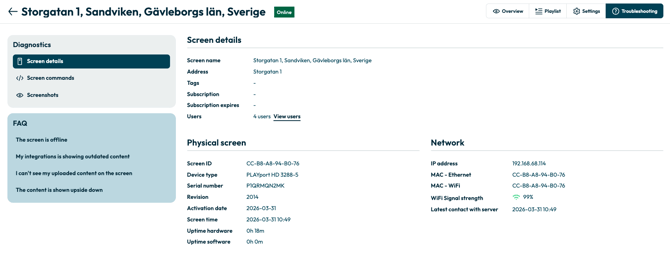
Screen details
The Screen details section gives you a full overview of the screen and the device it is connected to.
Screen details
| Field | Description |
|---|---|
| Screen name | The name of the screen as it appears in PLAYipp. |
| Address | The address associated with the screen. |
| Tags | Any tags assigned to the screen. |
| Subscription | The subscription connected to the screen. |
| Subscription expires | The expiry date of the subscription. |
| Users | The users who have access to the screen. |
Physical screen
| Field | Description |
|---|---|
| Screen ID | The unique identifier of the physical device. |
| Device type | The model of the device (e.g. PLAYport HD 3288-5). |
| Serial number | The serial number of the device. |
| Revision | The hardware revision of the device. |
| Activation date | The date the screen was activated in PLAYipp. |
| Screen time | The current time on the screen. |
| Uptime hardware | How long the device has been running since last power-on. |
| Uptime software | How long the PLAYipp software has been running since last restart. |
Network
| Field | Description |
|---|---|
| IP address | The local IP address of the device. |
| MAC – Ethernet | The MAC address for the wired network connection. |
| MAC – WiFi | The MAC address for the WiFi connection. |
| WiFi Signal strength | The current WiFi signal strength. |
| Latest contact with server | The last time the device communicated with PLAYipp servers. |
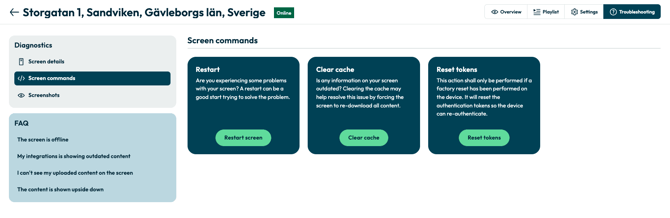
Screen commands
The Screen commands section lets you send commands directly to the screen from PLAYipp. There are three available commands:
Restart – Restarts the screen. A good first step if you are experiencing problems with a screen.
Clear cache – Forces the screen to re-download all content. Useful if the screen is displaying outdated information.
Reset tokens – Resets the authentication tokens on the device. This should only be used if a factory reset has been performed on the device, so the device can re-authenticate with PLAYipp.
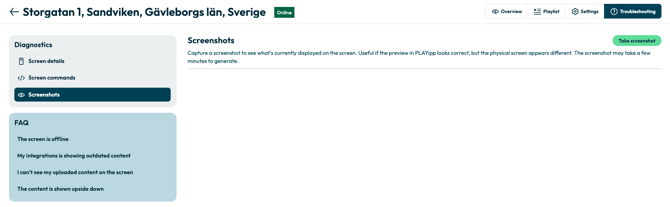
Screenshots
The Screenshots section lets you capture a screenshot of what is currently being displayed on the physical screen. This is useful if the preview in PLAYipp looks correct, but the physical screen appears to be showing something different. The screenshot may take a few minutes to generate.
Use the Take screenshot button to capture a new screenshot, and Clear all to remove saved screenshots.
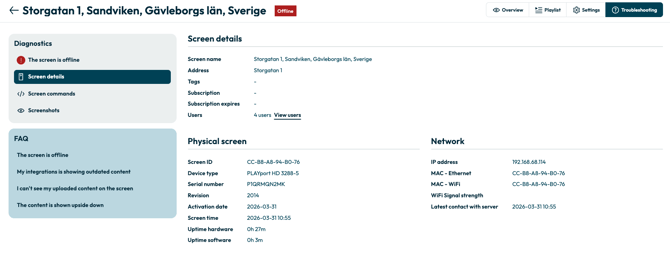
The screen is offline
If a screen has the status Offline, an additional section will appear at the top of the diagnostics panel. This section explains common causes of the issue and provides a step-by-step checklist to help you get the screen back online.
FAQ
The Troubleshooting tab also includes a FAQ panel with answers to the most common screen issues:
- The screen is offline
- My integrations is showing outdated content
- I can't see my uploaded content on the screen
- The content is shown upside down
Contact us
If you have any questions about the new Troubleshooting tab, the best way to reach us is by filling in the form here: Contact PLAYipp Support