
Are you longing for the next company party or want to know how long it has been since the last party? Whether building anticipation for a sale, celebrating safety milestones, or showcasing progress towards a goal, a live counter creates a sense of urgency, motivation, and shared purpose. It distills a key message into a single, powerful number, making the information not just seen, but felt by the audience.
In this guide we will show you how to add an up or down counter widget to your screen.
Table of contents
Instructions:
Follow these steps to see how you add a counter to your screen.
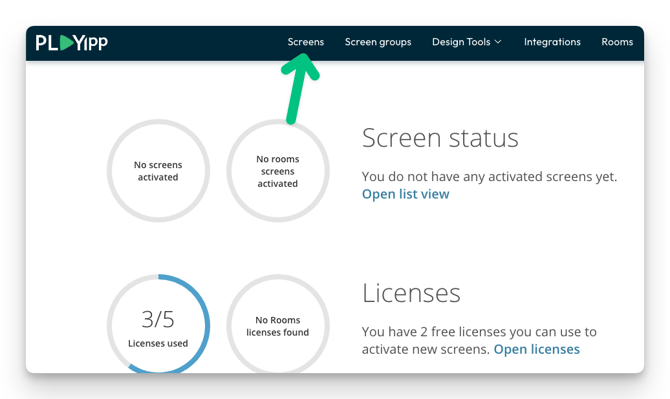
- Click Screens In the main menu
- Click on the screen or group where you want to publish to.
In this example, we select the screen called Reception. If you want to publish to a group, you instead select Screen groups in the main menu.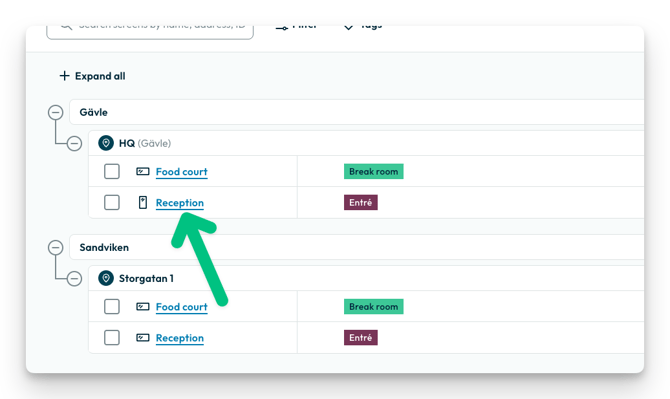
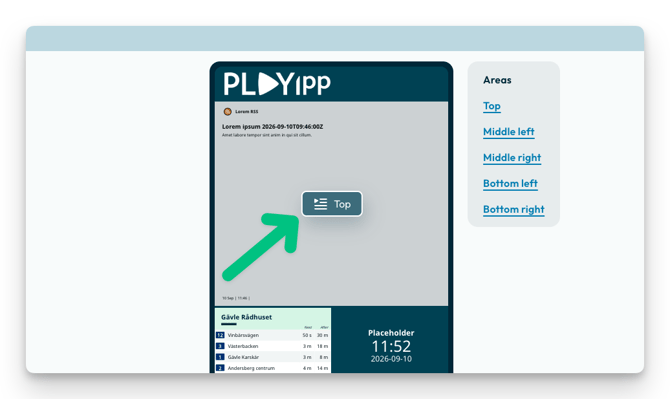
- Click the playlist button in the area you want to publish to
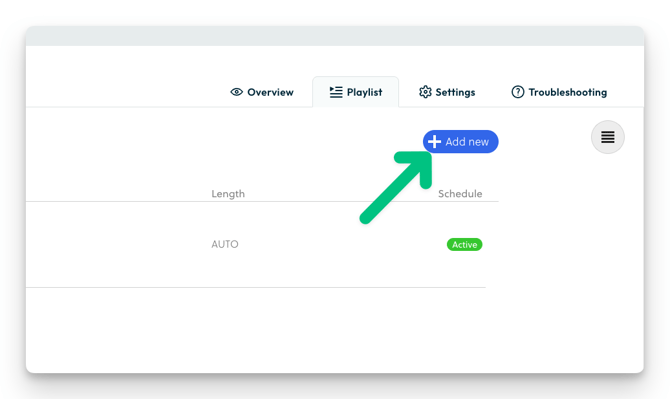
- Click "Add new"
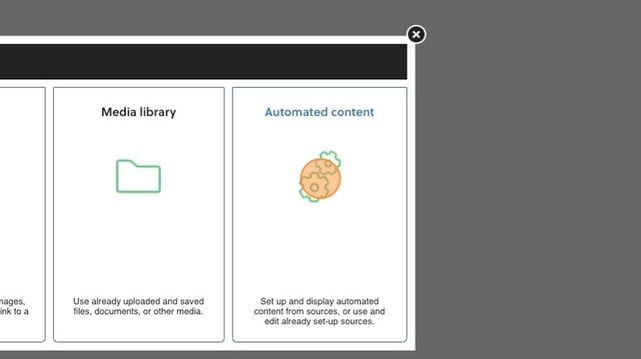
- Click “Automated content”
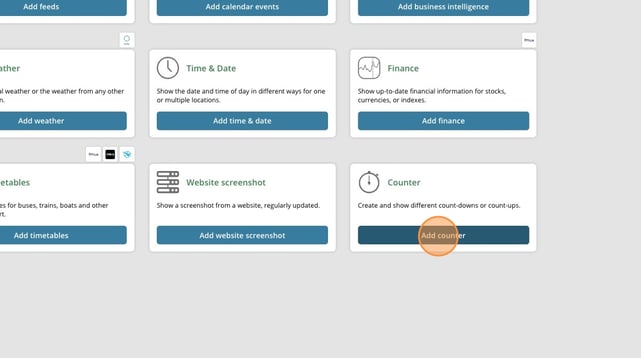
- Click "Add counter"
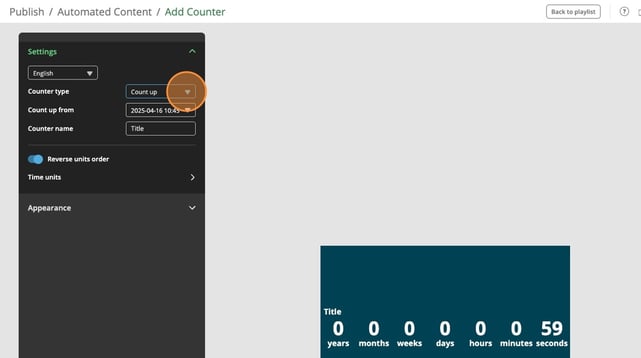
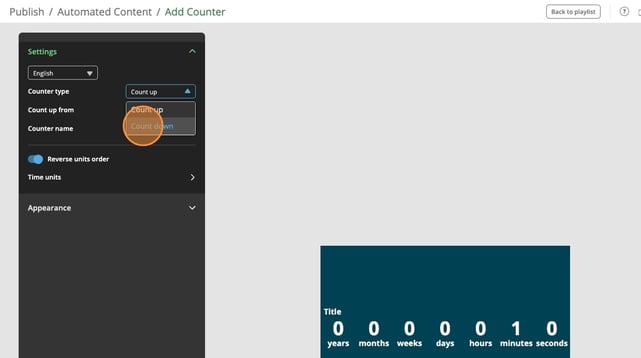
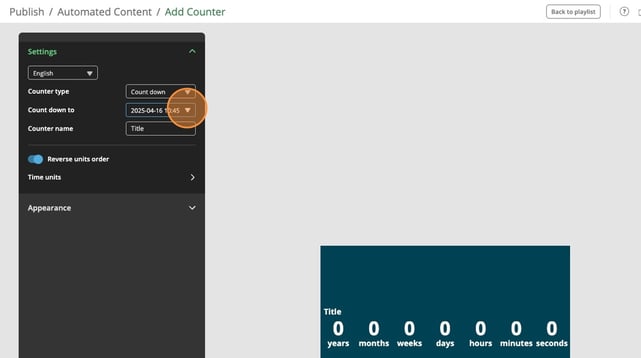
- Click here to change between up and down counter
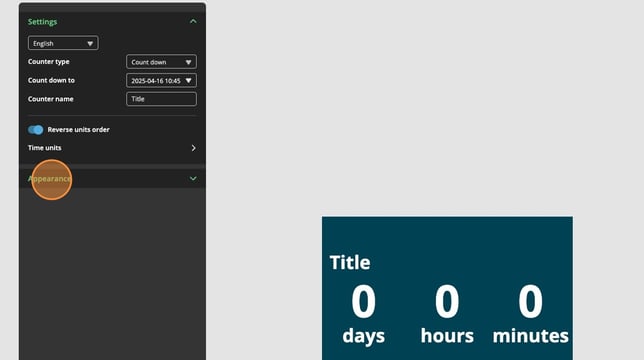
- Click here and set the time and date for the up or down counter
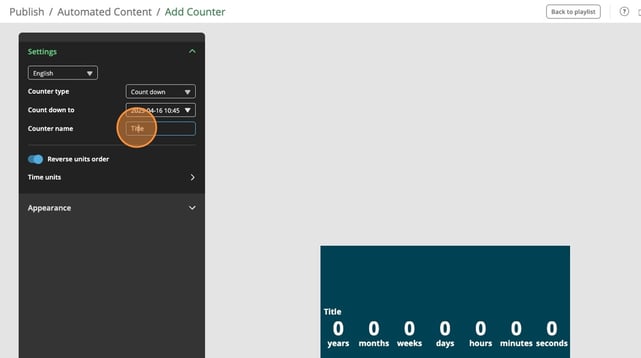
- Here you can edit the name above the counter
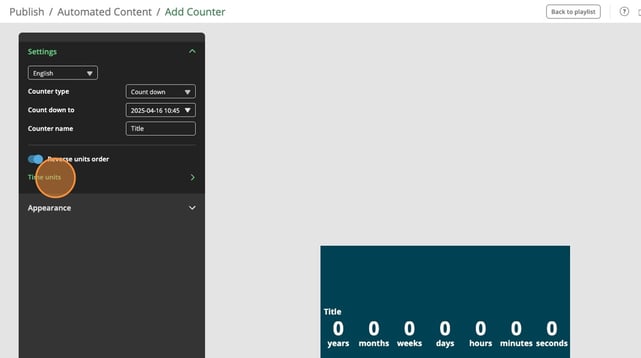
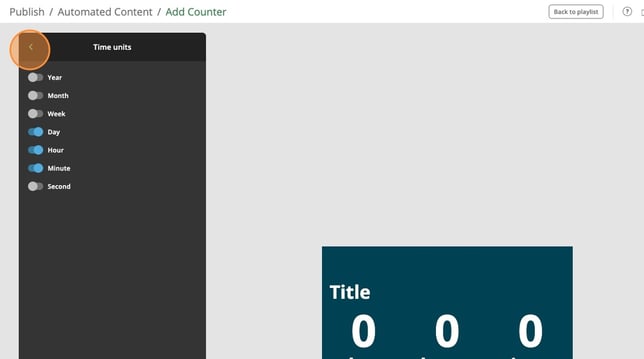
- Click "Time units"
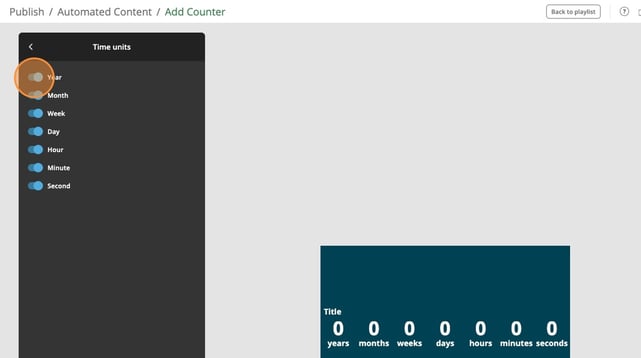
- Here you can turn off the time units you don't want to show
- Click here to go back
- Click here to change appearance for the counter
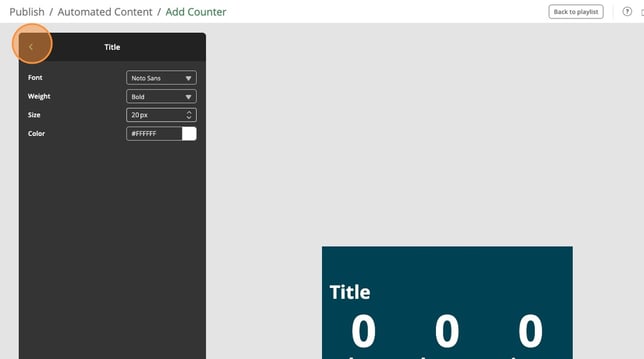
- Click here to access the settings for the title field
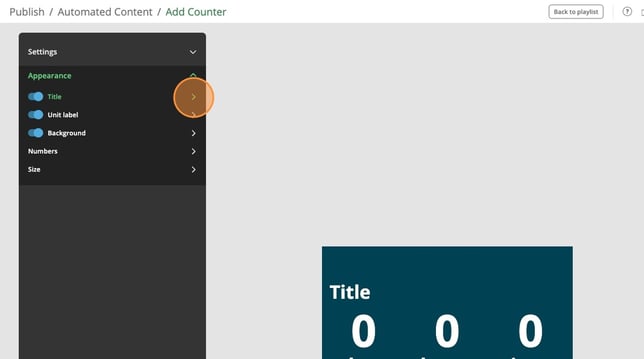
-
Here you have options for font, font weight, font size and font color
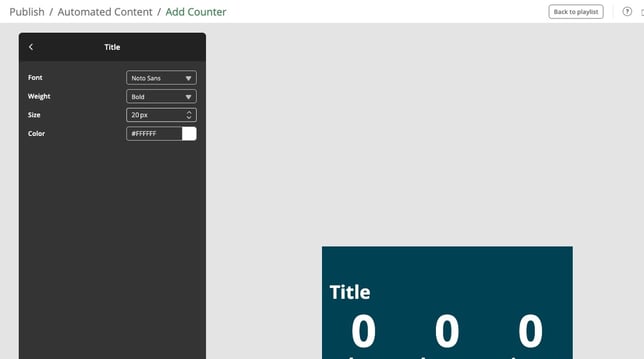
- Click here to go back
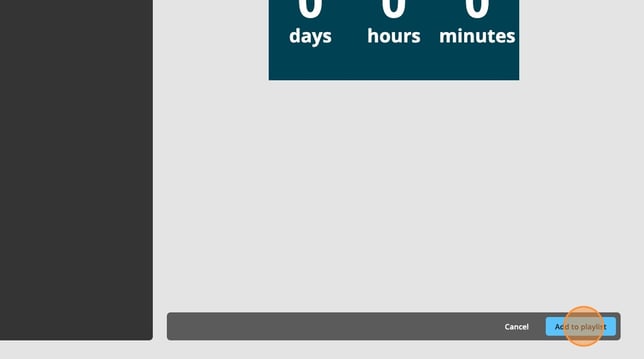
- When you are happy with your counter, click Add to playlist.
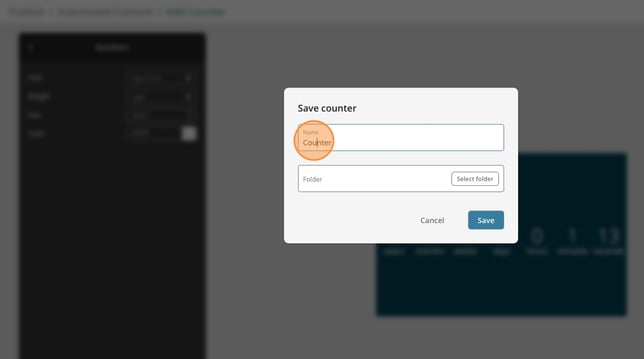
- Click here if you want to change the name of the counter
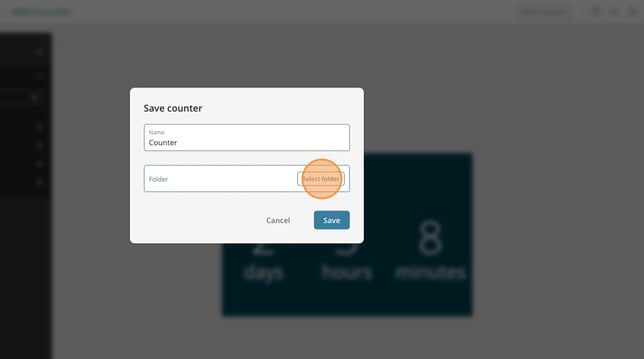
- Click "Select folder"
- Click on the folder you want to save the counter to
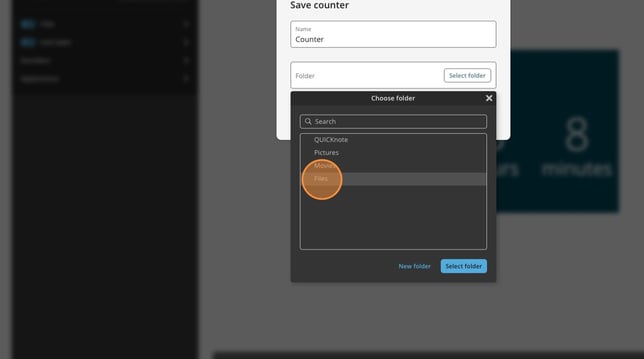
- Click "Select folder"
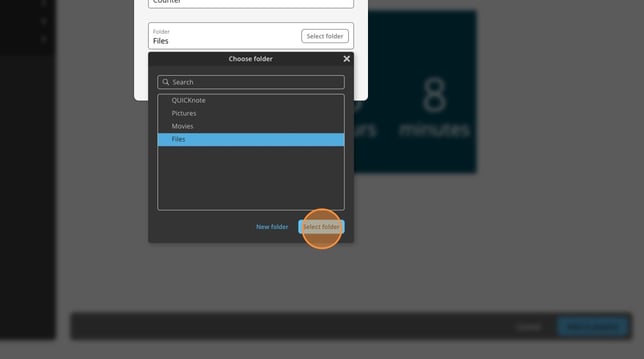
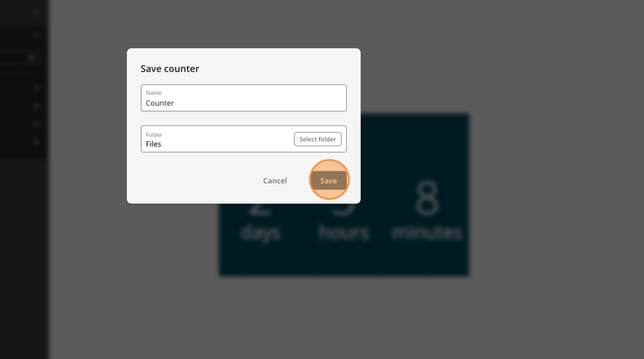
- Click "Save"
FAQ
- Does the Up and down counter widget work without network?
- Yes if the screen has cached the widget it will work without network.
- Does the Up and down counter widget get it's time settings from a server or from the screens internal clock?
- The widget receives it's time settings from the screen's internal clock.