
This feature has been released
This article describes functionality that is now available in PLAYipp.
Released: 8 apr 2026
Questions? Don't hesitate to contact our support.
We will soon be updating the screen settings interface in PLAYipp. This article explains what will change and what the new settings will look like. No action is required from you - the update will happen automatically and all your settings and content will remain exactly as before.
Table of Contents
What has changed?
The screen settings have been moved to a new, cleaner interface. All settings are now listed in a single overview, where each setting can be edited individually by clicking the Edit button next to it.
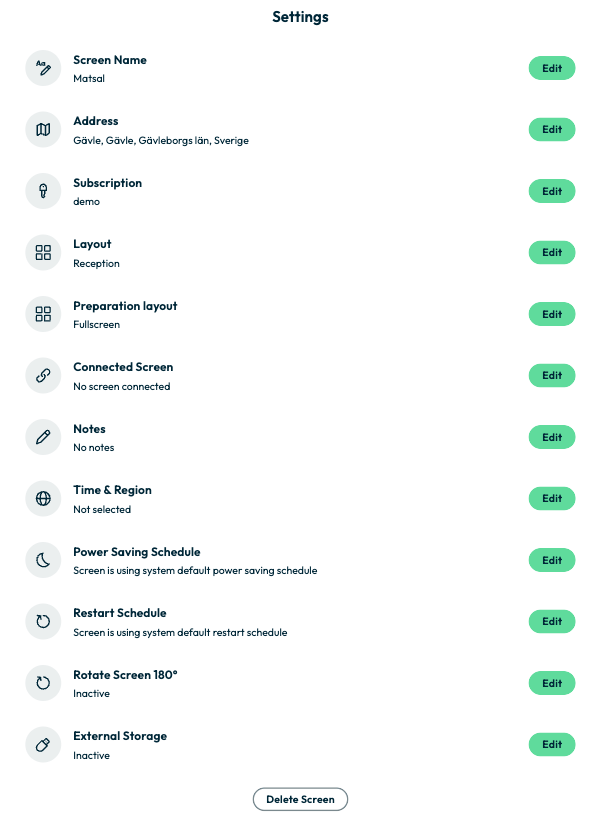
Overview of settings
| Setting | Description |
|---|---|
| Screen Name | The name of the screen, used to identify it in the system. |
| Address | The geographic address associated with the screen. |
| Subscription | Shows which subscription is connected to the screen. |
| Layout | The layout currently assigned to the screen. |
| Preparation Layout | A layout that can be prepared in advance and activated later. |
| Connected Screen | Shows whether the screen is connected to a physical display. |
| Notes | Internal notes about the screen. |
| Time & Region | Time zone and regional settings for the screen. |
| Power Saving Schedule | Controls when the screen enters power saving mode. Defaults to the system setting if not customized. |
| Restart Schedule | Controls when the screen restarts automatically. Defaults to the system setting if not customized. |
| Rotate Screen 180° | Flips the screen content – useful if the screen is mounted upside down. |
| External Storage | Enables the use of a USB memory to store content locally on the screen. |
Deleting a screen
At the bottom of the settings page, there is a Delete Screen button. Use this to permanently remove a screen from the system. By deleting a screen, all displayed content and settings will be erased. The screen will return to showing the activation code and can be reconnected if desired. To reconnect the screen, follow this guide: How to connect a physical screen to PLAYipp
Default values
Several settings, such as Power Saving Schedule and Restart Schedule, use the system default if no custom setting has been configured for the individual screen. You can view and change these defaults under Signage > Screens > Global Screen Settings.
Read more: Global Screen Settings
Questions?
If you have any questions about the new interface, the best way to reach us is by filling in the form here: Contact PLAYipp Support