
The screen is divided into different areas by the layout, and each area has its own playlist. The playlist is where you publish and manage all content shown in the area. This guide shows how to find the playlist and what you can do in it.
Contents
- Open the playlist
- How the playlist is structured
- Playback order
- Status and duration
- Edit an object
- Manage several objects at once
- Groups in the playlist
- The area menu
- Content from screen groups
Open the playlist
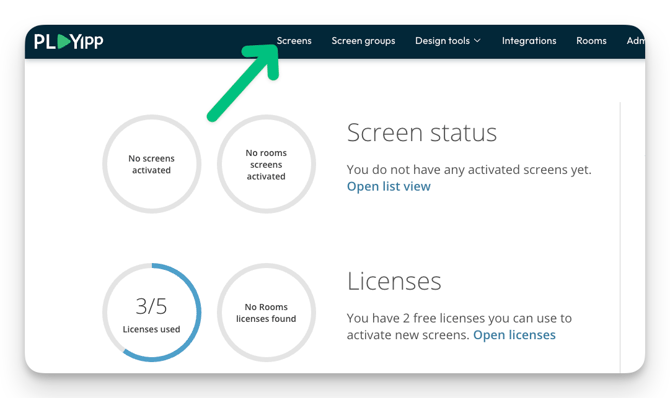
- Click Screens in the main menu.
- Click the screen you want to publish to. The tab you last visited for that screen opens (Overview, Playlist, Settings or Troubleshooting).
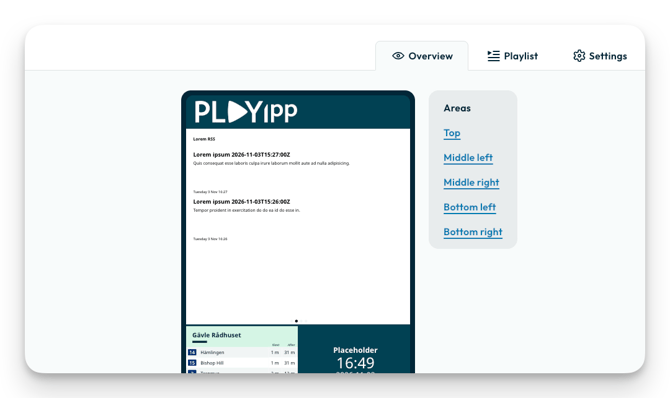
- If you are not already in the Overview or Playlist tab, click Overview. Here you see a preview of the screen.
- Click the area you want to edit in the preview. You go directly to the area's playlist.
The same preview is also shown when you are in a playlist, so you can click another area to switch to its playlist.
Tip: To publish to several screens at once, click Screen groups in the main menu instead and select the screen group you want to publish to. The playlist for screen groups still has its previous look and will be updated soon.
How the playlist is structured
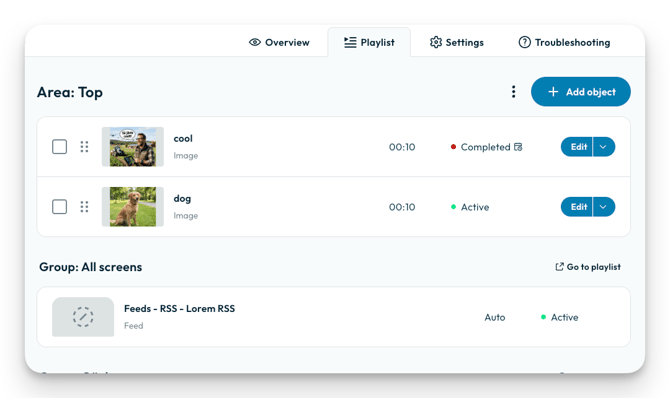
At the top you see the name of the area, for example "Area: Top". On the right are the Add object button and the area menu (three dots).
Each object in the playlist is shown on its own row with:
- a checkbox to select the object
- a handle to drag the object to a new position in the list
- a thumbnail, the object's name and type (for example Image or Feed)
- duration
- status
- the Edit button with an arrow for more options
Below the screen's own objects, content from the screen groups the screen belongs to is shown. Read more under Content from screen groups.
Add object
Click Add object to publish new content to the area. How to add different types of content is described in separate guides, see Manage content.
Playback order
The playlist plays from top to bottom. Each active object is shown for its duration, then the next object is shown. When the playlist reaches the end, it starts over from the first object.
To change the order, click the handle to the left of the object and drag it to the position you want.
Random playback order
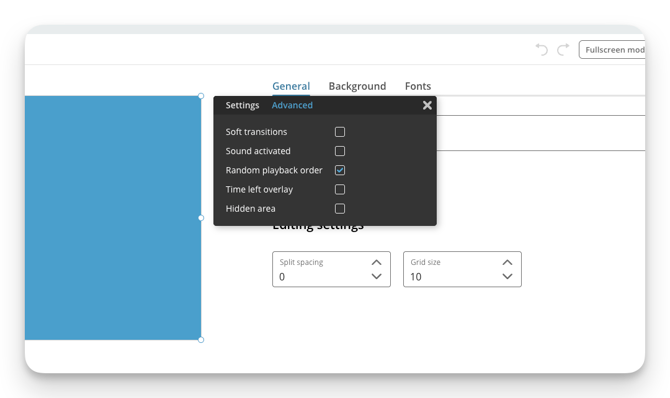
If you want the objects to play in random order, you can turn on Random playback order for the area. You do this in the area settings in the screen layout:
- Go to Design tools > Screen layout.
- Click Edit for the layout.
- Select the area and open Advanced.
- Turn on Random playback order.
Status and duration
Status
Each object has a status that shows whether it is playing or not:
- Green, Active: the object is active and shown on the screen.
- Orange, Upcoming: the object is scheduled and will be shown later.
- Red, Completed: the object's schedule has ended and the object is no longer shown.
- Grey, Paused: the object is paused and is not shown on the screen.
If an object has a schedule, a schedule icon is shown next to the status. Hover over the status to see when the object is scheduled. Read more in Scheduling.
Duration
The duration is shown in the format mm:ss and sets how long the object is shown before the playlist moves on. For widgets that support automatic play length, Auto is shown instead. The widget then controls how long it is shown.
Edit an object
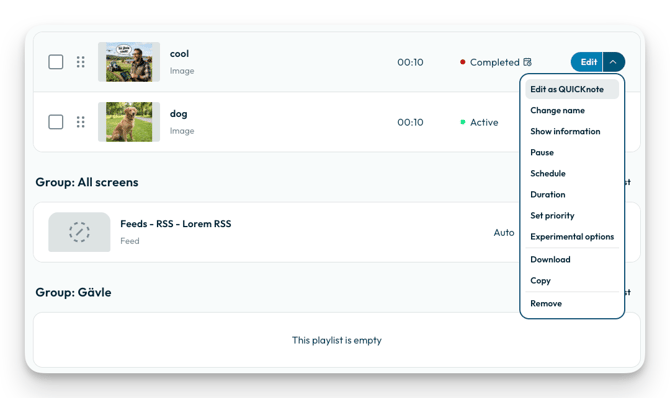
Click Edit to edit the object's content. Click the arrow next to it for more options. The options available depend on the type of object, but can for example be:
- Edit as QUICKnote: edit the object in QUICKnote.
- Change name: change the object's name.
- Show information: show information about the object.
- Pause: pause the object so that it is not shown on the screen.
- Schedule: set when the object should be shown. Read more in Scheduling.
- Duration: change how long the object is shown.
- Set priority: used if you want a specific object to be shown only during a certain time. Read more in Priority.
- Download: download the file.
- Copy: copy the object to another playlist. Read more in Copy object to other playlist.
- Remove: remove the object from the playlist.
Manage several objects at once
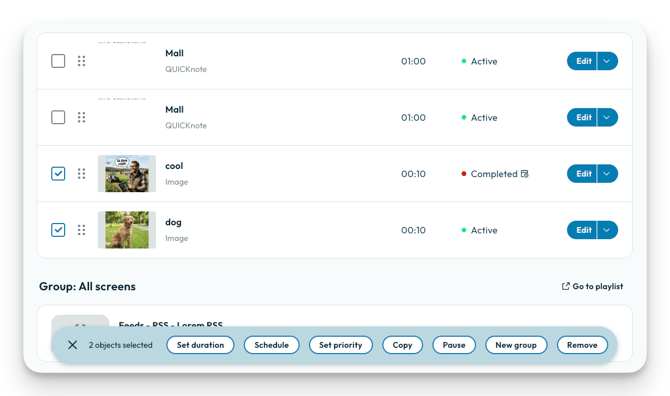
- Select the checkbox for the objects you want to manage.
- A menu appears at the bottom showing the number of selected objects and the following options:
- Set duration
- Schedule (read more in Scheduling)
- Set priority (read more in Priority)
- Copy (read more in Copy object to other playlist)
- Pause
- New group (see Groups in the playlist)
- Remove
- Choose what you want to do. The change applies to all selected objects.
Click the cross on the left of the menu to deselect the objects.
Groups in the playlist
You can collect several objects in a group in the playlist. This is not the same as a screen group: a group in the playlist collects objects, while a screen group collects screens.
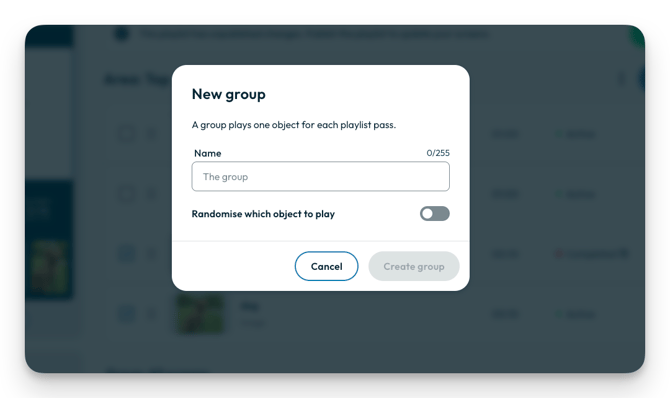
A group plays one object for each playlist pass. When the playlist reaches the group, one of the objects is shown, then the playlist moves on to the next object. By default, the objects in the group are shown in turn, one per pass. If you want the object to be chosen at random, you can turn this on when you create the group.
To create a group:
- Select the checkbox for the objects that should be part of the group.
- Click New group in the menu at the bottom.
- Enter a name for the group under Name.
- Turn on Randomise which object to play if you want the object to be chosen at random.
- Click Create group.
The area menu
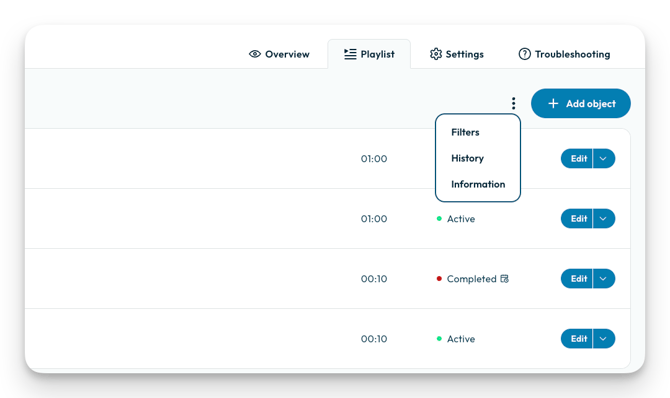
Click the three dots next to Add object to open the area menu:
- Filters: filter which objects are shown in the playlist.
- History: show the history for the area.
- Information: show information about the area.
Content from screen groups
Below the screen's own objects, the content from each screen group the screen belongs to is shown, for example "Group: All screens". The content plays in the order it appears in the playlist.
Objects from a screen group cannot be edited directly in the screen's playlist. Click Go to playlist to open the screen group's playlist and edit the object there.
If a screen group has no content, the text This playlist is empty is shown. The player then skips the group and moves on to the next object, or starts over from the beginning.